 PUSH & LIFTPUSH & LIFT
The Push & Lift bar, app menu and SETTINGS: install, get started, configure and fix problems.
Push & Lift is a set of telemetry apps for sim racing. It works with iRacing and Le Mans Ultimate.
The SUITE is the program that brings it all together. From it you open, start and stop each app, and configure it. It has three parts:
Each app has its own manual. This one covers only the SUITE: the bar, the menu and SETTINGS. On screen, the app shows its button names in the language you choose; this manual uses the Spanish names, which are the default.
From this website, in Download. The file is called PushAndLift_Suite_v followed by the version and .exe.
Push & Lift installs only for your Windows user. Someone else using the same PC with another user has to install it separately.
C:\Users\(your user)\AppData\Local\Programs\pushandlift-suitePush & Lift checks for a new version at start-up and then every hour. If there is one, an orange dot lights up on the bar and a notice says a new version is available and can be installed from SETTINGS.
To install it, go to SETTINGS (AJUSTES), Update section (see SETTINGS):
The update is not installed if its signature does not match the announced one. The circuit maps the engine has learned, the GARAJE settings and the start-with-Windows option are kept. You can also download the new installer from this website and install it on top.
Another way: open the installation folder and run Uninstall Push & Lift.exe. Uninstalling also removes the start-with-Windows entry.
Push & Lift runs only once. If you open it again while it is running, it shows you the screen you already had.
If you have not signed in yet, the screen is covered by the TU ACCESO A PUSH & LIFT box (Your access to Push & Lift). Until you sign in, you cannot use the rest.
Then one of three things happens:
In the last two you have the Usar otro correo link (Use another email), which cancels the request and asks for your email again.
Push & Lift is a one-time purchase. A licence covers up to two computers. Without an active licence the engine does not start and the apps show no data.
If you try to use the engine without a licence, Windows shows a warning that the engine has not started because there is no active licence on this PC. Its buttons Comprobar mi licencia (Check my licence) and Comprar licencia (Buy licence) both open SETTINGS; Cerrar closes it.
Buying, checking and the computers on your licence are handled in SETTINGS, Perfil de piloto tab (Driver profile; see SETTINGS).
The bar at the top and, on the left, the menu with every app. The rest is transparent: you see your desktop or the simulator. When you choose an app, its content fills that space.
Always visible. By default it fills the whole top edge. Its parts, from left to right:


| Part | What it does |
|---|---|
| Push & Lift logo | Opens the Push & Lift screen. If it is already open, closes it. If the bar is collapsed, expands it. |
| White arrow (Collapse bar) | Collapses the bar to a small square with the logo. Click the logo to expand it. If the screen was open, it hides when collapsing and comes back when expanding. |
| Orange icon (Collapse menu) | Folds the side menu so only the icons show. Click again to unfold. If the screen was closed, it opens it. |
| Icons of open apps | One per running app. Click one to see that app; if you are already seeing it, it hides. Right-click shows Cerrar (app name), which stops it. |
| Zone 1, Zone 2 and Zone 3 | Whatever you choose in SETTINGS, La barra section. A dash means there is no data, for example with the engine off. |
| Orange arrow (Live telemetry vs CSV) | Opens, under the bar, the live telemetry panel against the reference lap. Click again to close it. It can be resized from its edges. If the engine does not start, the panel says so. |
| K (Talk to PLIA) | Opens or closes a hands-free voice conversation with PLIA. Colour: grey, off; yellow, starting; green, listening; blinking blue, thinking; red, speaking. Right-click turns PLIA off. |
| GPT (Talk to ChatGPT) | Opens the ChatGPT chat. Inside it, click the headphones to talk. |
| Orange microphone (Push to talk) | You dictate and the text lands in PLIA. |
| Speaker | Reads PLIA’s last answer aloud. |
| Crossed-out microphone | Mutes the microphone. |
| Engine dot | Grey, off; green, on; yellow, starting or stopping; red, crashed or a file is missing; amber, no licence. If it is off or crashed, click it to start it. |
| PUSH & LIFT V.(version) | The installed version. |
| Orange dot | Only appears when there is a new version. It is installed from SETTINGS. |
| Red X (Close Push & Lift) | Closes the whole of Push & Lift: the bar, the screen and the apps. |
If a voice button fails, it turns red for a moment.


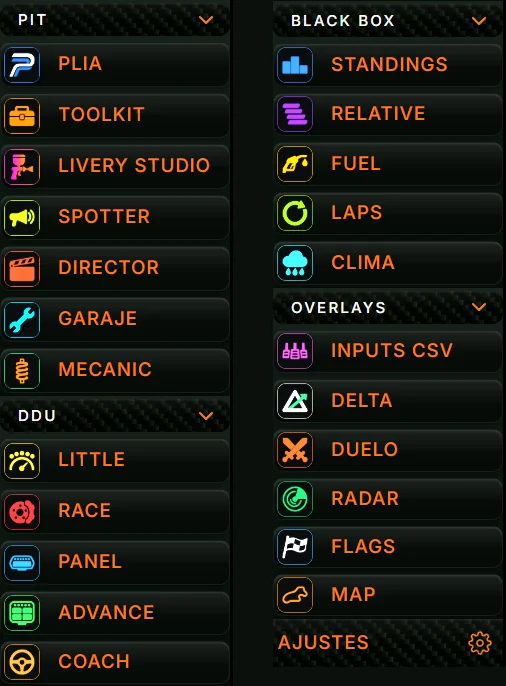
Four groups and, at the bottom, AJUSTES (SETTINGS). Click an app to see it; click the same one again to hide it. The arrow next to each group name (Collapse) folds or opens the group. Push & Lift remembers which groups you folded and whether the menu was collapsed.
A running app lights up in the menu, with its name in white and an orange stripe on the left. While starting it looks dimmer. If it fails to start, a red stripe shows for a moment and hovering over the button tells you why.

They open in their own window, with their button on the Windows taskbar. If one is closed when you choose it, it opens by itself.
| App | What it is for |
|---|---|
| PLIA | Sim racing AI assistant: driving, setup, strategy and the apps. Accepts photos and CSV. |
| TOOLKIT | Build your own tools without coding, for RACE, COACH and ADVANCE. |
| LIVERY STUDIO | Paint your livery in layers over your car’s official template and install it in iRacing. |
| SPOTTER | Calls flags, cars alongside, pit stops, weather and damage, with your phrases and voice. |
| DIRECTOR | Direct your race broadcast: drivers connect their camera and you choose who to show. |
| GARAJE | The simulator settings, explained in your language, one click away. |
| MECANIC | Generate and compare setups, check car sheets and analyse recorded laps. |
| App | What it is for |
|---|---|
| LITTLE | Sits over the iRacing DDU: braking countdown, brake %, gear for the next corner and the 4 tyre temperatures. |
| RACE | An on-board device: a screen split into one, two or three slots and an LED strip. |
| PANEL | Dashboard with your pedals and the reference ones, two LED strips and race warnings. |
| ADVANCE | The big dashboard: a screen divided into boxes, or a ready-made preset. |
| COACH | Compares your lap with a reference one and tells you, corner by corner, when and how hard to brake. |
| App | What it is for |
|---|---|
| STANDINGS | Live standings. Clicking a row sends the camera to that car. |
| RELATIVE | Who is just ahead and just behind, with the real gap in seconds. |
| FUEL | Consumption, laps left in the tank and fuel needed to finish. |
| LAPS | Lap log: current lap, predicted lap with its delta, your best and your last. |
| CLIMA | Temperatures, humidity, rain, track wetness, wind and when it will get wet or dry. |
| App | What it is for |
|---|---|
| INPUTS CSV | Throttle, brake, clutch, gear, speed and wheel, with the replica from the reference CSV. |
| DELTA | Delta per sector against your session best, with a warning if the sector was dirty. |
| DUELO | The car ahead, you and the car behind, with the live gap and its trend. |
| RADAR | Blind spot, cars closing in and slow or stopped cars ahead. |
| FLAGS | The flag that is out at each moment. |
| MAP | The track layout with every car. |
The tools you build with TOOLKIT also appear in OVERLAYS, with their name and icon. AJUSTES, the last button, opens the settings (see SETTINGS).
They are overlays: windows that float over the simulator. When you choose one you see its test bench: a preview with sample data and, on the right, its menu.
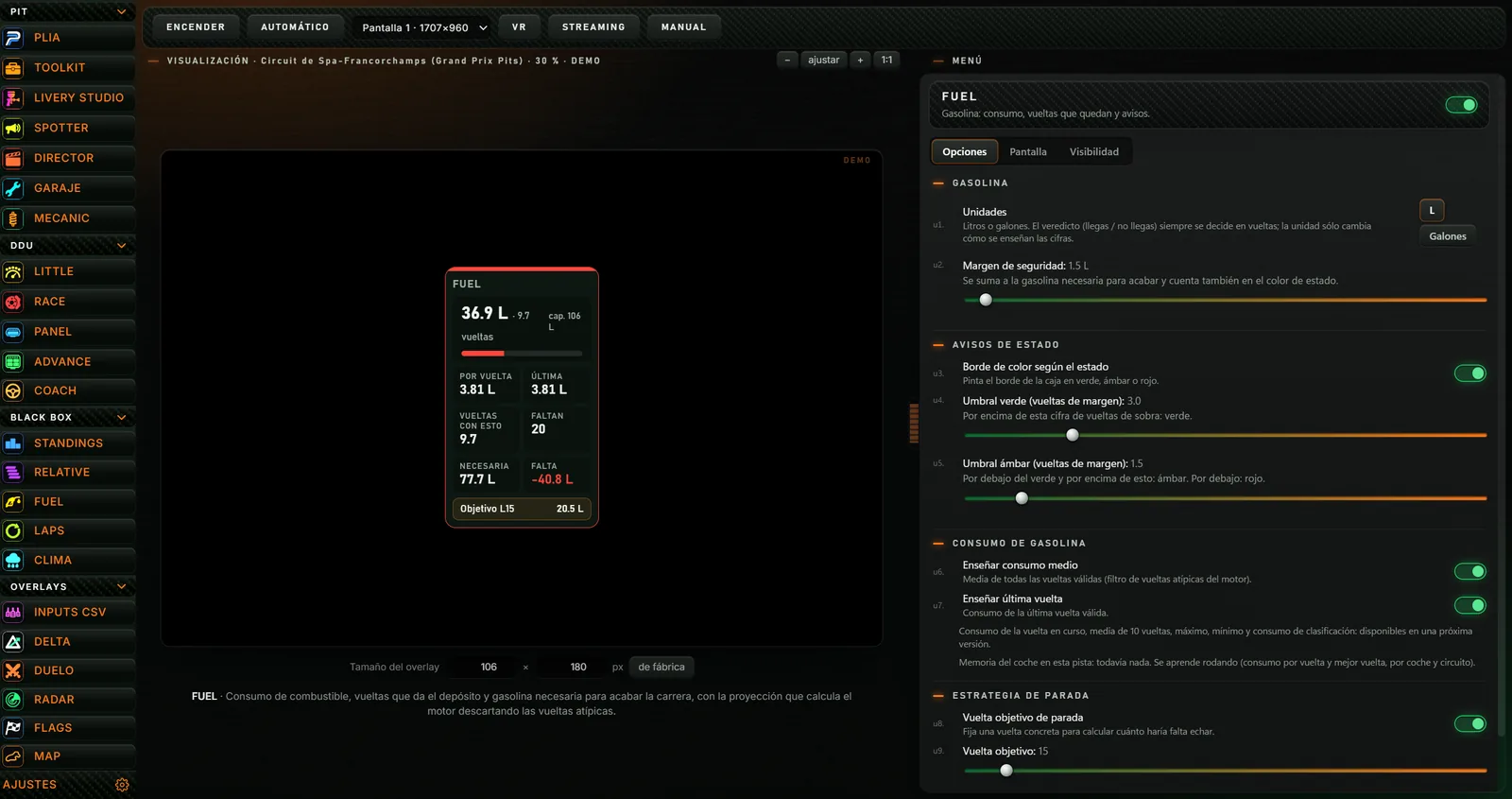
| Button | What it does |
|---|---|
| ENCENDER / APAGAR (Start / Stop) | Starts the overlay on your screen or stops it. |
| AUTOMÁTICO (Automatic) | The app starts by itself when the simulator (iRacing or Le Mans Ultimate) starts and stops when you close it. Click again to turn it off. |
| Screen drop-down | Which screen the overlay appears on. |
| VR | Explains how to see it in VR: in OpenKneeboard, capture the “PL OVERLAYS” window. |
| STREAMING | Copies the overlay address for OBS (browser source) and tells you the size it should have. |
| MANUAL | Opens that app’s manual. |
They open in their own Windows window. On the Push & Lift screen you see TRAER AL FRENTE (Bring to front: puts its window in front of everything) and CERRARLA (Close it; when you do, the Push & Lift screen hides). On the right, small text shows the state of its window. If it is closed, it says «Cerrada.» (Closed).

To pin it to the Windows taskbar: right-click its taskbar button and choose Pin to taskbar.
Click AJUSTES at the bottom of the menu. At the top it has Web (opens the Push & Lift website), Manuales (the manuals page) and Discord. Below, two tabs: Ajustes (Settings) and Perfil de piloto (Driver profile). Everything is saved automatically unless stated otherwise.
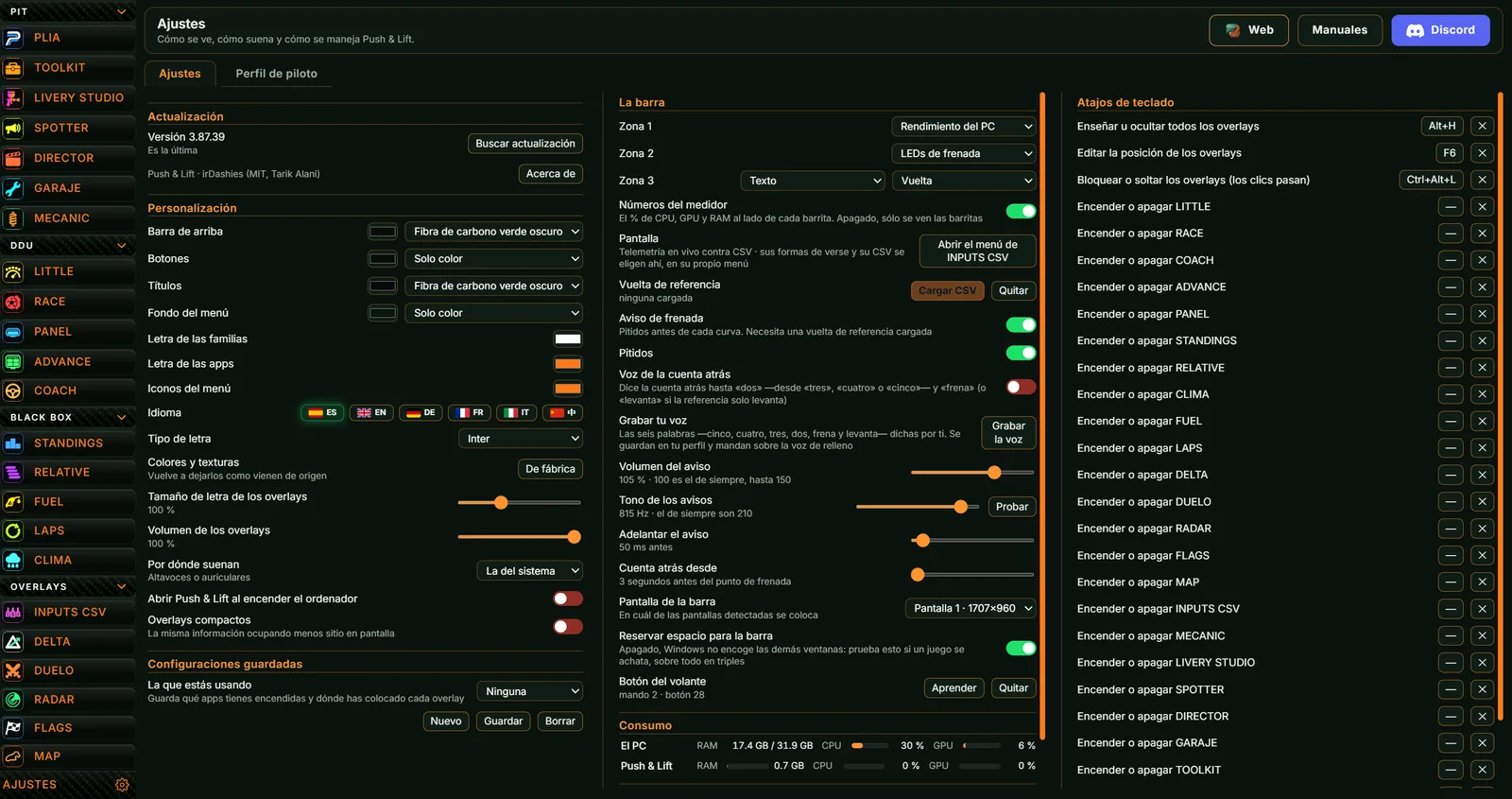
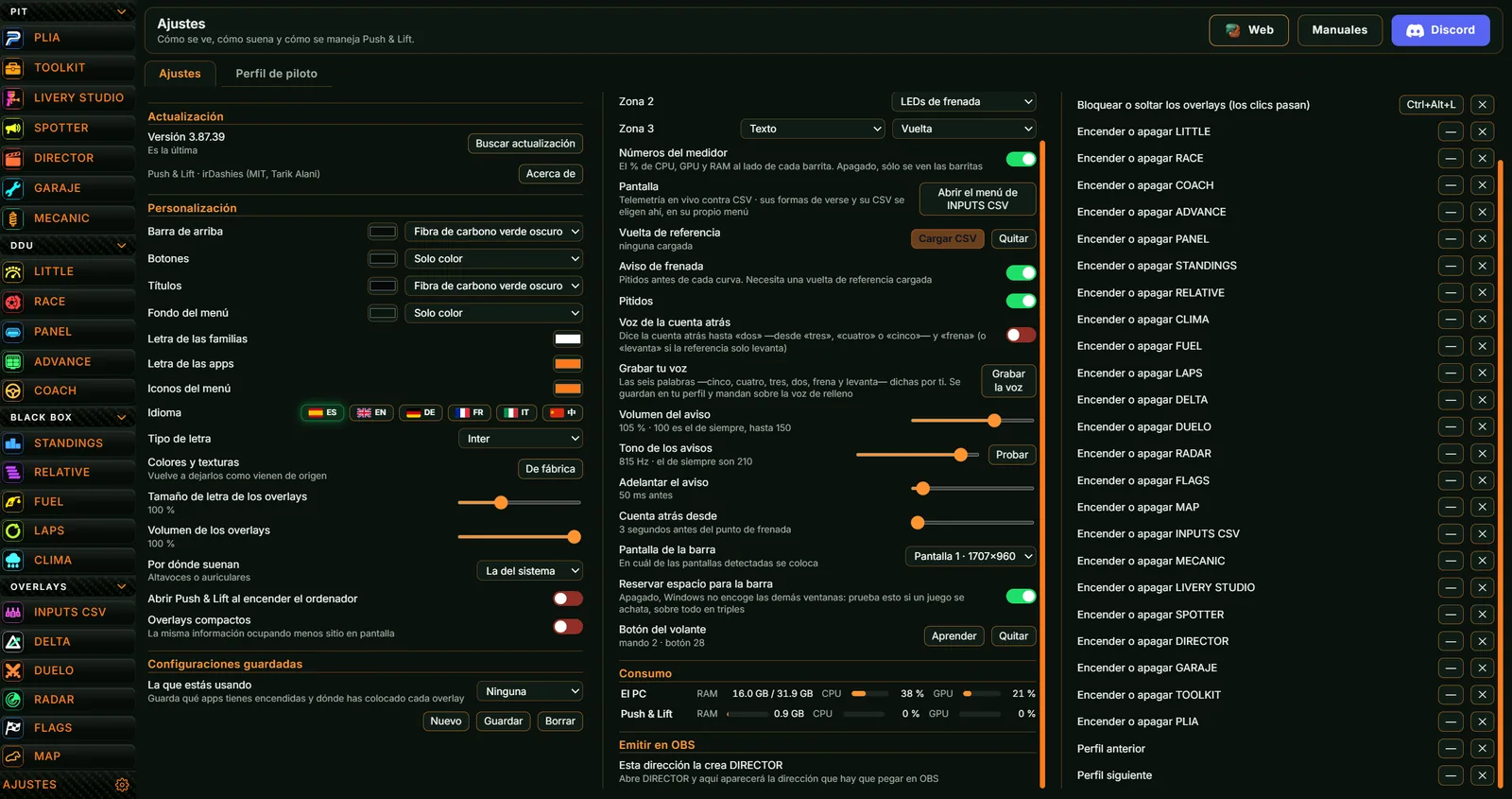
With a new version, a notice appears above with its notes and two buttons: ACTUALIZAR (shows DESCARGANDO… and the progress in MB) and AL SALIR (shows PREPARANDO… and says it will install when you close Push & Lift). If the download fails, the reason is shown.
| Option | What it does |
|---|---|
| Barra de arriba (Top bar) | Colour and texture of the bar. |
| Botones (Buttons) | Colour and texture of the menu buttons. |
| Títulos (Titles) | Colour and texture of the group titles. |
| Fondo del menú (Menu background) | Colour and texture of the menu background. |
| Letra de las familias | Colour of the group names. |
| Letra de las apps | Colour of the app names. |
| Iconos del menú | Colour of the group arrows. |
| Idioma (Language) | ES, EN, DE, FR, IT and 中. The whole SUITE changes instantly, including the bar and open apps. |
| Tipo de letra (Typeface) | Inter, Inter fina, Digital 7 segmentos, Michroma, Píxeles or Terminal. |
| Colores y texturas · De fábrica | Restores the original colours and textures. |
| Tamaño de letra de los overlays | Overlay font size, 50 % to 200 %. |
| Volumen de los overlays | Overlay volume, 0 % to 100 %. |
| Por dónde suenan | Speakers or headphones for the overlays. «La del sistema» uses the Windows default. |
| Abrir Push & Lift al encender el ordenador | Start with Windows switch. |
| Overlays compactos | The same information taking up less room. |
They store which apps are on, where each overlay is and its settings.
| Item | What it does |
|---|---|
| La que estás usando (The one you are using) | Choosing one applies it: stops the apps it does not include, starts the ones it does and places the overlays. «Ninguna» (None) stops using it without changing anything. |
| Nuevo (New) | Shows the Nombre box with Crear (Create) and Cancelar. Create saves what you have now under that name. Repeated names are not allowed. |
| Guardar (Save) | Saves what you have now into the chosen setup. |
| Borrar (Delete) | Asks for confirmation with Sí and No. |
Zona 1, Zona 2 and Zona 3 are the three slots in the middle of the bar:
| Option | What shows |
|---|---|
| Nada (Nothing) | Empty slot. |
| LEDs de revoluciones (Rev LEDs) | 16 green, yellow and red LEDs; they blink at the shift point. |
| LEDs de frenada (Brake LEDs) | 20 LEDs: with a reference lap, a countdown to the braking point; otherwise, how hard you press the brake. |
| Texto (Text) | One data item chosen in a second list: session, SOF, drivers, time left, lap, incidents, brake bias, local time, track clock, track condition, rain, air temperature, track temperature, wind, track, fuel, last lap, best lap, top speed or class position. |
| Rendimiento del PC (PC performance) | Computer CPU, GPU and RAM with small bars. |
| Consumo de Push & Lift | CPU, GPU and RAM used by Push & Lift. |
| PLIA | Zone 3 only; the slot stays empty. |
| Option | What it does |
|---|---|
| Números del medidor (Meter numbers) | Appears if a zone shows PC performance: % next to each bar. |
| Pantalla · Abrir el menú de INPUTS CSV | Opens the INPUTS CSV menu, where the views of the telemetry vs CSV panel and its CSV are chosen. |
| Vuelta de referencia · Cargar CSV / Quitar | Loads or removes your reference lap CSV. Below, the loaded one (car, track, lap, corners) or «ninguna cargada» (none loaded). |
| Aviso de frenada (Braking alert) | Warns before each corner. Needs a reference lap. |
| Pitidos / Voz de la cuenta atrás | The alert with beeps or with a voice (“…two” and “brake” or “lift”). Turning one on turns the other off. |
| Grabar tu voz · Grabar la voz | Record the six words in your voice: five, four, three, two, brake and lift. |
| Volumen del aviso | 0 to 150 %. 100 is normal. |
| Tono de los avisos · Probar | 120 to 900 Hz (normal 210). Probar (Test) plays it. |
| Adelantar el aviso | 0 to 1000 ms earlier. |
| Cuenta atrás desde | 3 to 5 seconds before the braking point. |
| Pantalla de la barra | Which screen the bar goes on. |
| Reservar espacio para la barra | Windows shrinks other windows to make room. Try it if a game looks squashed, especially on triple screens. |
| Botón del volante · Aprender / Quitar | Assigns a wheel button to talk to PLIA: click Aprender (Learn) and press the button within 15 seconds. Needs the engine on. |
Bars for El PC (computer RAM, CPU and GPU) and Push & Lift (what it uses). Updated every 3 seconds.
DIRECTOR creates the address. Without DIRECTOR open it says so. With DIRECTOR open, the address appears with Copiar (Copy): paste it into OBS as a browser source.
They work across Windows, also inside the simulator.
| Action | Default |
|---|---|
| Show or hide all overlays | Alt+H |
| Edit overlay position | F6 |
| Lock or release the overlays (clicks go through) | Ctrl+Alt+L |
| Turn each app on or off (one per app) | — |
| Previous profile / Next profile (saved setups) | — |
Click the key button, wait for «Pulsa una tecla…» (Press a key…) and press the combination (with Ctrl, Alt or Shift if you like). Escape cancels. ✕ removes the shortcut. «No responde» (Not responding) means another action uses that key or another program has it.
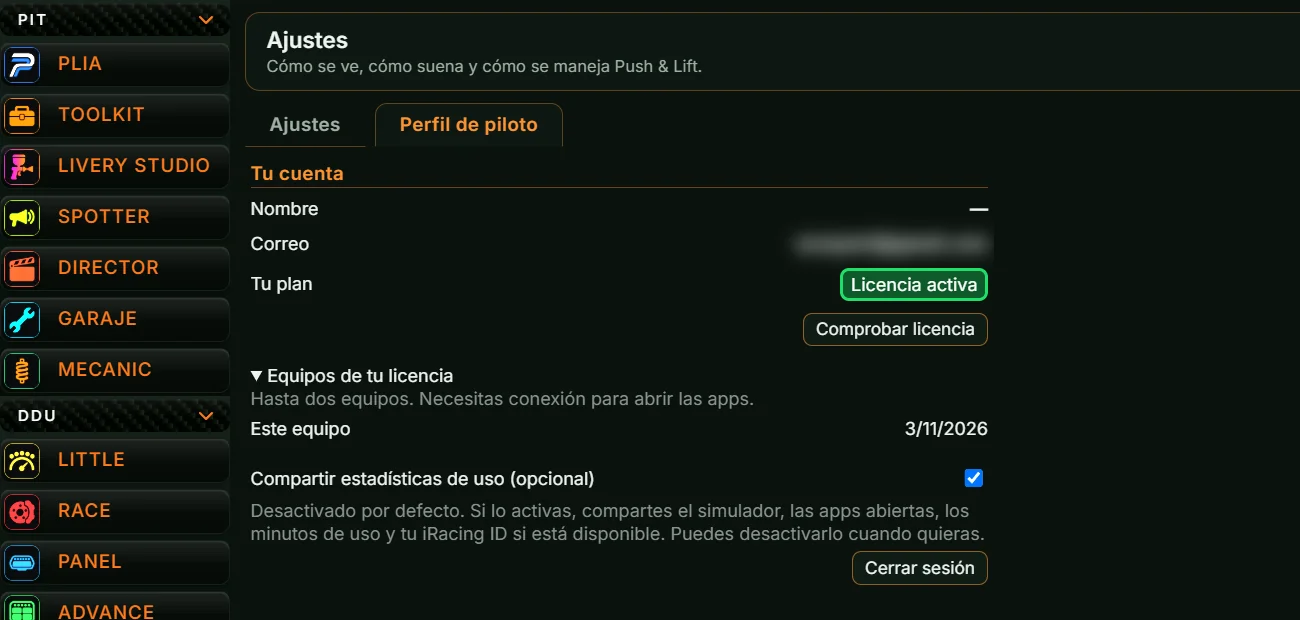
| Item | What it is or does |
|---|---|
| Nombre, Correo, iRacing ID | Your details. iRacing ID only appears if your account has one. |
| Tu plan (Your plan) | Active licence, no purchased licence, test licence or existing-user transition (with the date your access lasts until). |
| Comprobar licencia (Check licence) | Checks your licence status. If your email needs confirming, it becomes Confirmar correo. |
| Comprar licencia · (price) € | Without a licence: opens the purchase in Lemon Squeezy. When done, click Check licence. |
| Condiciones de compra (Purchase terms) | One-time payment, no subscription or trial; up to two computers; connection needed; refund within 14 days. |
| Ya he comprado (I already purchased) | Paste the Clave de licencia (licence key) from your Lemon receipt and click Recuperar compra (Recover purchase). |
| Referidos (Referrals) | May appear with your code, Copiar código, invited drivers and purchases, and Código de quien te invitó with Guardar código (before buying). |
| Equipos de tu licencia (Computers on your licence) | Up to two computers with their last-use date. Next to another computer, Desconectar equipo frees its slot. |
| Compartir estadísticas de uso (opcional) | Off by default. If you tick it, you share the simulator, open apps, minutes of use and your iRacing ID. |
| Cerrar sesión (Sign out) | Signs you out on this computer and asks for your email again. |
Ctrl+Alt+L lets clicks go through the overlays; Alt+H hides them all.
| Problem | What to do |
|---|---|
| Overlays show nothing and a warning says the engine has not started | There is no active licence on this PC. AJUSTES › Perfil de piloto › Comprobar licencia. If you already bought it, sign in with the purchase email or use Ya he comprado. If nothing changes, check your connection. |
| The engine dot is red or grey | It has crashed or is off: click it to start it. Amber means a licence problem. |
| The bar zones show a dash | No data: the engine must be on and the simulator running. |
| No connection to the Push & Lift server | Check your internet and try again shortly. |
| The code is wrong or has expired | Check the 6 digits; codes expire after 30 minutes. Otherwise, request access again. |
| Too many attempts with that email | Wait a while. |
| Wait 15 minutes before trying again | Too many attempts recovering the purchase: wait 15 minutes. |
| The purchase needs review or is pending | Do not pay again. Contact support. |
| A shortcut says «No responde» | Another action or program uses that key: choose another. |
| A game looks squashed | Turn on Reservar espacio para la barra. |
| I cannot see the bar | It may be collapsed: look for the small square with the logo and click it. With several screens, check Pantalla de la barra. |
| Wheel button: the engine is not answering | Start the engine or open the simulator and repeat. If no press arrives, check the wheel is on. |
| The braking alert does not sound | You need a reference lap loaded, Aviso de frenada on, and volume. |
| Clicking CERRARLA makes the screen disappear | That is normal. Click the bar logo to open it. |
| The update does not download | The reason is shown. Check the connection and click Buscar actualización, or install the website installer on top. |