 PUSH & LIFTPUSH & LIFT

Push & Lift · your broadcast director: camera targets, OBS output and driver cameras
DIRECTOR handles the production of your race broadcast. It selects the car shown by the simulator camera, builds your OBS broadcast without manually managing sources and, for competition organisers, collects each driver's camera and microphone.
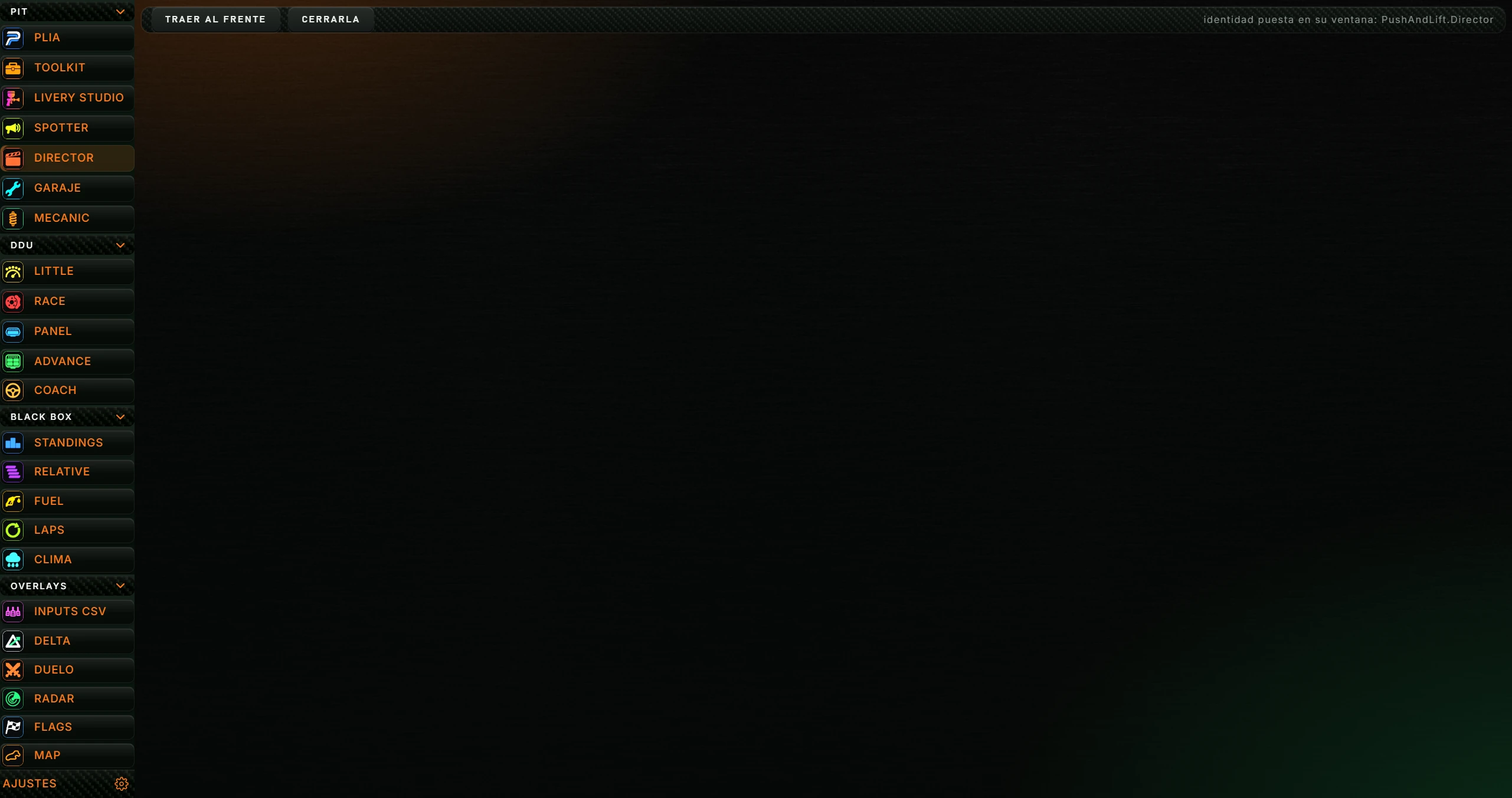
On the Push & Lift screen, with DIRECTOR selected, you have:
These buttons are shared by all PIT apps and explained in the SUITE manual.
In the Suite's AJUSTES (Settings), the Emitir en OBS (Broadcast in OBS) section shows a DIRECTOR address with Copiar (Copy) while DIRECTOR is open. That address opens the Templates for OBS.
On opening, DIRECTOR shows the En directo (Live) screen and starts in MANUAL: it does not cut until you ask it to.
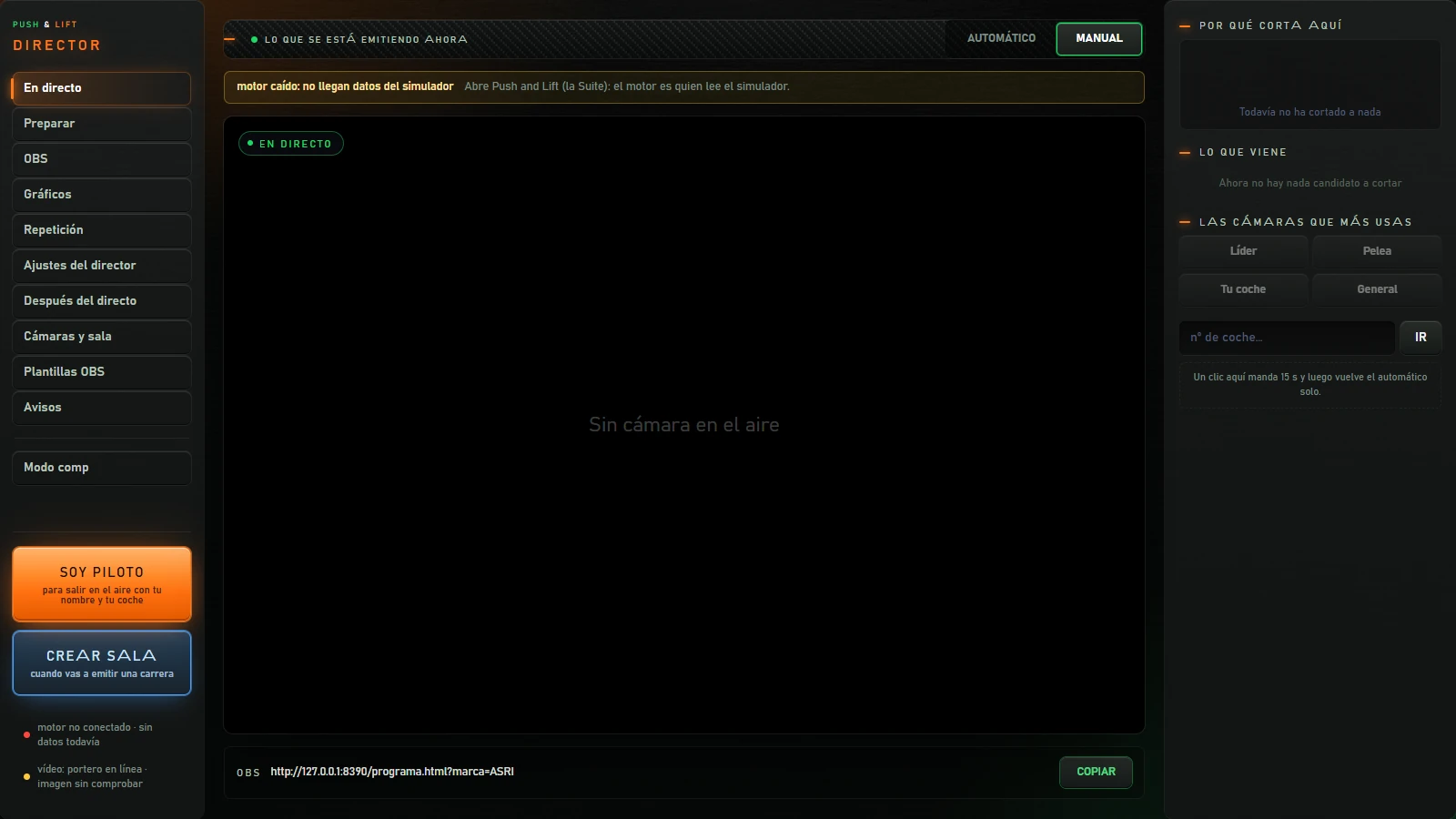
The window has three areas:
Other menu screens (Preparar, OBS, Gráficos…) use the centre and right areas together.
| Button or area | What it does |
|---|---|
| En directo | Main screen: broadcast output and cuts (4.2). |
| Preparar | Checks everything needed to broadcast (4.3). |
| OBS | OBS scenes, sources, instant replay and screenshots (4.4). |
| Gráficos (Graphics) | Driver card, standings and broadcast captions (4.5). |
| Repetición (Replay) | iRacing replay controls (4.6). |
| Ajustes del director (Director settings) | The values used for automatic decisions (4.7 and 5). |
| Después del directo (After the broadcast) | The list of all cuts (4.8). |
| Cámaras y sala (Cameras and room) | Opens the driver-camera panel in another window (4.9). |
| Plantillas OBS | Opens ready-made OBS screens in another window (4.10). |
| Avisos (Notices) | Opens the race-notice bar in another window (4.11). |
| Modo comp (Competition mode) | Competition broadcast: video platform, room and links by car number (4.12). |
| Soy piloto | To appear on air with your name and car. Opens your camera-sharing page in another window (4.13). |
| Crear sala | For broadcasting a race. Opens the small camera-room creation window (4.14). |
| Status light: motor (engine) | Green, «datos al día · último dato hace … s»: data is current. Yellow, «motor conectado, sin datos nuevos»: engine connected but no new data (usually iRacing is outside a session). Red: «motor no conectado», «el motor no responde» or «DIRECTOR no contesta»: disconnected engine or no response from the engine or DIRECTOR. |
| Status light: vídeo (video) | «vídeo: …» reports the driver-camera service status. Yellow when the gateway responds; red if the service is missing or unresponsive. Hover to read the details. |
| Button or area | What it does |
|---|---|
| AUTOMÁTICO | DIRECTOR cuts automatically according to race events and the Director settings. Switching to automatic hides the iRacing interface for a clean picture (factory setting). |
| MANUAL | DIRECTOR does not cut automatically. The camera changes only when you select a car. |
| Red «AVISO · …» notice bar | Appears when DIRECTOR has something important to tell you. |
| Yellow boxes (alarms) | Problems affecting automatic control, each with instructions (see 7). |
| Screen EN DIRECTO (LIVE) | Broadcast output: the on-air driver's camera and caption, plus events. Without a camera it says «Sin cámara en el aire» (no camera on air). |
| OBS · address · COPIAR | The address of that same screen, ready to paste into OBS as a browser source. COPIAR copies it and shows «¡COPIADO!» (copied). |
| Por qué corta aquí (Why it cuts here) | The last 12 cuts, newest first, with time and reason. Your manual cuts are marked yellow. With no cuts, it says «Todavía no ha cortado a nada» (no cuts yet). |
| Lo que viene (Coming up) | Up to 6 candidate events, with DIRECTOR's confidence (SEGURO: certain, CASI SEGURO: almost certain, or SOSPECHA: suspected) and a Cortar (Cut) button to show that car immediately. With no candidates: «Ahora no hay nada candidato a cortar» (no candidates now). |
| Las cámaras que más usas (Your most-used cameras): Líder (Leader), Pelea (Battle), Tu coche (Your car) | Cut to the leader, the closest battle (the car with the smallest time gap), or your car. With data they show the number, for example «Líder · #12». Without data they are disabled. Before the first data arrives, a disabled General also appears; it disappears when standings arrive. |
| nº de coche… (car number…) · IR | Enter a car number and click IR (or Enter) to point the camera at that car. |
Each time you choose a car (IR, Cortar or a quick camera), that cut takes priority. In AUTOMÁTICO it remains for 15 seconds («Un clic aquí manda 15 s y luego vuelve el automático solo.»). Change this duration in El clic manda (s) (Click priority (s)). In MANUAL the camera stays on that car.
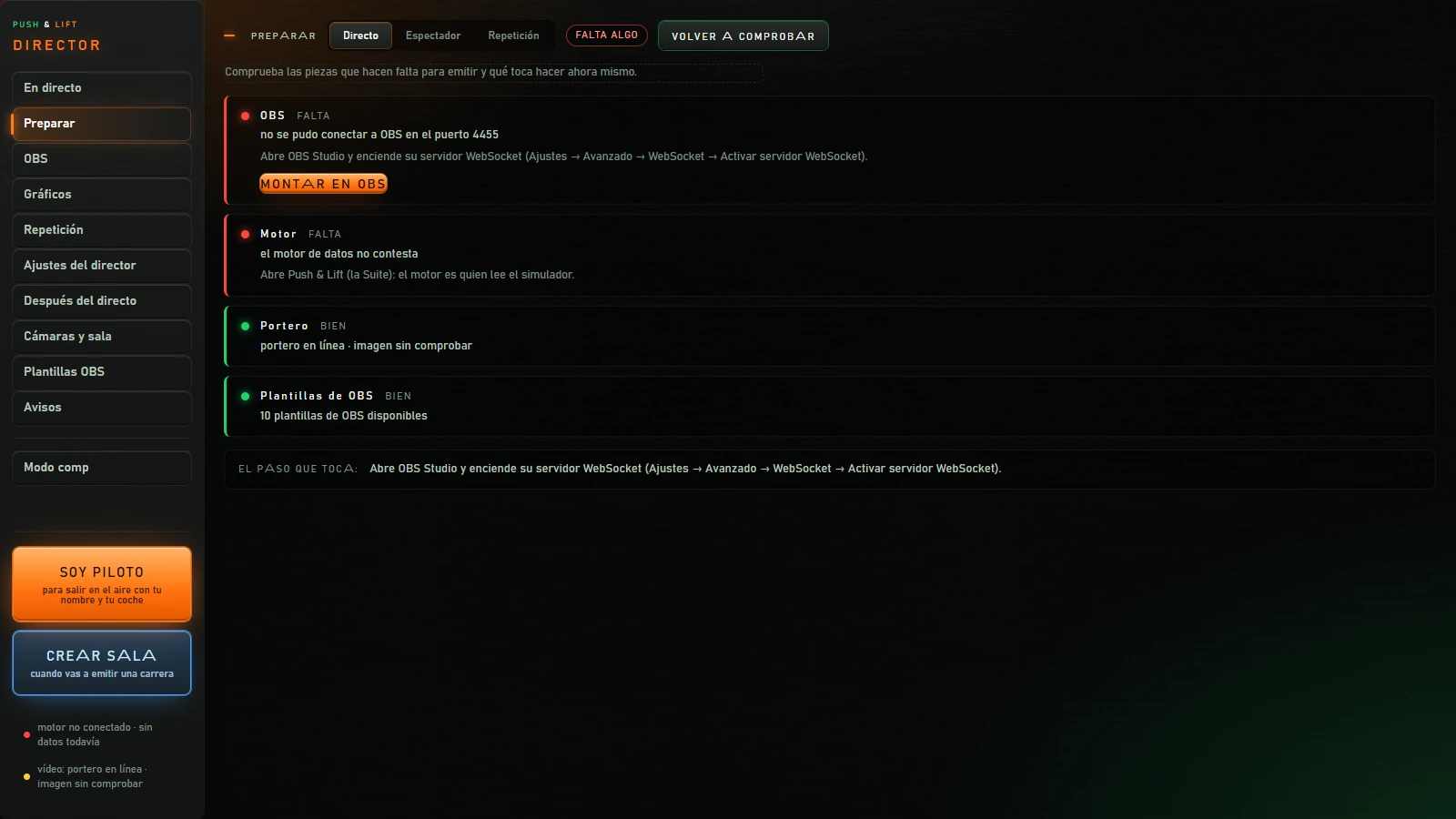
Checks the components needed for broadcasting and tells you what to do next.
| Button or area | What it does |
|---|---|
| Directo (Live) / Espectador (Spectator) / Repetición | Your intended use: broadcasting your live session, watching as a spectator or broadcasting a replay. Changes the iRacing requirements. |
| LISTO PARA EMITIR (READY TO BROADCAST) / FALTA ALGO (SOMETHING MISSING) | Overall result. |
| VOLVER A COMPROBAR | Runs the check again. |
| Components | One row per component: OBS, Motor (Engine), Portero (Gateway) and Plantillas de OBS (OBS templates); with the engine running, also Simulador (Simulator) and Modo de iRacing (iRacing mode). Each reports BIEN (OK), AVISO (NOTICE) or FALTA (MISSING), what it found and what to do. |
| MONTAR EN OBS (BUILD IN OBS) | Appears on the OBS component when it is not ready. Adds DIRECTOR's broadcast screen to OBS (see what it builds in OBS). |
| VER PLANTILLAS (VIEW TEMPLATES) | Appears on the templates component when they are missing. Opens the OBS templates page. |
| El paso que toca: (Next step:) | What to do next. |
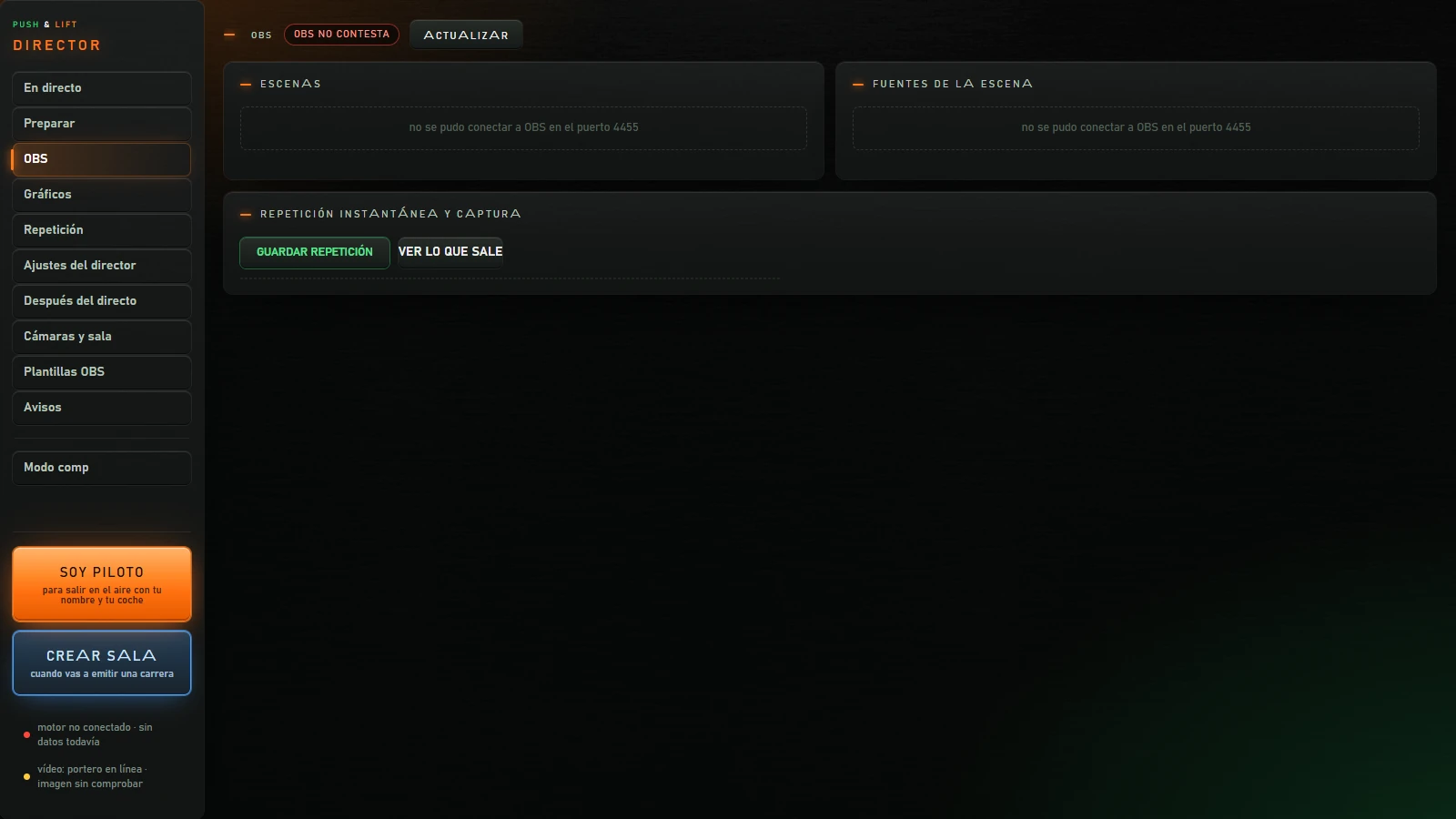
Control OBS from DIRECTOR. OBS must be open with its WebSocket server enabled. Otherwise the top reads «OBS no contesta» (OBS not responding).
| Button or area | What it does |
|---|---|
| Top label | OBS version, active scene and whether it is EMITIENDO (streaming) or GRABANDO (recording). |
| ACTUALIZAR (REFRESH) | Reads OBS again. |
| Escenas (Scenes) · PONER (SET) | All OBS scenes. PONER puts a scene on air; the current one is marked «EN ANTENNA». |
| Fuentes de la escena (Scene sources) · MOSTRAR (SHOW) / OCULTAR (HIDE) | Sources in the on-air scene. Enable or disable each one. |
| GUARDAR REPETICIÓN (SAVE REPLAY) | Saves the OBS instant replay (enabling the replay buffer if it was off) and reports where the video was saved. |
| VER LO QUE SALE (VIEW OUTPUT) | Saves an image of the on-air scene and reports its location and size. |
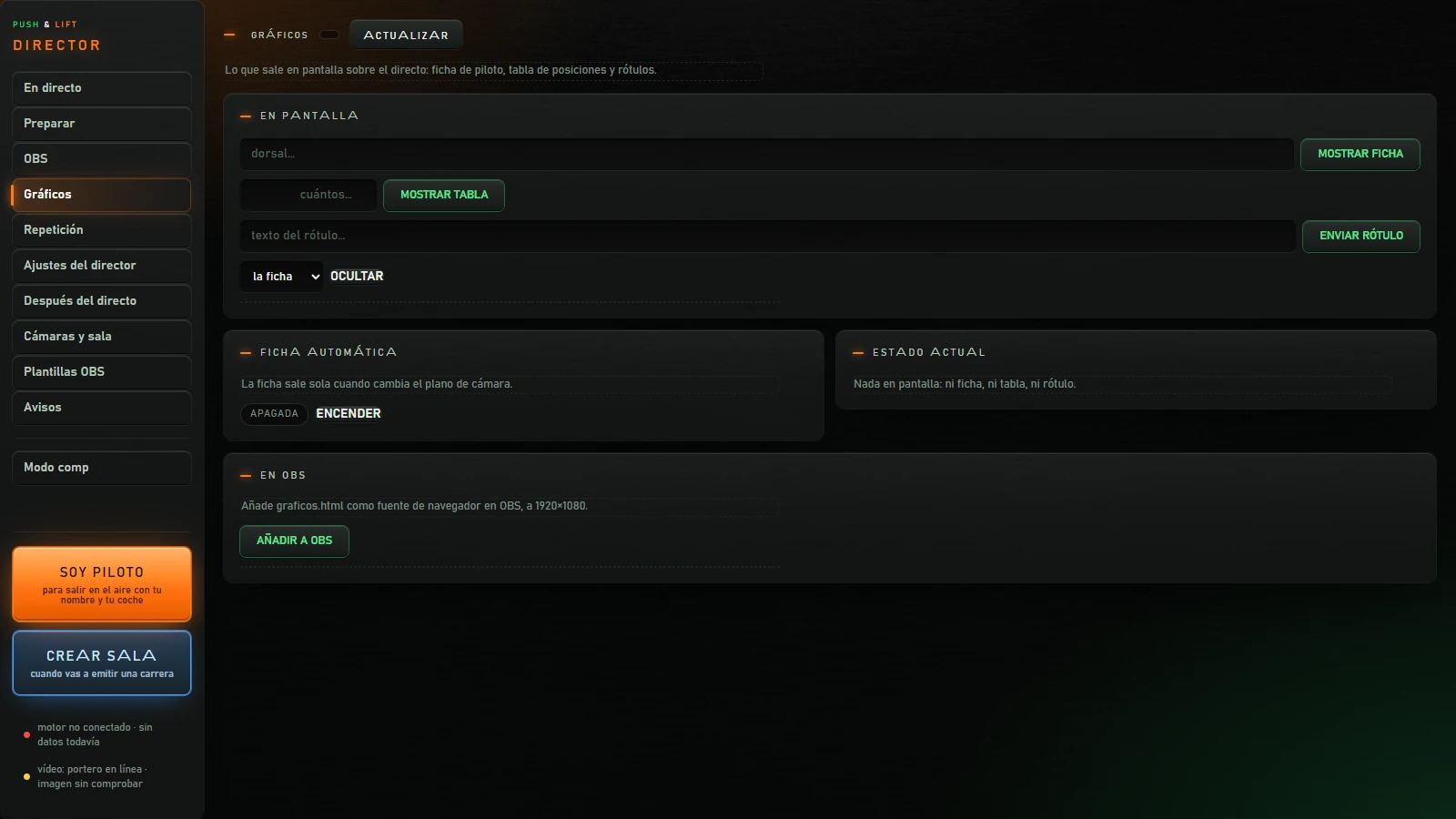
Broadcast overlays: driver card, standings and caption. They appear in OBS after adding the graphics source (button AÑADIR A OBS (ADD TO OBS)).
| Button or area | What it does |
|---|---|
| ACTUALIZAR | Refreshes what is on screen. |
| dorsal… (car number…) · MOSTRAR FICHA (SHOW CARD) | Shows the card for that car number (1 to 8 letters or digits): name, position, last lap and best time. |
| cuántos… (how many…) · MOSTRAR TABLA (SHOW TABLE) | Shows standings with that many positions, from 1 to 20. |
| texto del rótulo… (caption text…) · ENVIAR RÓTULO (SEND CAPTION) | Shows a caption with your text, up to 200 characters. |
| List la ficha (the card) / la tabla (the table) / el rótulo (the caption) / todo (everything) · OCULTAR | Removes the selected item from the screen. |
| Ficha automática (Automatic card) · ENCENDER (TURN ON) / APAGAR (TURN OFF) | With the automatic card on, the driver card appears whenever the camera shot changes. The label shows whether it is on or off. |
| Estado actual (Current status) | What is currently displayed. If empty: «Nada en pantalla: ni ficha, ni tabla, ni rótulo.» (no card, table or caption). |
| En OBS (In OBS) · AÑADIR A OBS | Adds the graphics source to the active OBS scene at 1920×1080 and reports the scene name. |
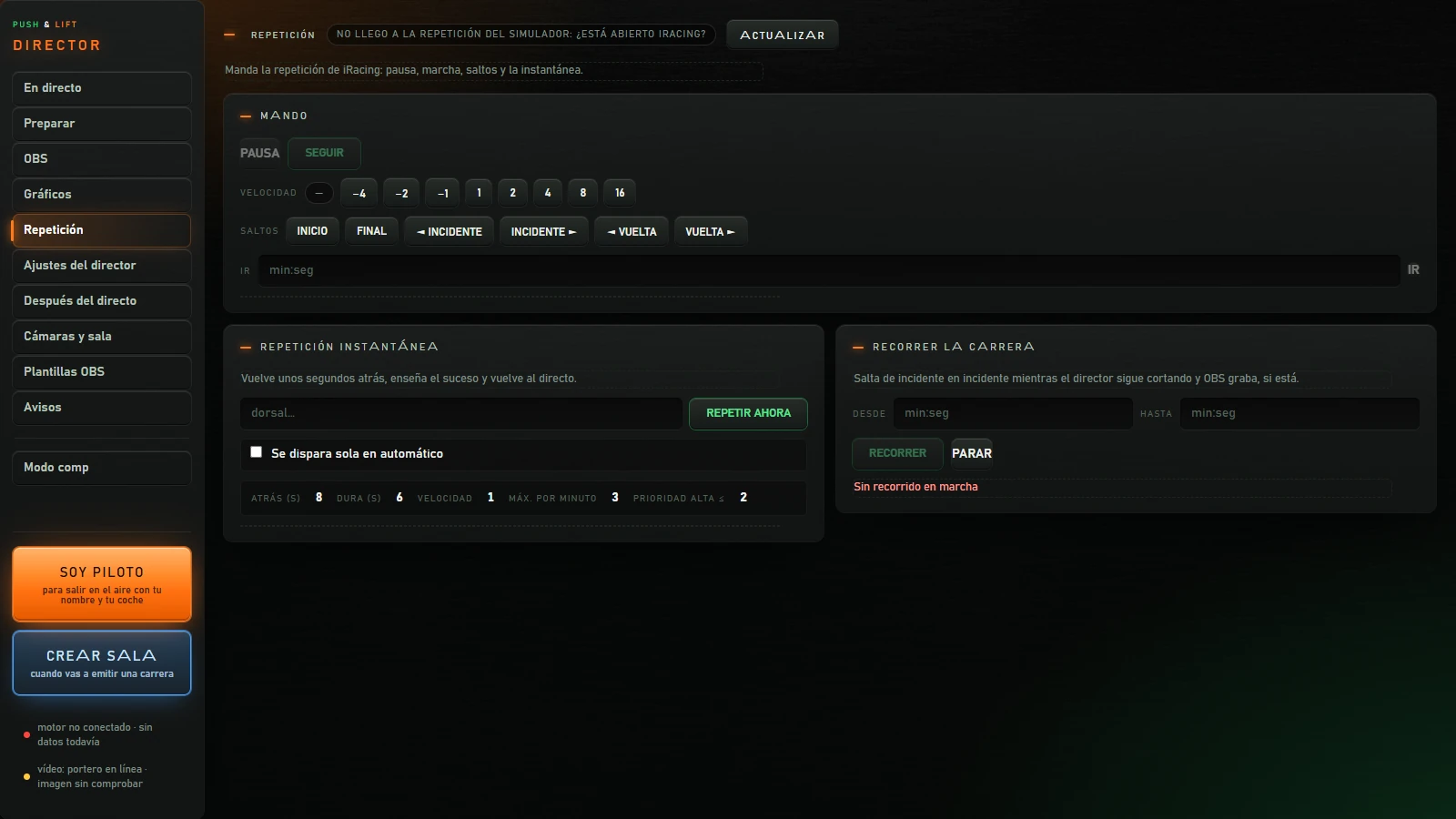
Controls iRacing replay. Without the simulator, the top label says «No llego a la repetición del simulador: ¿está abierto iRacing?» (cannot access replay: is iRacing open?) and disables PAUSA (PAUSE), SEGUIR (RESUME), IR and RECORRER (SCAN).
| Button or area | What it does |
|---|---|
| Top label | «reproduciendo» (playing) or «en pausa» (paused), speed and session time. Without the simulator, the warning above. |
| ACTUALIZAR | Refreshes replay information. |
| PAUSA / SEGUIR | Pauses or resumes replay. |
| Velocidad (Speed): −4 −2 −1 1 2 4 8 16 | Replay speed. Negative values run backwards. |
| Saltos (Jumps): INICIO (START), FINAL (END), ◄ INCIDENTE (◄ INCIDENT), INCIDENTE ► (INCIDENT ►), ◄ VUELTA (◄ LAP), VUELTA ► (LAP ►) | Jump to the start, end, previous or next incident or lap. |
| IR · min:seg (min:sec) · IR | Jumps to that session time. Enter a time such as 1:30. If invalid: «Escribe el tiempo como min:seg, por ejemplo 1:30» (use min:sec, for example 1:30). |
| Repetición instantánea (Instant replay) · dorsal… · REPETIR AHORA (REPLAY NOW) | Goes back a few seconds, shows the event and returns to live. Car number is optional. |
| Switch Se dispara sola en automático (Trigger automatically in automatic mode) | When enabled, DIRECTOR launches an instant replay after cutting to an important event in AUTOMÁTICO. Below are its values: seconds back, duration, speed, maximum per minute and high priority ≤. Factory settings: disabled; values 8, 6, 1, 3 and 2. These values cannot be changed here. |
| Recorrer la carrera (Scan the race) · desde (from) · hasta (to) · RECORRER | Jumps between incidents within these two times (min:sec) while DIRECTOR continues cutting and OBS records, if available. Requires an open iRacing replay. In live sessions it says «La sesión está en directo, no en repetición: abre en iRacing la repetición que quieres ver.» (open the replay you want to watch in iRacing). |
| PARAR (STOP) | Stops scanning. Below: «Sin recorrido en marcha» (no scan running) or «en marcha · N saltos» (running, N jumps). |
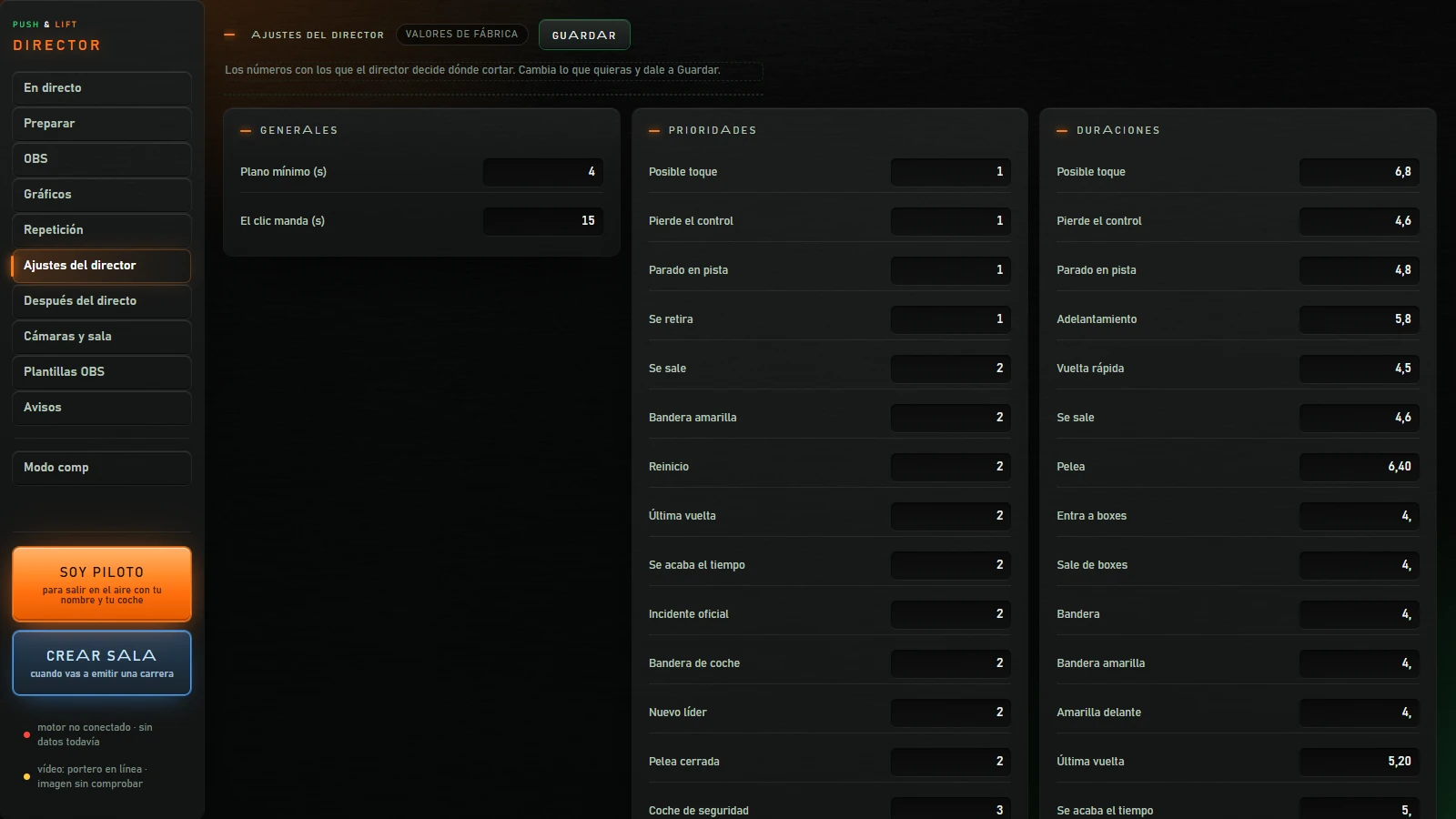
Values used by automatic control to decide where to cut. Type each value into its field. All are explained in 5. Settings.
| Button or area | What it does |
|---|---|
| Label valores de fábrica (factory values) / tus valores (your values) | Shows whether you are using the defaults or have saved your own values. |
| GUARDAR (SAVE) | Saves changed fields. Success: «GUARDADO» (saved); no changes: «No has cambiado nada». An invalid value shows «No se ha guardado …» in red with the reason and stops the remaining changes. |
Changes are saved on your PC and retained next time you open DIRECTOR. Decimal values accept either a comma or a point.
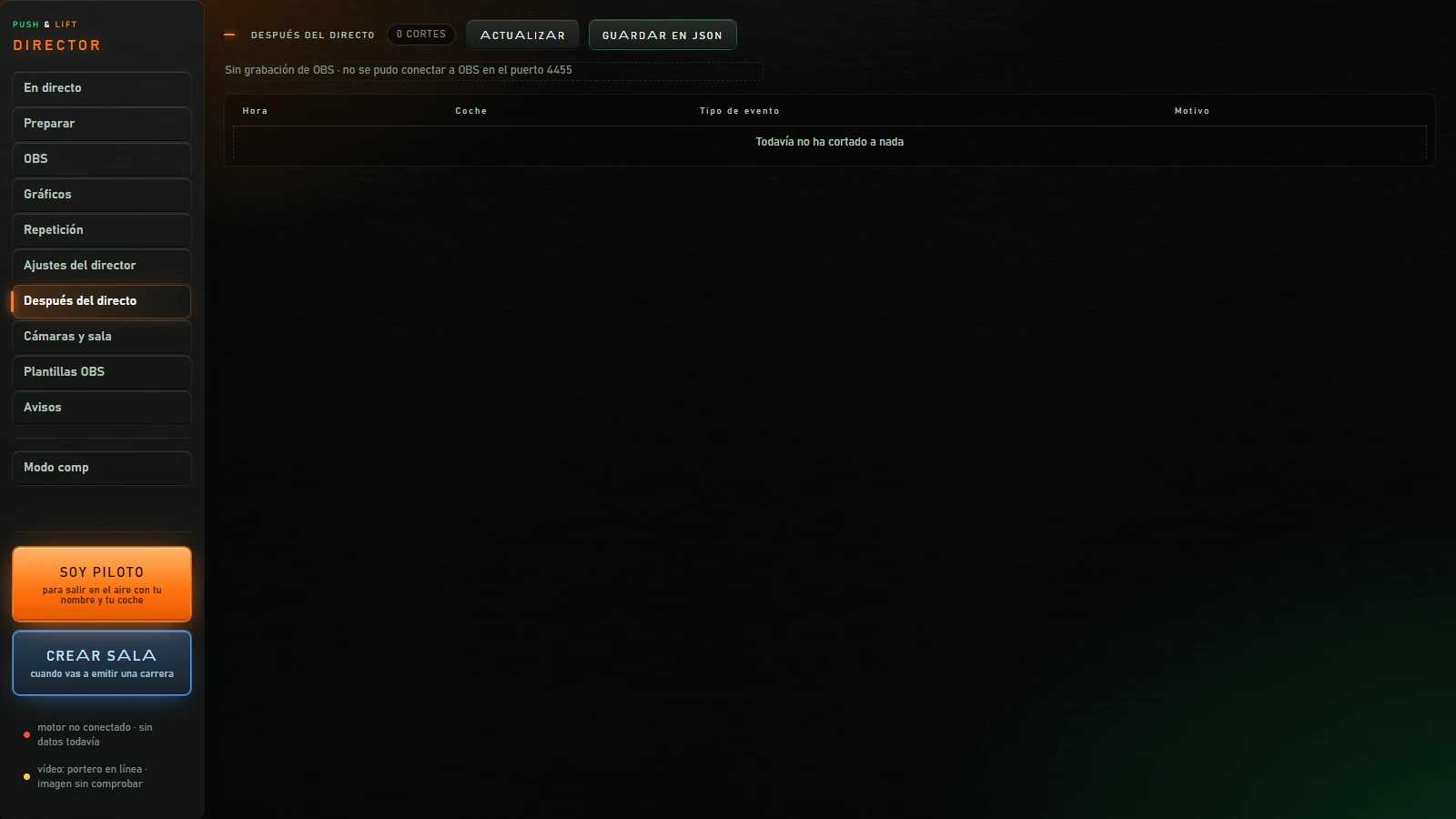
| Button or area | What it does |
|---|---|
| «N cortes» label | Number of cuts in the current DIRECTOR session. |
| ACTUALIZAR | Refreshes the list. |
| GUARDAR EN JSON (SAVE AS JSON) | Saves the list to «registro_director.json». |
| Recording | «Grabación de OBS desde …» when OBS is recording (with the start time), or «Sin grabación de OBS» when it is not. |
| Table Hora (Time) · Coche (Car) · Tipo de evento (Event type) · Motivo (Reason) | Each cut with its time, car number, type (for example «Adelantamiento»: overtake, or «A mano»: manual) and explanation. |
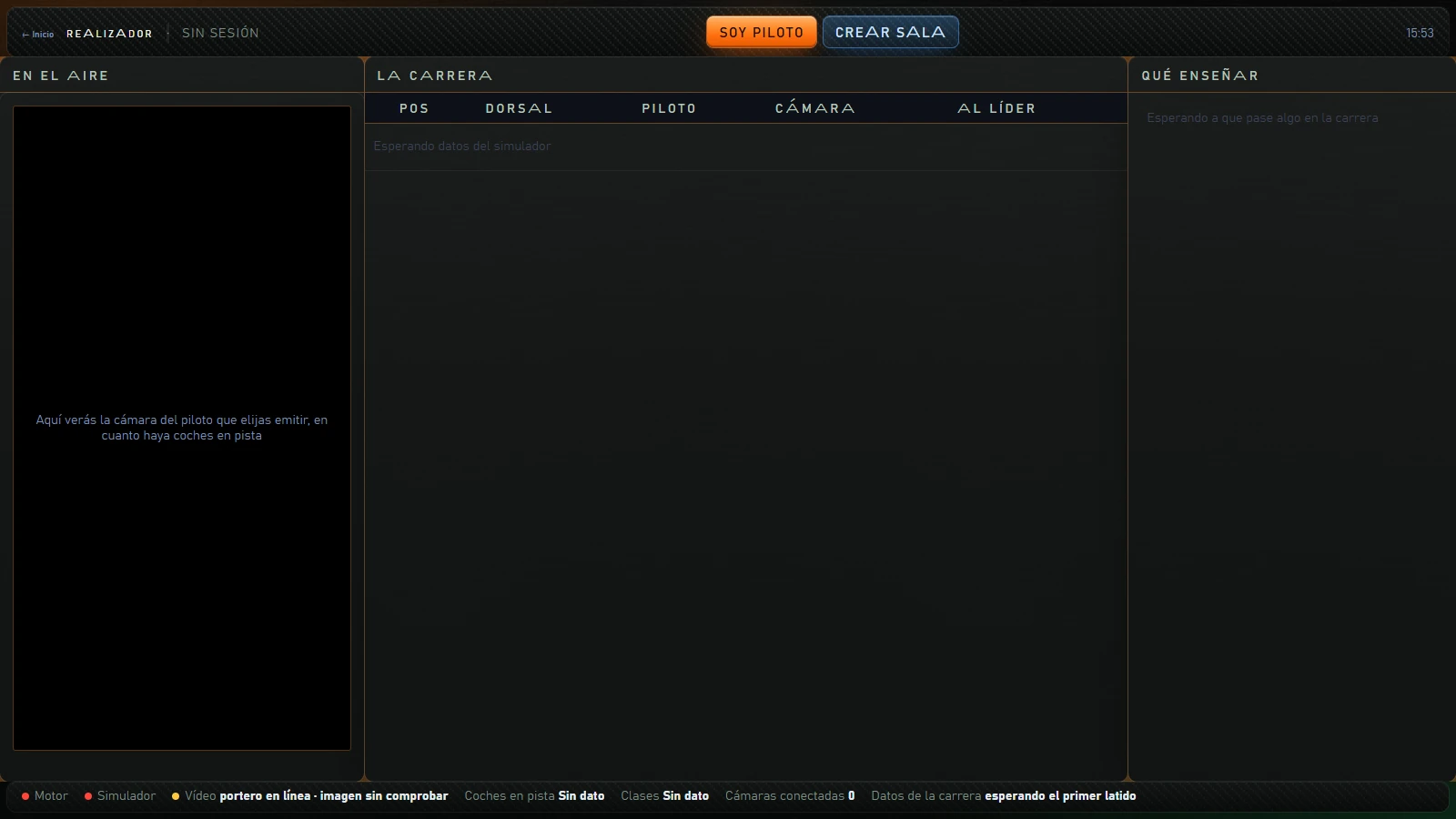
Opens in another window: the director's panel for driver cameras in a room. If you have already created a room, it opens that room directly.
| Button or area | What it does |
|---|---|
| ← Inicio (← Home) | Returns to the DIRECTOR main screen in this window. |
| REALIZADOR (DIRECTOR) · circuit · time | Circuit name (or «Sin sesión»: no session) and time. |
| SOY PILOTO (I AM A DRIVER) / CREAR SALA (CREATE ROOM) | Without a room: same functions as the large buttons in the left column. |
| Room code and summary | With a room: large code, drivers, percentage of data used and remaining time. |
| SALIDA OBS (OBS OUTPUT) | With a room: opens its broadcast screen for use in OBS. |
| + 1 HORA (+ 1 HOUR) | With a room: extends it by one hour. Requests the organiser key the first time. If extension fails, explains why. |
| CERRAR SALA (CLOSE ROOM) | With a room: asks «¿Cerrar la sala? Se cortan todas las cámaras y no se puede reabrir.» (close the room, disconnect all cameras permanently?) and requests the organiser key. |
| En el aire (On air) | The on-air driver's camera, name and position. No camera: «Este piloto no tiene cámara conectada» (this driver has no camera connected). |
| La carrera (The race) | Pos (position), Dorsal (car number), Piloto (driver), Cámara (camera: EN VIVO, SIN SEÑAL or none) and Al líder (gap to leader), grouped by class. Click a row to cut to that car. The on-air row is highlighted. |
| Qué enseñar (What to show) | Race events with confidence, time since the event and whether the driver has a camera. Click one to cut to that car. |
| Footer | Motor, Simulador and Vídeo status lights; «REPETICIÓN · iRacing puede omitir datos de coches fuera de pista» warns that replay may omit off-track car data. Also shows Coches en pista (cars on track), Clases (classes), Cámaras conectadas (connected cameras) and Datos de la carrera (data used in MB against the limit; yellow from 80%, red from 95%). |
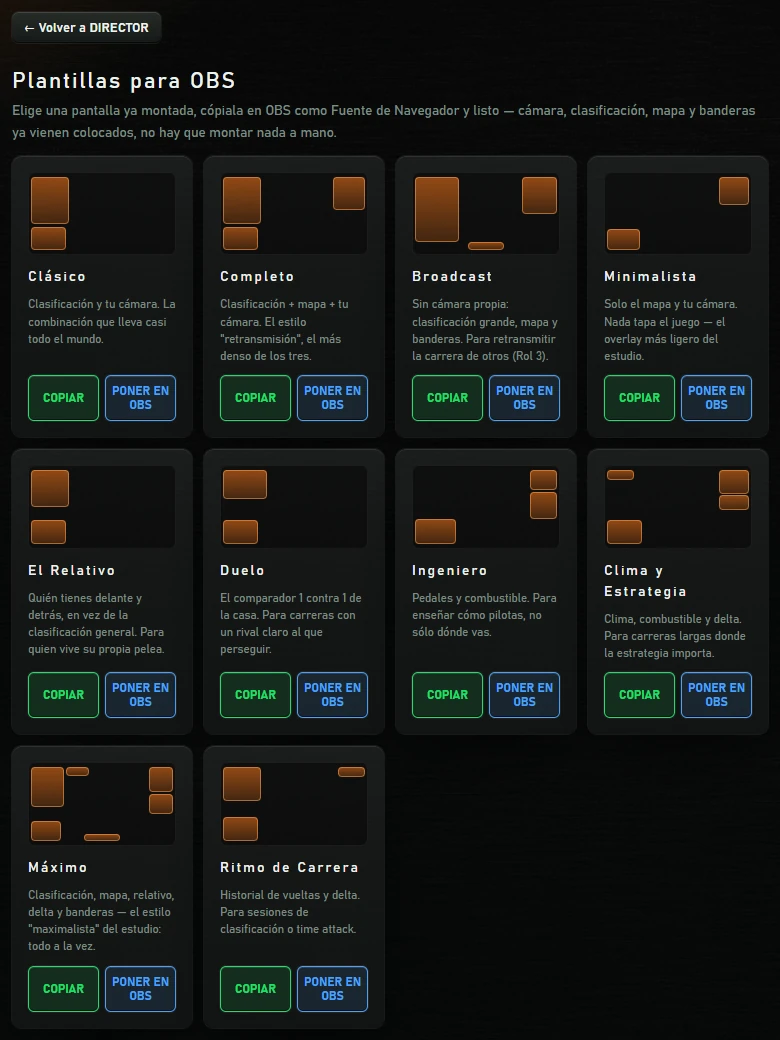
Opens in another window: ready-made OBS screens with camera, standings, map and flags already positioned.
| Template | Contents |
|---|---|
| Clásico (Classic) | Standings and your camera. |
| Completo (Complete) | Standings, map and your camera. |
| Broadcast | No personal camera: large standings, map and flags. For broadcasting other drivers' races. |
| Minimalista (Minimalist) | Just the map and your camera. |
| El Relativo (Relative) | The cars ahead and behind you, and your camera. |
| Duelo (Duel) | The 1 versus 1 comparison. |
| Ingeniero (Engineer) | Pedals and fuel. |
| Clima y Estrategia (Weather and strategy) | Weather, fuel and delta. |
| Máximo (Maximum) | Standings, map, relative, delta and flags. |
| Ritmo de Carrera (Race pace) | Lap history and delta. |
| Button or area | What it does |
|---|---|
| ← Volver a DIRECTOR (← Back to DIRECTOR) | Loads the DIRECTOR main screen in this window. |
| COPIAR (on each template) | Copies its address to paste into OBS as a browser source. |
| PONER EN OBS (on each template) | Adds it directly to OBS (see below). Shows «un momento…» (please wait), then «¡PUESTA!» (added), «no se pudo» (failed) or «sin conexión» (disconnected). |
| O móntala a tu manera, pieza a pieza (Or build it your way, piece by piece) | Five layouts: Solo cámara y rótulo (Camera and caption only), + Clasificación (+ Standings), + El relativo (+ Relative), + El mapa (+ Map) and + Banderas (+ Flags). Each source (Cámara, Clasificación, Relativo, Mapa, Banderas: camera, standings, relative, map, flags) has its address and COPIAR. |
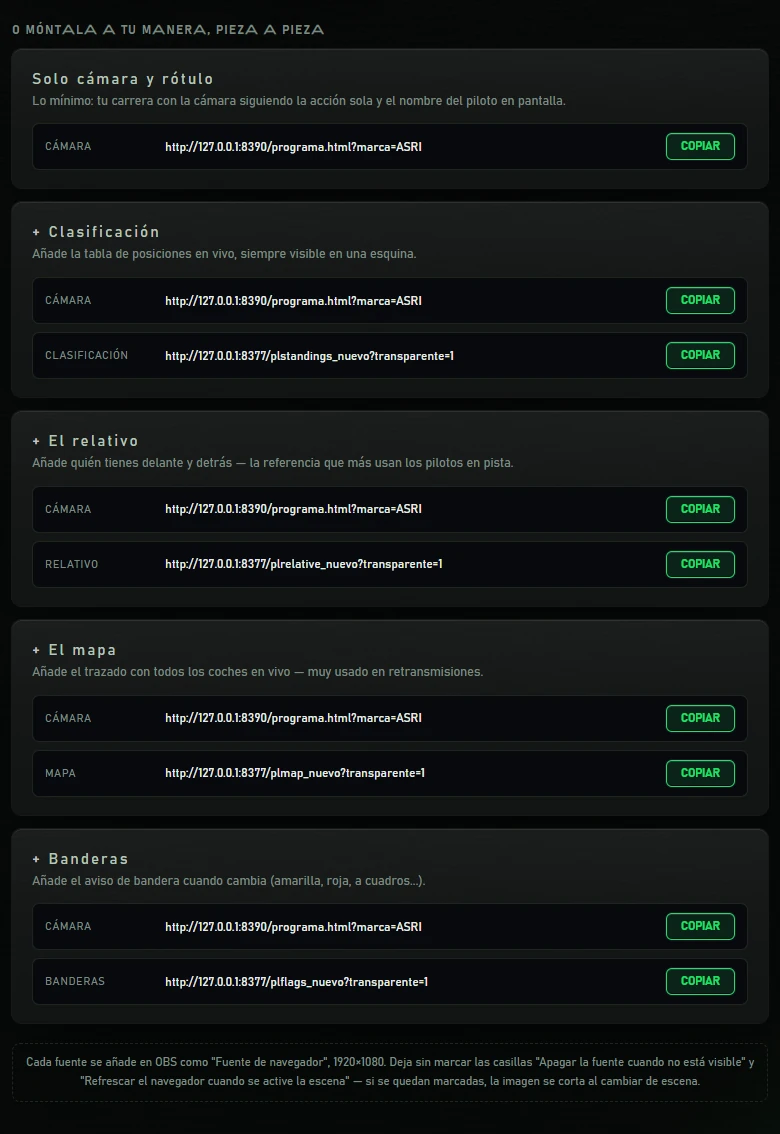
Qué monta en OBS (What it builds in OBS) (PONER EN OBS, MONTAR EN OBS): adds a game capture named «PL DIRECTOR · iRacing», targeting the iRacing window and fitted to the canvas, plus a 1920×1080 browser source named «PL DIRECTOR» with the template, to the active OBS scene (or creates «PL» if none exists). If they already exist, only the address changes. Templates with a camera slot (Clásico, Completo, Minimalista, El Relativo…) also add your webcam as «PL DIRECTOR · Cámara».
In OBS, use a 1920×1080 browser source («Fuente de navegador») for each source. Leave «Apagar la fuente cuando no está visible» (shut down source when not visible) and «Refrescar el navegador cuando se active la escena» (refresh browser when scene becomes active) unchecked: enabling them interrupts the picture on scene changes.
Opens another window with a transparent background. A bar appears at the bottom whenever DIRECTOR detects an event (contact, overtake, flag…) and disappears after 7 seconds. «ASRI» appears on the right. Uncertain events are labelled «sin confirmar» (unconfirmed). With no events, the window is empty. Use it in OBS as a browser source.
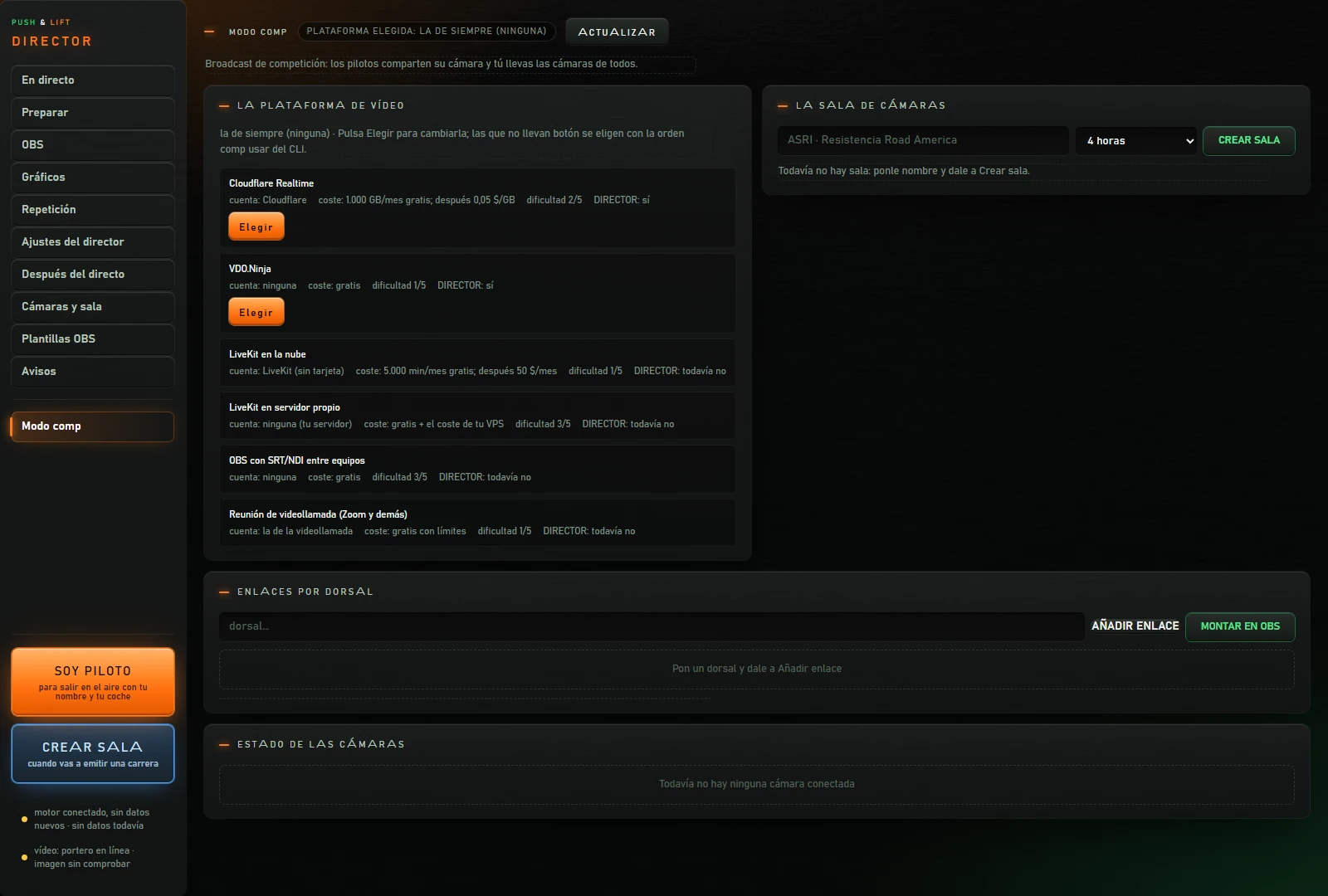
Competition broadcast: drivers share their cameras and you manage them all.
| Button or area | What it does |
|---|---|
| Label Plataforma elegida: … (Selected platform: …) | DIRECTOR's video platform. If none is selected: «la de siempre (ninguna)» (usual one, none). |
| ACTUALIZAR | Refreshes platform, room and cameras. |
| La plataforma de vídeo (The video platform) | Six platforms with required account, cost, difficulty (1 to 5) and whether DIRECTOR supports them. Cloudflare Realtime and VDO.Ninja have an Elegir (Choose) button; cloud LiveKit, self-hosted LiveKit, OBS with SRT/NDI between computers and video meetings say «DIRECTOR: todavía no» (not yet). |
| La sala de cámaras (The camera room) · name · hours · CREAR SALA | Creates a VDO.Ninja room with that name and duration (2, 4, 6 or 8 hours). Only works with VDO.Ninja selected. Below: «Sala … · … pilotos · queda …» (room, drivers, time left), or «Todavía no hay sala: ponle nombre y dale a Crear sala.» (name and create a room first). |
| Enlaces por dorsal (Links by car number) · dorsal… · AÑADIR ENLACE (ADD LINK) | Creates two links for that driver: el piloto (the driver) (send this one to the driver to broadcast) and tu OBS (your OBS) (put this one in OBS to see the driver). Each has COPIAR. |
| MONTAR EN OBS | Adds cameras for all links to OBS and reports the number and scene. |
| Estado de las cámaras (Camera status) | Each car number with «conectada» (connected), «sin imagen» (no picture) or «mala calidad» (poor quality), plus incoming image fps and size. |
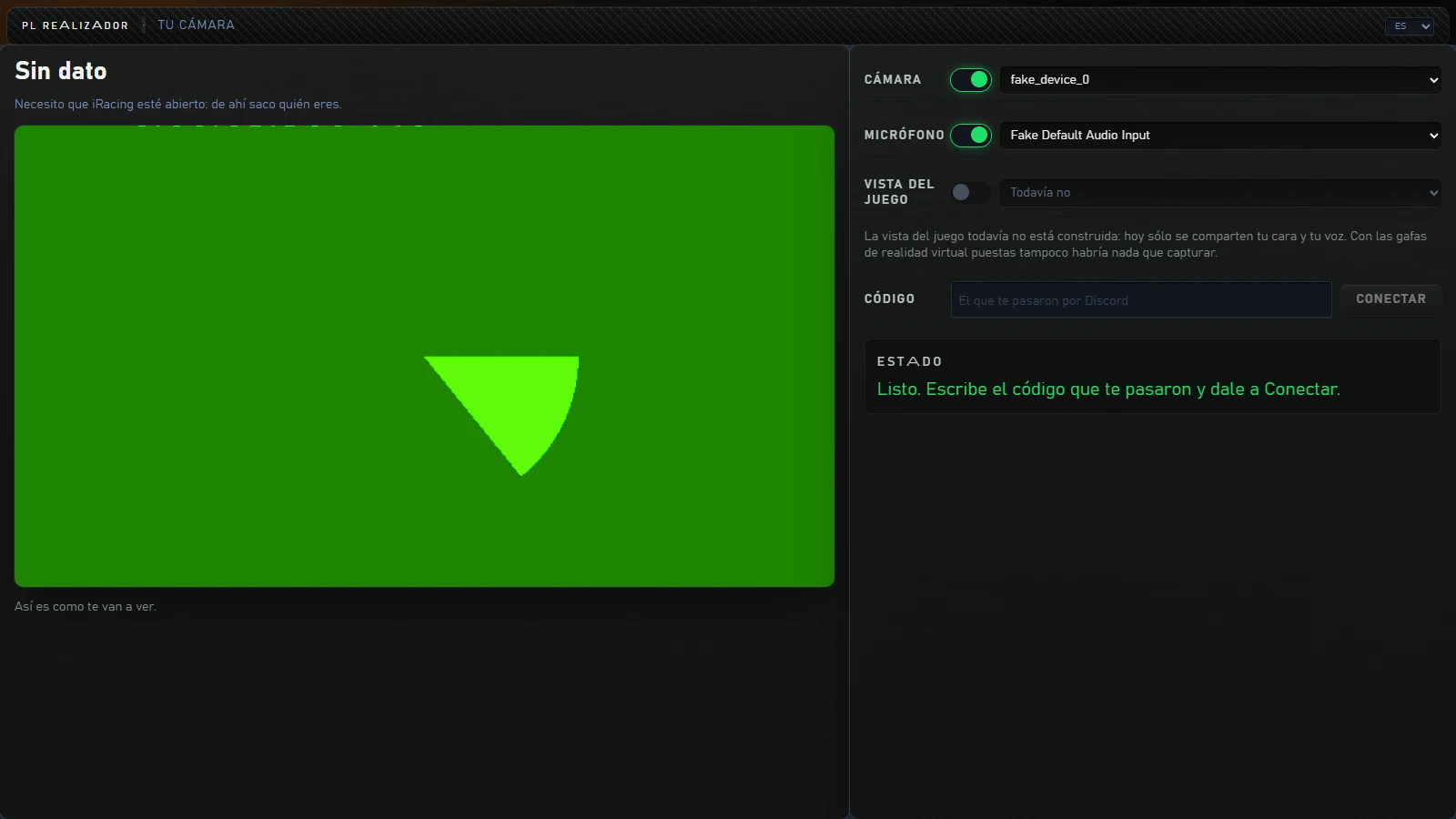
Opens «Tu cámara» (your camera) in another window. Each driver uses it to broadcast their face and voice. Opening it turns on your camera and microphone for the preview.
| Button or area | What it does |
|---|---|
| Idioma (language: ES, EN, DE, FR, IT, 中文) | Changes this page's language. |
| Tu nombre y tu dorsal (Your name and car number) | Read from the simulator: «Leído del simulador. No hace falta que escribas nada.» No typing needed. |
| Mirror | «Así es como te van a ver.» (This is how others will see you.) |
| Cámara (Camera) (switch and list) | Turns the camera on or off and selects which one to use. |
| Micrófono (Microphone) (switch and list) | Turns the microphone on or off and selects which one to use. |
| Vista del juego (Game view) | Always disabled: «La vista del juego todavía no está construida: hoy sólo se comparten tu cara y tu voz.» Only your face and voice can currently be shared. |
| Código (Code) · Conectar (Connect) / Cortar | Enter the six-letter code received through Discord and click Conectar. To stop broadcasting, click Cortar. While connected, you cannot change camera or microphone: disconnect first. |
| Estado (Status) | What is happening, in clear sentences. |
| Broadcast box | When connected: «ESTÁS EN EL AIRE · Te están viendo y oyendo» (on air, people can see and hear you), «CONECTADO · TODAVÍA SIN IMAGEN» (connected, no picture yet) or «SE HA CORTADO TU IMAGEN» (picture interrupted). |
Conectar remains disabled until DIRECTOR knows your identity and car number, even if Estado says «Listo» (ready). iRacing must be open («Necesito que iRacing esté abierto: de ahí saco quién eres.») and you must join the session with your car so it can read your number («… todavía no sé tu dorsal. Entra en la sesión con tu coche y esto se pone solo.»).
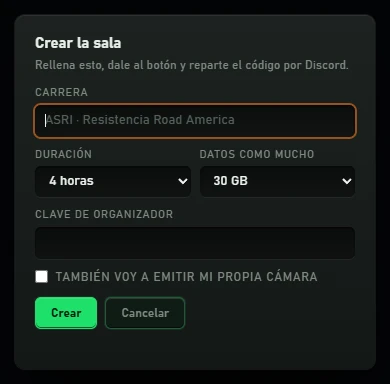
Appears when you click Crear sala. Fill it in, click the button and share the code on Discord.
| Field or button | What it is |
|---|---|
| Carrera (Race) | The name drivers will see, up to 60 characters. |
| Duración (Duration) | 2 hours, 4 hours (default), 6 hours or 8 hours (maximum). |
| Datos como mucho (Maximum data) | 10 GB, 30 GB (default) or 60 GB. At the limit, the room disconnects the cameras. |
| Clave de organizador (Organiser key) | Your key for creating rooms. Without it, no room is created. |
| También voy a emitir mi propia cámara (I will also broadcast my own camera) | Along with the room, opens I am a driver with the code already filled in. |
| Crear (Create) | Creates the room and opens Cámaras y sala with its code in another window. |
| Cancelar (Cancel) | Closes without creating anything. |
All these settings are in Ajustes del director. Times are in seconds.
| Field | Default | What it does |
|---|---|---|
| Plano mínimo (s) (Minimum shot (s)) | 4 | Minimum shot duration. Also the duration for events without a specific duration. |
| El clic manda (s) | 15 | In AUTOMÁTICO, how many seconds your manual cut is respected before the director decides again. |
Numbers greater than 0 and up to 86400.
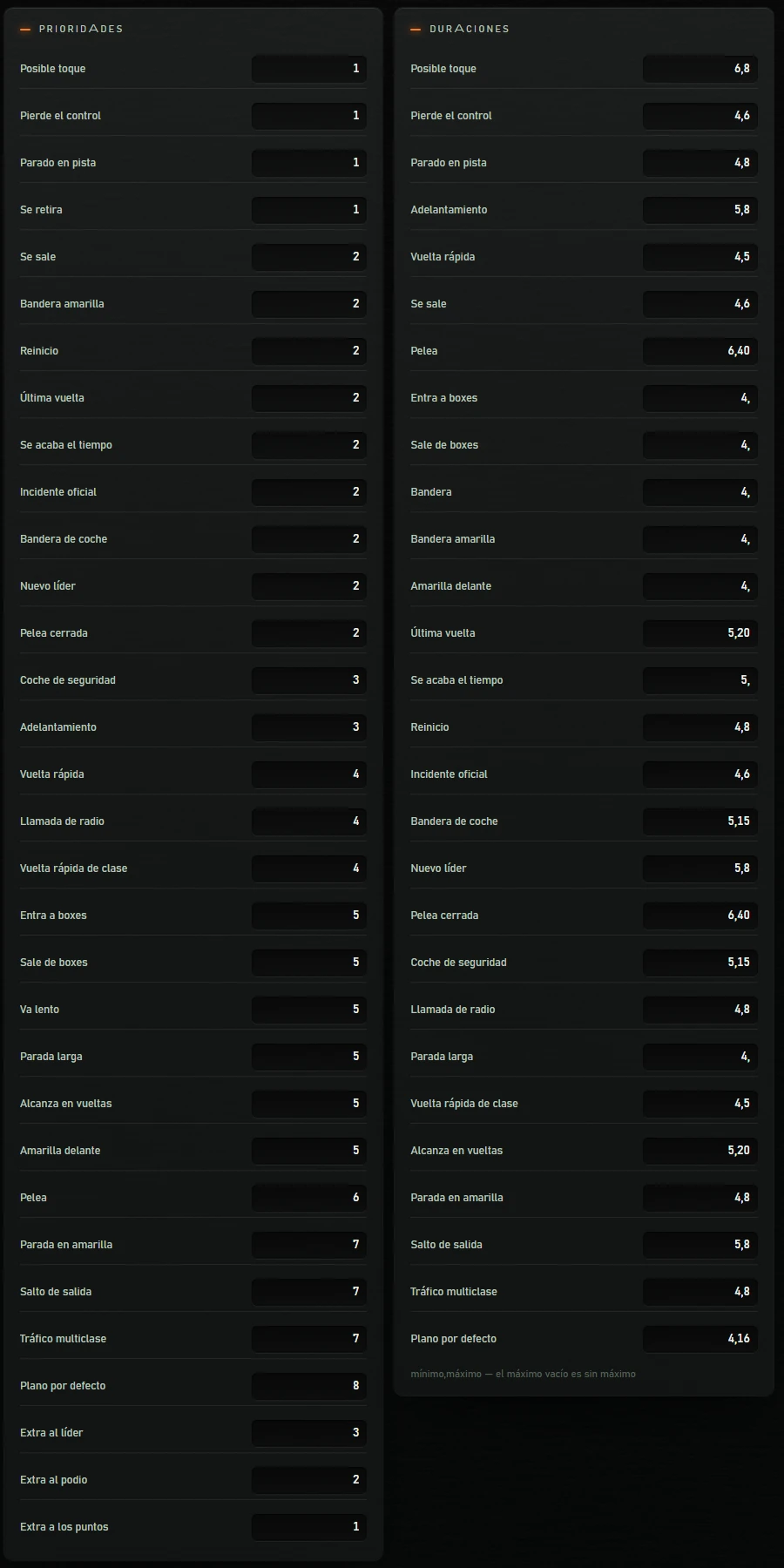
Importance of each event. 1 is most urgent; higher numbers mean lower importance. Enter integers from 0 to 99. An event not listed has priority 9.
| Event | Default | Event | Default |
|---|---|---|---|
| Posible toque (Possible contact) | 1 | Pierde el control (Loss of control) | 1 |
| Parado en pista (Stopped on track) | 1 | Se retira (Retirement) | 1 |
| Se sale (Off track) | 2 | Bandera amarilla (Yellow flag) | 2 |
| Reinicio (Restart) | 2 | Última vuelta (Last lap) | 2 |
| Se acaba el tiempo (Time running out) | 2 | Incidente oficial (Official incident) | 2 |
| Bandera de coche (Car flag) | 2 | Nuevo líder (New leader) | 2 |
| Pelea cerrada (Close battle) | 2 | Coche de seguridad (Safety car) | 3 |
| Adelantamiento (Overtake) | 3 | Vuelta rápida (Fastest lap) | 4 |
| Llamada de radio (Radio call) | 4 | Vuelta rápida de clase (Class fastest lap) | 4 |
| Entra a boxes (Pit entry) | 5 | Sale de boxes (Pit exit) | 5 |
| Va lento (Slow car) | 5 | Parada larga (Long stop) | 5 |
| Alcanza en vueltas (Lapping) | 5 | Amarilla delante (Yellow ahead) | 5 |
| Battle | 6 | Parada en amarilla (Stop under yellow) | 7 |
| Salto de salida (Jump start) | 7 | Tráfico multiclase (Multiclass traffic) | 7 |
| Plano por defecto (Default shot) | 8 |
Three fields at the end of this group give extra importance to action near the front. They are subtracted from the event priority, with a minimum result of 1:
| Field | Default | Applies to |
|---|---|---|
| Extra al líder (Leader bonus) | 3 | The car in 1st place. |
| Extra al podio (Podium bonus) | 2 | Cars in 2nd and 3rd place. |
| Extra a los puntos (Points bonus) | 1 | 4th to 10th place. |
Shot duration for each event. Enter two numbers separated by a comma: mínimo,máximo (minimum,maximum). The shot lasts at least the minimum, then continues while the event is active, up to the maximum. A blank maximum means no upper limit («mínimo,máximo — el máximo vacío es sin máximo»); for example 4, keeps the shot while the event lasts. Maximum cannot be lower than minimum.
| Event | Default | Event | Default |
|---|---|---|---|
| Posible toque (Possible contact) | 6,8 | Pierde el control (Loss of control) | 4,6 |
| Parado en pista (Stopped on track) | 4,8 | Adelantamiento (Overtake) | 5,8 |
| Vuelta rápida (Fastest lap) | 4,5 | Se sale (Off track) | 4,6 |
| Battle | 6,40 | Entra a boxes (Pit entry) | 4, |
| Sale de boxes (Pit exit) | 4, | Bandera (Flag) | 4, |
| Bandera amarilla (Yellow flag) | 4, | Amarilla delante (Yellow ahead) | 4, |
| Última vuelta (Last lap) | 5,20 | Se acaba el tiempo (Time running out) | 5, |
| Reinicio (Restart) | 4,8 | Incidente oficial (Official incident) | 4,6 |
| Bandera de coche (Car flag) | 5,15 | Nuevo líder (New leader) | 5,8 |
| Pelea cerrada (Close battle) | 6,40 | Coche de seguridad (Safety car) | 5,15 |
| Llamada de radio (Radio call) | 4,8 | Parada larga (Long stop) | 4, |
| Vuelta rápida de clase (Class fastest lap) | 4,5 | Alcanza en vueltas (Lapping) | 5,20 |
| Parada en amarilla (Stop under yellow) | 4,8 | Salto de salida (Jump start) | 5,8 |
| Tráfico multiclase (Multiclass traffic) | 4,8 | Plano por defecto (Default shot) | 4,16 |
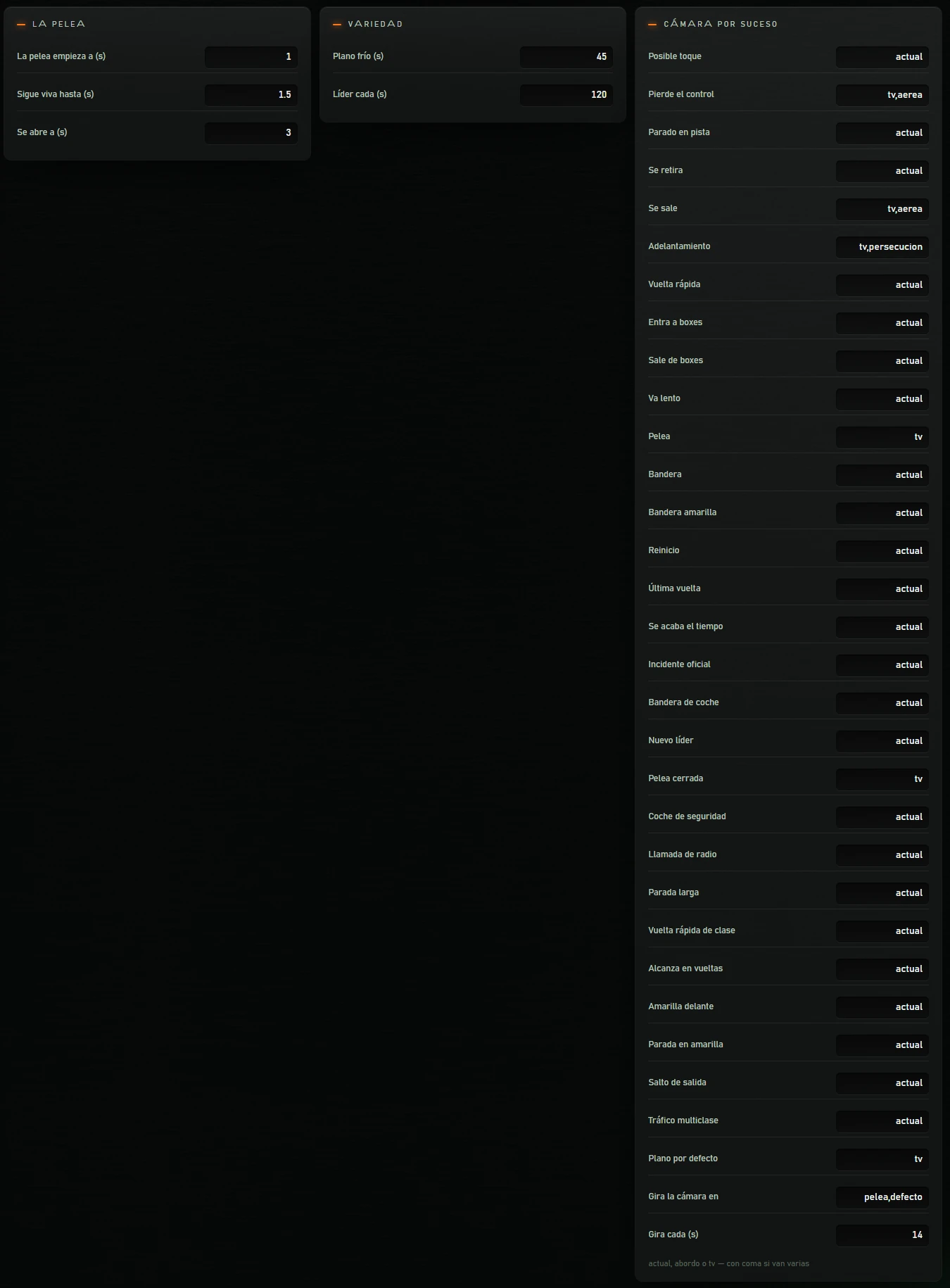
When two cars count as battling, based on their time gap.
| Field | Default | What it does |
|---|---|---|
| La pelea empieza a (s) (Battle starts at (s)) | 1 | A battle starts below this gap. |
| Sigue viva hasta (s) (Stays active up to (s)) | 1.5 | Once started, it remains a battle while the gap does not exceed this value. Cannot be lower than «La pelea empieza a». |
| Se abre a (s) (Opens at (s)) | 3 | When the gap exceeds the threshold, the battle remains active for this many seconds before ending. |
For the default shot, when there is no event to show.
| Field | Default | What it does |
|---|---|---|
| Plano frío (s) (Cold shot (s)) | 45 | Prefers a car that has not appeared within this time. |
| Líder cada (s) (Leader every (s)) | 120 | If the leader has not appeared within this time, the default shot shows the leader. |
Use whole numbers.
Which iRacing camera each event uses. Values: actual (current) (the current camera), abordo (onboard), tv, persecucion (chase) and aerea (aerial). You can enter several separated by commas. The on-screen hint only lists «actual, abordo o tv», but DIRECTOR accepts all five.
| Event | Default | Event | Default |
|---|---|---|---|
| Posible toque (Possible contact) | current | Pierde el control (Loss of control) | tv,aerea |
| Parado en pista (Stopped on track) | current | Se retira (Retirement) | current |
| Se sale (Off track) | tv,aerea | Adelantamiento (Overtake) | tv,persecucion |
| Vuelta rápida (Fastest lap) | current | Entra a boxes (Pit entry) | current |
| Sale de boxes (Pit exit) | current | Va lento (Slow car) | current |
| Battle | tv | Bandera (Flag) | current |
| Bandera amarilla (Yellow flag) | current | Reinicio (Restart) | current |
| Última vuelta (Last lap) | current | Se acaba el tiempo (Time running out) | current |
| Incidente oficial (Official incident) | current | Bandera de coche (Car flag) | current |
| Nuevo líder (New leader) | current | Pelea cerrada (Close battle) | tv |
| Coche de seguridad (Safety car) | current | Llamada de radio (Radio call) | current |
| Parada larga (Long stop) | current | Vuelta rápida de clase (Class fastest lap) | current |
| Alcanza en vueltas (Lapping) | current | Amarilla delante (Yellow ahead) | current |
| Parada en amarilla (Stop under yellow) | current | Salto de salida (Jump start) | current |
| Tráfico multiclase (Multiclass traffic) | current | Plano por defecto (Default shot) | tv |
| Field | Default | What it does |
|---|---|---|
| Gira la cámara en (Rotate camera for) | pelea,defecto | Events where the camera changes automatically during the shot. Defaults: «pelea» (battle) and «defecto» (default shot). Enter internal names separated by commas. |
| Gira cada (s) (Rotate every (s)) | 14 | Seconds between camera changes. |
In total, Ajustes del director contains 99 fields.
Enter the factory value shown in the tables in 5 and click GUARDAR.
| What you see | What to do |
|---|---|
| Red engine light: «motor no conectado» (engine disconnected) | DIRECTOR cannot reach the Push & Lift engine. Start it by clicking its indicator on the Push & Lift bar. |
| Yellow engine light: «motor conectado, sin datos nuevos» (connected, no new data) | The engine cannot see the simulator. Open iRacing and join a session. |
| Alarm «motor caído: no llegan datos del simulador» (engine down, no simulator data) | Open the Push & Lift Suite: its engine reads the simulator. Start it using its indicator on the bar. |
| Alarm «la clasificación tiene … s (más de …): el automático decide con datos viejos» (standings too old for automatic decisions) | The data is old: check that iRacing is still in a session. |
| Alarm «detector de sucesos caído: el director no ve la carrera» (event detector down) | Restart DIRECTOR from the Suite: CERRARLA, then open it again. |
| Alarm «la cámara no obedece: … cortes seguidos sin hacer caso» (camera ignores consecutive cuts) | The simulator ignores cuts: check that iRacing is in a session and the source has a camera. |
| In OBS or Preparar: «OBS no contesta» (OBS not responding) | Open OBS Studio and enable its WebSocket server (Ajustes → Avanzado → WebSocket → Activar servidor WebSocket). |
| «no encuentro la configuración de OBS» (OBS configuration not found) | Install OBS Studio and open it once, then return to Preparar. |
| Preparar warns that the simulator window is not 1920x1080 | Set iRacing to 1920x1080 so the capture fills the broadcast without black bars. |
| Repetición: «No llego a la repetición del simulador: ¿está abierto iRacing?» (cannot access replay) | Open iRacing. Without it, replay controls are disabled. |
| Repetición: «La sesión está en directo, no en repetición…» (live session, not replay) | RECORRER requires an open iRacing replay. |
| Settings: «No se ha guardado …» (not saved) | The value is invalid. Check the reason and accepted values in 5. |
| Create room: red notice below the buttons | The notice explains why creation failed: check organiser key and race name. «no llego a la organización» means the room service cannot be reached. |
| Soy piloto: Conectar disabled | Open iRacing and join the session with your car: DIRECTOR needs your name and car number. |
| Soy piloto: «El código son seis letras. Míralo en Discord.» (six-letter code) | Enter the complete code. |
| Soy piloto: «Tu cámara la tiene cogida OTRO PROGRAMA…» (camera used by another program) | Release the camera in OBS, Discord or another browser. DIRECTOR acquires it automatically. |
| Soy piloto: «No encuentro ninguna cámara conectada a este ordenador.» (no camera found) | Connect the camera. DIRECTOR acquires it automatically. |
| Cámaras y sala: «Se ha caído la cámara de …» (driver camera disconnected) | That driver lost their connection. They must stop and reconnect. |
| Cámaras y sala: «Ojo: gastado el … % de los datos de esta carrera» (data usage warning) | The data limit is nearly reached. When exhausted, cameras disconnect automatically. |
| DIRECTOR does not open from the Suite | The Suite waits up to 45 seconds. If another DIRECTOR is already open, it warns you and does not open a second one. |