 PUSH & LIFTPUSH & LIFT

Push & Lift · braking guidance above the iRacing DDU
LITTLE is a small overlay in the DDU family. The Suite describes it as sitting above the iRacing DDU, showing a braking countdown, brake percentage and gear for the next corner, and the temperatures of all 4 tyres.
Its menu calls it the CSV guide: what the reference driver did at your current position. Load a reference lap (your own or another driver's CSV). While driving, LITTLE shows what that driver did at each point: brake, lift or accelerate, distance to their braking point, and braking and gear for the next corner.
Without a reference lap, LITTLE cannot identify braking points. Its menu says “Sin vuelta cargada. LITTLE está muda hasta que cargues un CSV.” (No lap loaded. LITTLE stays silent until you load a CSV.)
From left to right, the overlay contains:

Clicking LITTLE again in the menu removes the app from the Suite screen. This does not turn off the overlay.
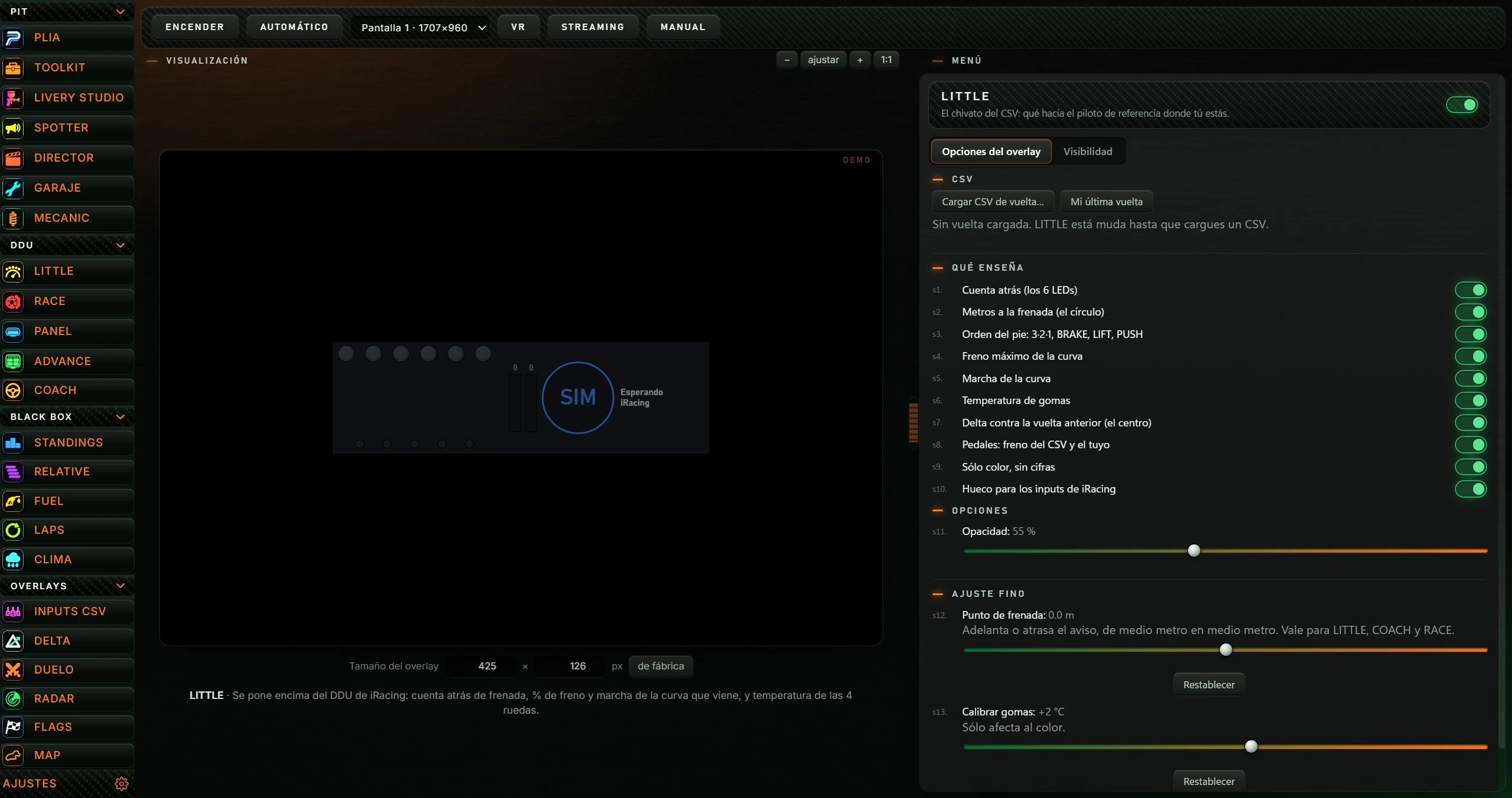
Above the app area, beside LITTLE you will find:
Below are three tabs: APP (the workbench described here), PANEL DE CONTROL (CONTROL PANEL) and BIBLIOTECA (LIBRARY). For LITTLE, PANEL DE CONTROL and BIBLIOTECA are empty.
Drag the divider between preview and MENÚ to redistribute space. Double-click to return it to the centre.
| Button | Action |
|---|---|
| ENCENDER (TURN ON) / APAGAR (TURN OFF) | Places LITTLE on your screen over the simulator, or removes it. When on, the button becomes orange and reads APAGAR. |
| AUTOMÁTICO (AUTOMATIC) | When enabled (orange), LITTLE starts with the simulator (iRacing or Le Mans Ultimate) and stops when it closes. Click again to disable. Off by default. |
| Monitor dropdown | Choose the screen for LITTLE. Each option shows its number and size, such as “Pantalla 1 · 1707×960”. |
| VR | Displays “En OpenKneeboard, captura la ventana «PL OVERLAYS».” (Capture PL OVERLAYS in OpenKneeboard) on the right. It disappears after 4 seconds. |
| STREAMING | Copies the overlay address for an OBS browser source. The notice says “Enlace copiado para OBS (fuente de navegador, 324×140)” (Link copied for OBS, browser source) with the address. |
| MANUAL (MANUAL) | Opens the LITTLE manual in your browser. |

With LITTLE off, the preview appears on the left in a frame marked DEMO.
Menu changes made while LITTLE is off are saved only for the preview; they do not reach the on-track overlay. Change options with LITTLE switched on.
Clicking ENCENDER (TURN ON) shows LITTLE on the selected screen. Its side-menu button is marked orange.
The preview becomes a notice explaining that the overlay is live, menu changes apply there immediately and hovering reveals EDITAR for moving it. The heading becomes “EN VIVO · el overlay flota en tu pantalla; lo que toques en el menú manda ahí” (LIVE · the overlay floats on screen and menu changes control it).
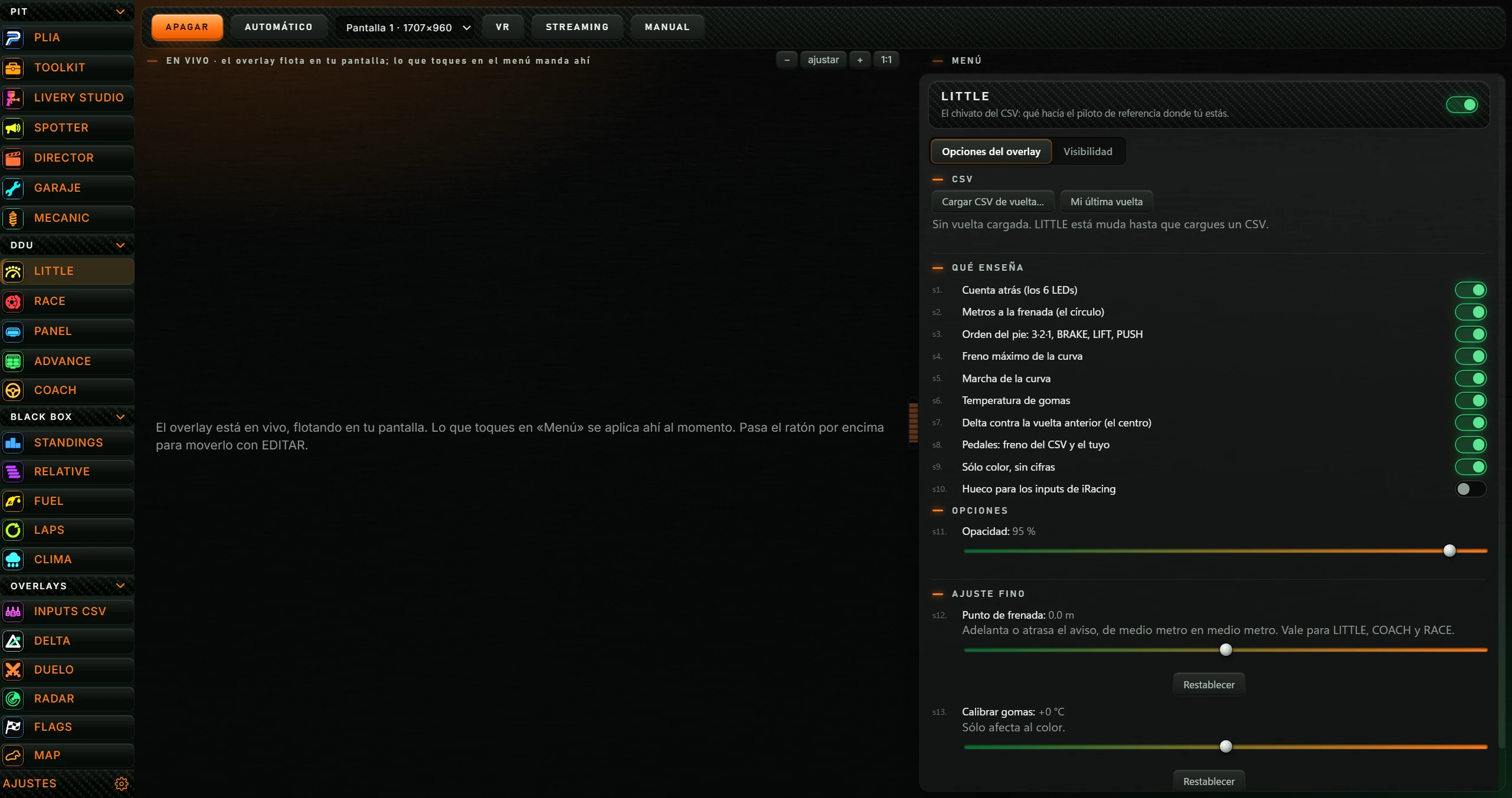
| Area | What it shows |
|---|---|
| Six top LEDs | The 3-second countdown before the reference braking point. Each LED is half a second: at 3 seconds all six are on, then go out left to right. Their colour represents that braking event (see 4.3). |
| Two bars | The left orange bar is the CSV driver's brake at this point. The right red bar is yours. Each has its percentage above. |
| Large circle | With a lap loaded and while driving: metres to braking, with a small “m” above and the pedal instruction below. Otherwise a notice (see 4.2). |
| Side column | Maximum braking percentage for the next corner, or LIFT if the reference driver only lifts there. Below is the corner gear with a yellow gear lever. |
| Four small tyre LEDs | Tyre temperatures. Left to right: rear left, front left, front right, rear right. |
| Centre LED (between tyres) | Delta against the previous lap: green when gaining, red when losing. Colour intensifies with the difference up to 1 second. Going off track makes it flash yellow/orange for 1.5 seconds. |
Each part can be hidden in MENÚ (see 5.2). Hiding it makes LITTLE narrower or shorter.
| What you see | Meaning |
|---|---|
| A number with “m” | Metres remaining to the reference braking point. |
| 3, 2, 1 | 3, 2 or 1 seconds to braking. The six countdown LEDs light at the same time. |
| BRAKE | The reference driver is braking here. The circle takes the braking colour, from yellow for light braking to red for heavy braking. |
| PUSH | The reference driver accelerates (over 15 % throttle). |
| LIFT | The reference driver is neither braking nor accelerating: lifting. |
| CSV (grey) | No reference lap loaded. |
| PISTA (TRACK, grey) | A lap is loaded but does not match the current track. |
| --- (grey) | A lap is loaded but has no reference data at this point. |
| SIM flashing blue and “Esperando iRacing” (Waiting for iRacing) beside it | No simulator data arriving. LEDs are grey. |
| Circle flashing yellow and orange | You are in the pits. |
| Circle rapidly flashing green | You just left the pits (1.5 seconds). |
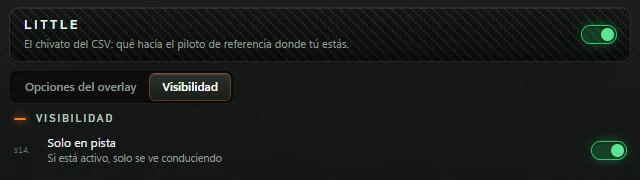
| Blue circle | You are off track. Only visible if Solo en pista is disabled. |
With pedal instruction enabled, 3·2·1, BRAKE, LIFT or PUSH appears small below the metres and gives the circle border its colour.
Braking colour (countdown LEDs, numbers and corner percentage): blue for lift-only corners; for braking, green for light pressure through yellow to red for heavy braking.
Tyre colours (temperature in °C plus the Calibrar gomas adjustment):
| Temperature | Colour |
|---|---|
| 50 °C or below | Flashing blue |
| 50 to 55 °C | Blue |
| 55 to 60 °C | Turquoise |
| 60 to 75 °C | Green |
| 75 to 85 °C | Yellow |
| 85 to 95 °C | Orange |
| 95 to 110 °C | Red |
| Above 110 °C | Flashing red |
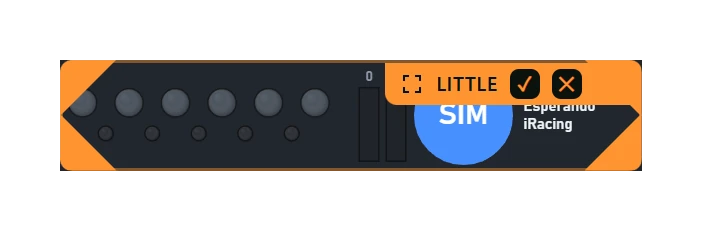
Appears on the right in Push & Lift. The header has the title LITTLE and the description of what the reference driver did at your current position.
A switch appears at the header's right. In this version it does not turn LITTLE on or off; use ENCENDER / APAGAR.
Below are two tabs: Opciones del overlay (Overlay options) and Visibilidad (Visibility). Each option has a small grey number, s1–s14. Changes apply immediately.
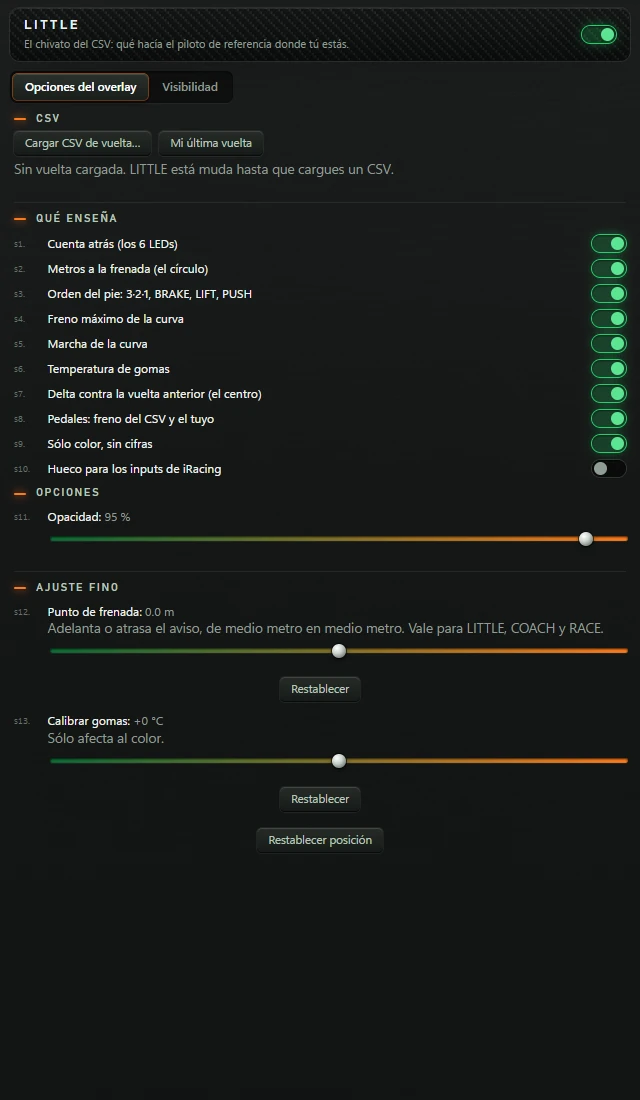
Configure with LITTLE on so changes reach the on-track overlay (see 2.3).
| Button or text | Action |
|---|---|
| Cargar CSV de vuelta… (Load lap CSV…) | Opens the Windows “Cargar CSV de vuelta” (Load lap CSV) picker. Choose a lap CSV belonging to you or another driver. |
| Mi última vuelta (My last lap) | Uses your latest complete lap as the reference. If none exists yet, it says “Todavía no hay una vuelta completa de esta sesión” (No complete lap in this session yet). |
| “Sin vuelta cargada. LITTLE está muda hasta que cargues un CSV.” (No lap loaded. LITTLE stays silent until you load a CSV.) | No reference loaded. |
| “✓ Cargada: coche · pista · vuelta” (Loaded: car · track · lap) | The loaded lap. If it does not match your car or track, ✓ is replaced by “— es de otro circuito (estás en …)” (different track) or “es de otro coche (estás en …)” (different car). |
| “Hay una vuelta de la casa para este circuito y este coche · tiempo” (A house lap is available for this track and car · time) and Usar (Use) | Appears when Push & Lift has its own reference for your track/car and it is not already loaded. Usar (Use) loads it. |
| “El motor no responde. Abre PUSH & LIFT.” (Engine not responding. Open PUSH & LIFT.) | Appears if the Push & Lift engine does not respond to Mi última vuelta. |
Lap status refreshes automatically every 4 seconds.
Ten switches, green when on. All are enabled by default except Sólo color, sin cifras and Hueco para los inputs de iRacing.
| # | Toggle | What it shows or hides |
|---|---|---|
| s1 | Cuenta atrás (los 6 LEDs) (Countdown: 6 LEDs) | The six top LEDs. Hiding them leaves their space empty. |
| s2 | Metros a la frenada (el círculo) (Metres to braking: circle) | The metre value inside the circle. |
| s3 | Orden del pie: 3·2·1, BRAKE, LIFT, PUSH (Pedal instruction) | The small word below the metres. |
| s4 | Freno máximo de la curva (Maximum corner brake) | The percentage in the side column. |
| s5 | Marcha de la curva (Corner gear) | The side-column gear. With s4 and s5 both off, the column disappears and LITTLE becomes narrower. |
| s6 | Temperatura de gomas (Tyre temperature) | The four tyre LEDs. |
| s7 | Delta contra la vuelta anterior (el centro) (Previous-lap delta: centre) | The centre LED. With s6 and s7 both off, LITTLE becomes a shorter, single-row display. |
| s8 | Pedales: freno del CSV y el tuyo (Pedals: CSV brake and yours) | The two bars. |
| s9 | Sólo color, sin cifras (Colour only, no numbers) | Fills the circle with the instruction colour, without numbers or words, and hides the side column. Notices SIM, CSV, PISTA and --- still appear. |
| s10 | Hueco para los inputs de iRacing (Space for iRacing inputs) | Enlarges the circle by 25 % and makes LITTLE taller, with countdown LEDs above and tyre LEDs below, leaving space between. |
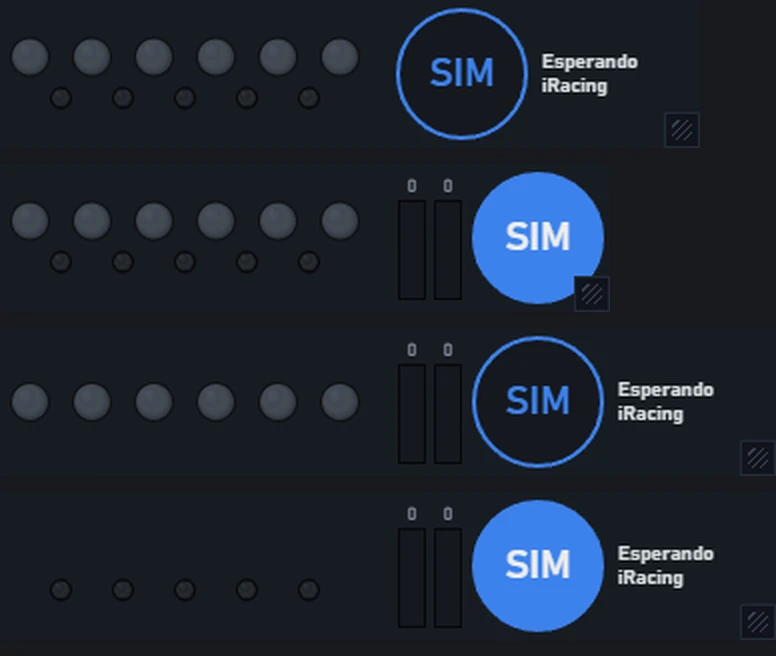
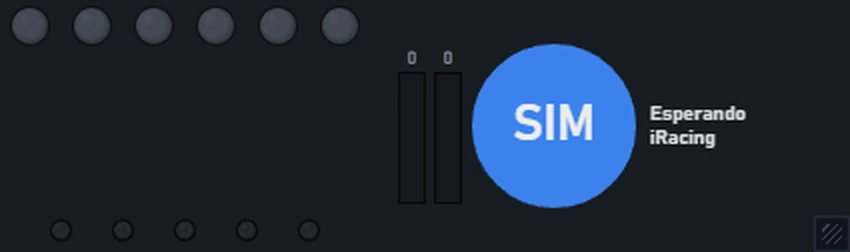
| # | Option | Values |
|---|---|---|
| s11 | Opacidad (Opacity) | Slider from 20 to 100 %. Default 92 %. Lower values mean greater transparency. |
| # | Option | Action |
|---|---|---|
| s12 | Punto de frenada (Braking point) | Slider from −200 to +200 m, in half-metre steps. Default 0. Advances or delays the warning by half-metre steps for LITTLE, COACH and RACE. Its Restablecer (Reset) returns it to 0. |
| s13 | Calibrar gomas (Calibrate tyres) | Slider from −20 to +20 °C, in steps of 2. Default 0. Only affects colour: positive values colour tyres as if hotter, negative values as if colder. Its Restablecer (Reset) returns it to 0. |
| — | Restablecer posición (Reset position) | With LITTLE on, centres it on its screen. Does nothing while LITTLE is off. |
| # | Option | Action |
|---|---|---|
| s14 | Solo en pista (On track only) | On by default. Only visible while driving: when simulator data arrives but you are outside the car (garage or replays), LITTLE hides. |
| Problem | What to do |
|---|---|
| The circle says CSV. | No lap loaded. Load one in MENÚ's CSV section (see 5.1). |
| The circle says PISTA. | The loaded lap is for another track. Check for “es de otro circuito” in MENÚ and load a lap for this track. |
| MENÚ says “es de otro coche” (different car). | The lap belongs to another car, so its braking points may not suit yours. Load one for your car or use the house reference. |
| The circle says ---. | No reference data at this point. If it persists, reload the lap. |
| Flashing SIM and “Esperando iRacing” (Waiting for iRacing). | No simulator data. Start the simulator and enter the car. |
| LITTLE is invisible. | Check it is on (orange APAGAR). Solo en pista limits visibility to driving. If off-screen, click Restablecer posición (Reset position) with LITTLE on. |
| Menu changes do not affect LITTLE on track. | You changed it while LITTLE was off, affecting only the preview. Turn LITTLE on and make the changes again. |
| “Todavía no hay una vuelta completa de esta sesión” (No full lap in this session yet). | Complete a full lap before clicking Mi última vuelta. |
| “El motor no responde. Abre PUSH & LIFT.” (Engine not responding. Open PUSH & LIFT.) | Open Push & Lift and start LITTLE from the Suite. |
| The MENÚ header switch does not turn LITTLE off. | It has no effect in this version. Use ENCENDER / APAGAR. |
| Tyre colours do not match what you feel. | Adjust Calibrar gomas (Calibrate tyres) (see 5.4). |