PUSH & LIFT

PANEL

Push & Lift · the dashboard floating over your simulator

What PANEL does

PANEL is a pill-shaped dashboard (DDU) floating over the simulator. At a glance it shows gear, fuel, your pedals and the reference lap's pedals, RPM, next braking point and race alerts.
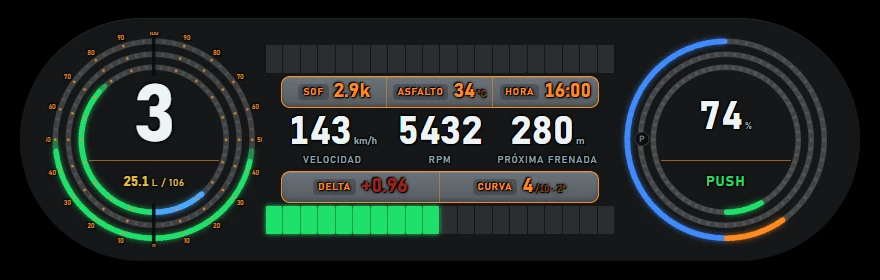
PANEL with demo data and factory settings: dark grey pill. Left circle: gear 4, 32.1 L / 106 below, three coloured rings with a 0–100 scale. Centre: unlit upper LED strip, orange display SOF 2.9k/ASFALTO 31 °C/HORA 15:47, large 185 km/h VELOCIDAD, 6465 RPM and 476 m PRÓXIMA FRENADA, then green DELTA −2.70 and CURVA 7/10 · 2ª, lower strip with two red centre LEDs. Right circle: 76 %, green PUSH, red rings and a small P at left.
PANEL with factory settings and demo data on black.
  • Works with iRacing and Le Mans Ultimate.
  • Needs the Push & Lift engine. The Suite starts it automatically when PANEL starts.
  • Several fields (next braking point, corner, difference from the reference and reference pedals) require a loaded reference lap in CSV format. Load it from the menu tab EL CSV (THE CSV) .
  • Every part of PANEL can be changed: choose the value in each space, each LED strip's function and the appearance, all from the menu.
  • Factory size is 1060 × 460 pixels. Change it in the Suite.

Opening it from the Suite

  1. Open the Push & Lift screen.
  2. In the left menu, under DDU click PANEL.
  3. PANEL's screen opens: controls above, preview left and menu right.
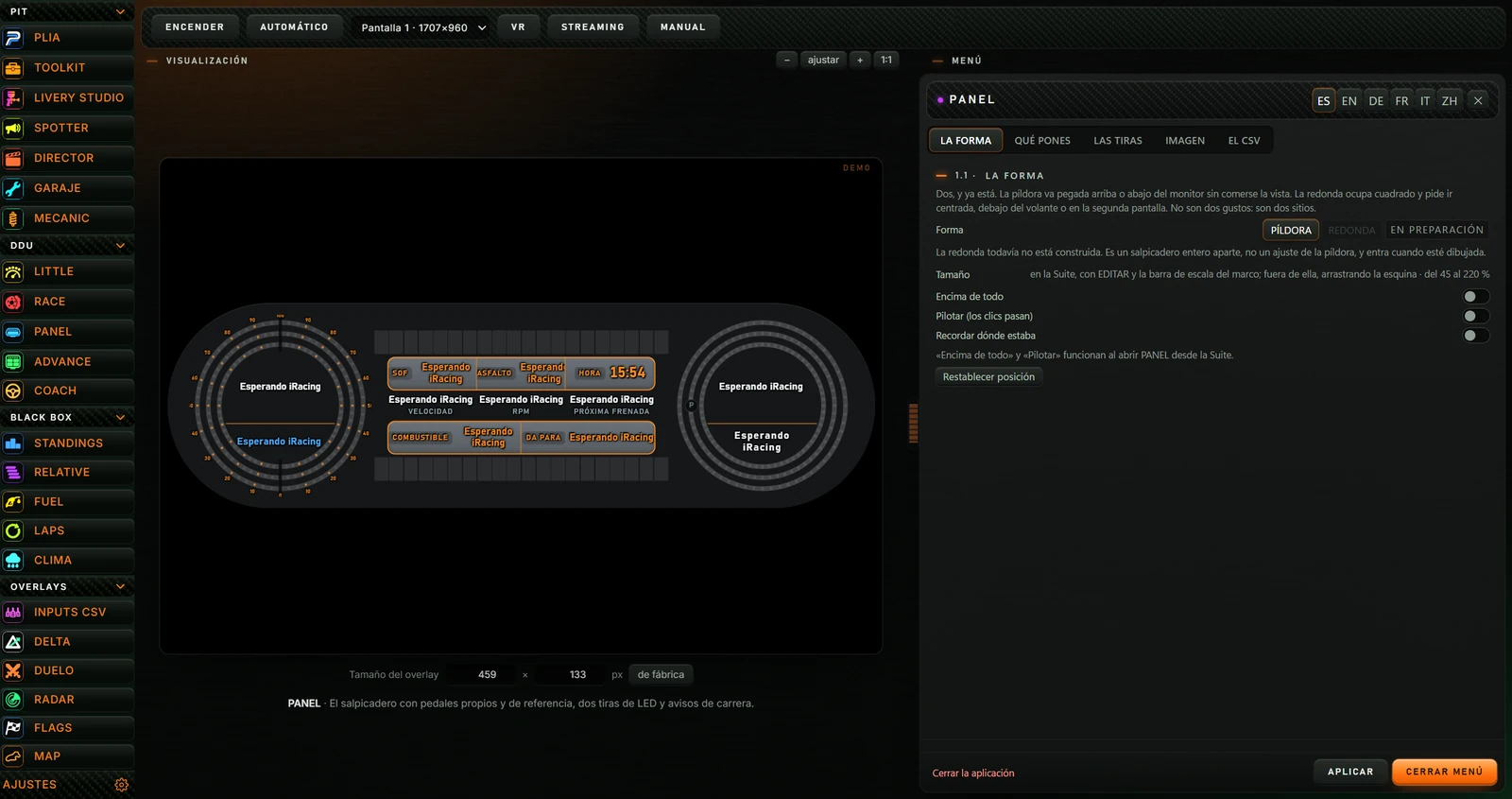
Push & Lift with PANEL under DDU. Top: ENCENDER, AUTOMÁTICO, Pantalla 1 · 1707×960, VR, STREAMING, MANUAL. Left: VISUALIZACIÓN, −/ajustar/+/1:1 and DEMO preview with Esperando iRacing in all fields. Below: Tamaño del overlay 459 × 133 px, de fábrica and PANEL description. Right: MENÚ on LA FORMA.
PANEL selected under DDU. Preview at left, still without data (“Esperando iRacing”), and PANEL menu at right.

2.1 Top buttons

Top buttons ENCENDER, AUTOMÁTICO, Pantalla 1 · 1707×960, VR, STREAMING, MANUAL. Below: VISUALIZACIÓN and −, ajustar, +, 1:1.
PANEL controls in the Suite, with preview zoom buttons below.
ButtonAction
ENCENDER (TURN ON) / APAGAR (TURN OFF)Shows PANEL on screen. Changes to APAGAR when on; clicking again removes it. Switching on with this button puts overlays into editing mode with orange frames for positioning (see 4.2).
AUTOMÁTICO (AUTOMATIC)When enabled, PANEL starts with iRacing or Le Mans Ultimate and stops when the simulator closes. Automatic startup does not enter editing mode. Click again to disable.
Dropdown Pantalla (Screen)Select PANEL's monitor. Each is shown as “Pantalla 1 · width×height”, “Pantalla 2…”. Applies next time PANEL starts.
VRReminds you to capture “PL OVERLAYS” in OpenKneeboard for VR. All enabled overlays are in that window.
STREAMINGCopies PANEL's address for an OBS browser source and gives the size: 1060×460. The menu also offers an OBS address with a choice of background (see IMAGEN (APPEARANCE)).
MANUAL (MANUAL)Opens PANEL's manual on the Push & Lift website in your browser.

2.2 Preview (VISUALIZACIÓN)

With PANEL off, its preview is on the left. The Suite requests demo data and shows DEMO at top right. Until data arrives, fields say “Esperando iRacing” (Waiting for iRacing), as above.

  • − and +: zoom the preview out or in.
  • ajustar (fit): fits it in the available area.
  • 1:1: shows actual size.
  • Drag the preview to move it. Double-click to centre.
  • Drag the orange divider between preview and menu to redistribute space. Double-click to centre it.
Below the preview: Tamaño del overlay with 459 × 133 px and de fábrica.
PANEL size in pixels. The screenshot shows this PC's saved values.
  • Tamaño del overlay (Overlay size): enter width or height in pixels. PANEL scales proportionally and saves the size. Width range 80–6000; height 40–4000.
  • de fábrica (factory default): restores factory size.
  • PANEL's description appears below.

2.3 With PANEL on

When on, the preview becomes a notice headed EN VIVO explaining that the overlay floats on screen and menu changes apply there immediately.
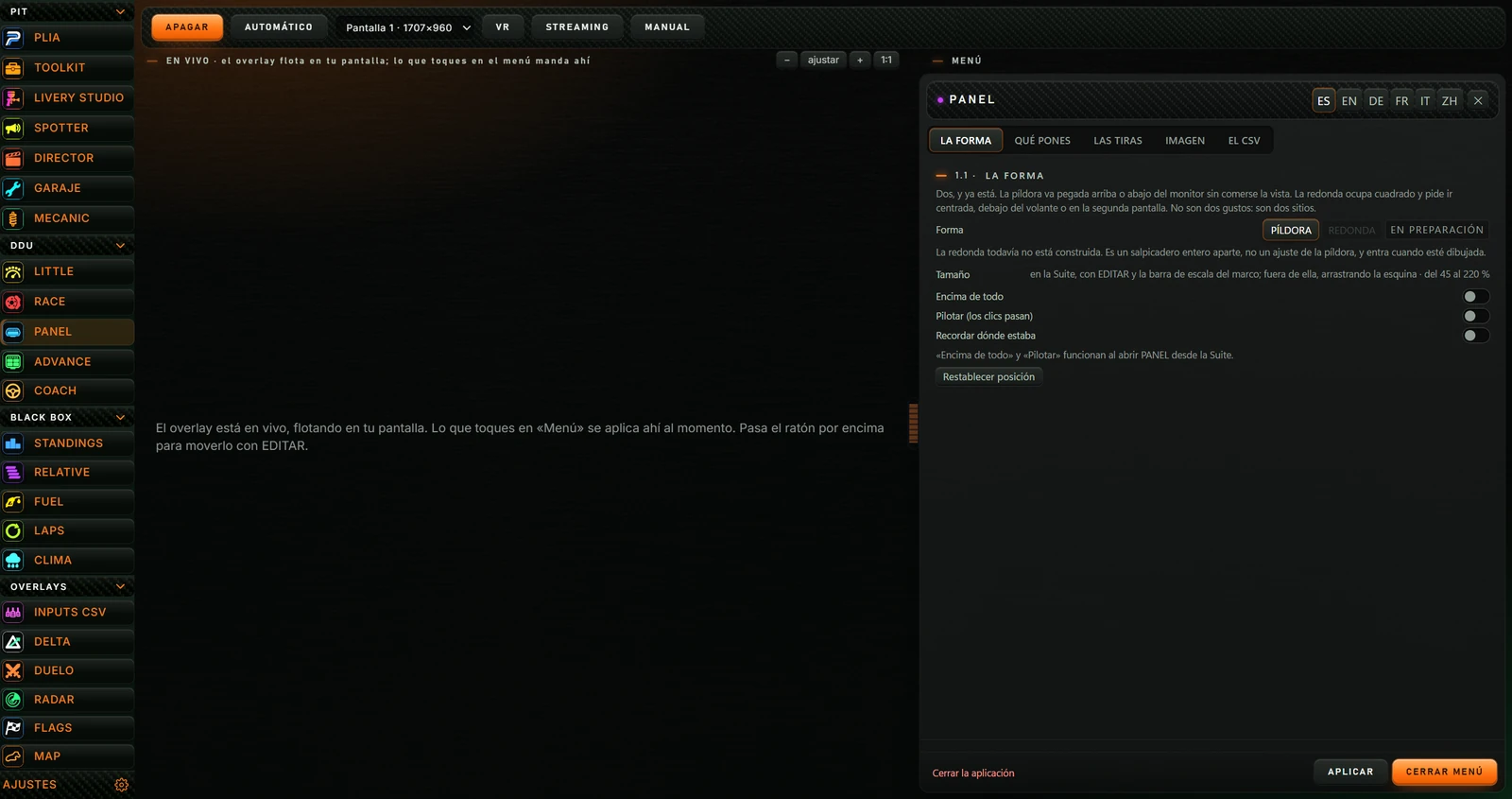
PANEL switched on in Push & Lift. Orange APAGAR button, EN VIVO heading and notice that menu changes apply immediately and EDITAR allows moving. PANEL menu on LA FORMA at right.
PANEL on: APAGAR button and live-overlay notice in place of the preview.

Getting started

  1. In the Suite's DDU group, click PANEL.
  2. If using multiple monitors, choose yours in Pantalla (Screen).
  3. Click ENCENDER (TURN ON). PANEL appears with an orange frame.
  4. Drag it into position and resize with the orange corners. Click ✓ to finish (see 4.2).
  5. Load a reference lap in the tab EL CSV (THE CSV) so next braking point, corner and reference pedals work.
  6. For automatic startup whenever you race, click AUTOMÁTICO (AUTOMATIC).
Until simulator data arrives, every field says “Esperando iRacing”. This is normal; they populate when you start driving.
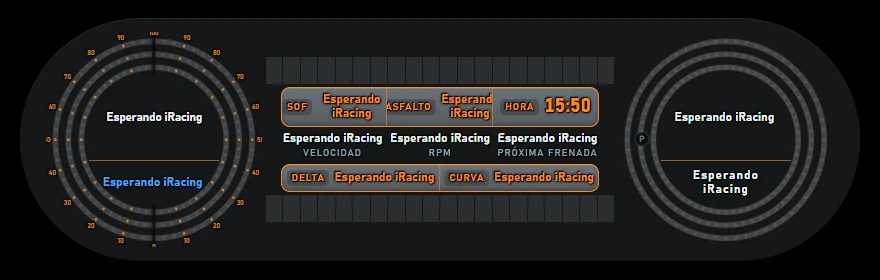
PANEL without data: gear, fuel, SOF, ASFALTO, speed, RPM, next braking, DELTA, CURVA and right circle say Esperando iRacing. Only HORA shows 15:50. Rings and LED strips are off.
PANEL without data: Esperando iRacing everywhere except the clock.

Screens and controls

4.1 PANEL

Left to right, PANEL has a left circle, centre and right circle. Factory settings are described here; change each area's contents in the menu.

Left circle: gear, fuel and pedals

  • In the centre, the gear in large type: N is neutral, R reverse. Gear changes trigger an orange flash.
  • Below, fuel in litres and tank capacity, for example “32.1 L / 106”. Insufficient fuel to finish makes the litres flash yellow.
  • Three rings surround it, each split into two halves with a 0–100 scale. They fill from bottom to top.
RingLeft half: youRight half: reference
OuterYour throttle, green.Reference throttle at this point, green.
MiddleYour brake, red.Reference brake at this point, orange.
InnerRPM towards the rev limit, green. Turns red near the limit.Fuel remaining, blue.

Compare the halves to see whether you accelerate or brake more or less than the reference lap.

Centre

AreaWhat it shows
Upper LED stripRPM: green lights with the final three orange. At the shift point, the last three flash red. Configurable (see LAS TIRAS (THE STRIPS)).
SOFStrength of field: for example 2.9k means 2900.
ASFALTO (TRACK)Track temperature in °C.
HORA (TIME)Your PC's local time.
VELOCIDAD (SPEED)In km/h.
RPMEngine RPM. This space can show gear or delta (see QUÉ PONES (WHAT TO SHOW)).
PRÓXIMA FRENADA (NEXT BRAKING POINT)Metres to the reference lap's next braking point. Without a lap, shows Sin referencia (No reference).
Lower displayBy default, the CSV row: DELTA seconds gained (green, −) or lost (red, +) against the reference, and CURVA (CORNER) the next corner, track's total corner count and reference gear, for example “7/10 · 2ª”. Configurable.
Lower LED stripBy default CSV delta: grows from centre left in green when gaining, right in red when losing. Configurable.

Right circle: braking and alerts

By default its central value is braking required for the next corner in the reference lap, as a percentage. Below, a word describes the reference at your current position:

  • BRAKE (red): reference is braking. Rings turn red.
  • PUSH (green): reference is accelerating.
  • LIFT (blue): reference is neither accelerating nor braking; lifting.
  • Sin referencia (No reference): no lap loaded.

This space can show other information (see QUÉ PONES (WHAT TO SHOW)). Surrounding rings are automatic alerts:

RingLeft halfRight half
OuterCurrent track flag, in its colour.Your incidents from 0 to 10: green at 0, orange at 1 or 2, red above that.
MiddleFully red when a nearby car poses a danger.Blue when ABS intervenes, orange when traction control intervenes.
Inner—Your delta: green when gaining, red when losing. Fills completely at 1.5 seconds.

A small P appears in grey to the circle's left.

Missing data

  • Esperando iRacing (Waiting for iRacing): no simulator data. PANEL returns here after 5 seconds without data.
  • Sin dato (No data): simulator is not providing that value now.
  • Sin referencia (No reference): this area needs a loaded reference lap.

4.2 PANEL running on your screen

PANEL lives with other overlays in a monitor-sized transparent window called PL OVERLAYS. It stays above the simulator.
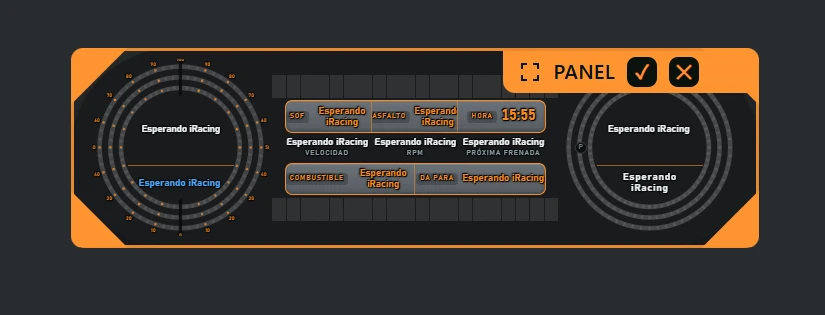
Move and resize (EDITAR)

PANEL in editing mode on grey: orange frame and triangular corners. Top-right tab with four-arrow icon, PANEL name, checkmark and cross. Inside, Esperando iRacing.
Editing mode: orange frame and resize corners, with controls at top right ✓ and ✕. Grey background added for visibility.
  • Hover over PANEL to show the top-right tab EDITAR (EDIT). Click to enter editing. Moving the mouse away hides the tab.
  • In editing mode all enabled overlays have an orange named frame.
  • Drag the frame to move PANEL.
  • Drag a corner of the orange frame to resize proportionally.
  • ✓ (Terminar de editar: Finish editing): exits editing mode. Position and size save when the mouse is released.
  • ✕ (Cerrar el overlay: Close overlay): turns PANEL off.
  • Right-click PANEL to open Push & Lift with PANEL selected and access its menu.
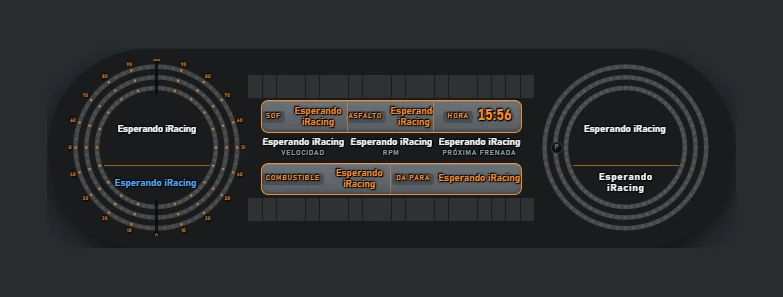
PANEL after clicking the checkmark, on grey: pill without orange frame, fields showing Esperando iRacing and time 15:56.
Clicking ✓ removes the frame and fixes PANEL in position. Grey background added for visibility.
On startup, clicks pass through PANEL to the simulator. Only EDITAR catches the mouse.

Suite keyboard shortcuts

These defaults apply to all overlays and can be changed in the Suite's AJUSTES (see SUITE manual).

ShortcutAction
F6Edit overlay positions (enter or leave editing mode).
Alt+HShow or hide all overlays.
Ctrl+Alt+LLock or unlock overlays (click-through).

The menu is on the right in the Suite. Selections save and appear in PANEL immediately, without another button.

AreaButtonAction
HeaderES EN DE FR IT ZHChange PANEL and its menu language: Spanish, English, German, French, Italian or Chinese. The menu reloads in that language.
✕Same as CERRAR MENÚ.
TabsLA FORMA (SHAPE) QUÉ PONES (WHAT TO SHOW) LAS TIRAS (THE STRIPS) IMAGEN (APPEARANCE) EL CSV (THE CSV)Each shows an option group (see 5).
Help line—Above the footer, hovering over some options shows help. Notices such as Ajustes guardados (Settings saved) also appear here.
FooterCerrar la aplicación (Close application)Turns PANEL off, like APAGAR.
APLICAR (APPLY)Saves settings again and says Ajustes guardados. Automatic saving makes this unnecessary.
CERRAR MENÚ (CLOSE MENU)Hides the Push & Lift screen.
PANEL menu on QUÉ PONES, hovering El hueco de la derecha. Help says “Where others put position and never move it”. Footer: Cerrar la aplicación, APLICAR, CERRAR MENÚ.
Hovering over El hueco de la derecha gives the help “Where others put position and never move it”.

Settings, option by option

Factory defaults are in parentheses. Menu screenshots show those defaults.
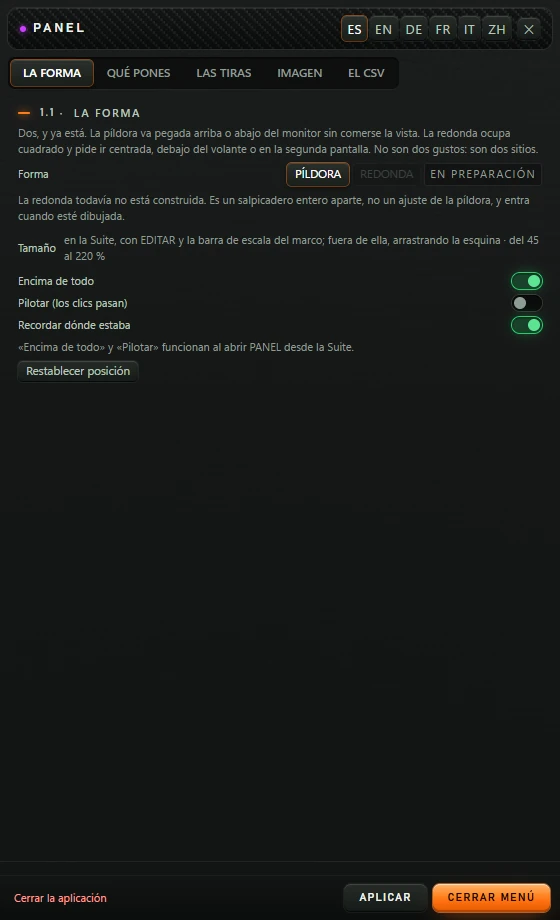
5.1 LA FORMA (SHAPE)

PANEL menu on LA FORMA: heading 1.1 · LA FORMA, pill layout description, PÍLDORA selected and REDONDA disabled with EN PREPARACIÓN. Size help refers to EDITAR and frame scaling in the Suite, or dragging a corner outside it, 45–220 %. Encima de todo on, Pilotar off, Recordar dónde estaba on. Restablecer posición and footer Cerrar la aplicación/APLICAR/CERRAR MENÚ.
LA FORMA tab with factory defaults.
OptionAction
Forma (Shape): PÍLDORA (PILL) / REDONDA (ROUND) (PÍLDORA)Only the pill shape currently exists. REDONDA is grey with EN PREPARACIÓN (IN PREPARATION) and cannot be selected; the round shape is not built yet. Help: can be changed live.
Tamaño (Size)Informational text explaining where to resize. In the Suite use editing-frame corners (see 4.2) or Tamaño del overlay below the preview (see 2.2).
Encima de todo (Always on top) (on)In the Suite, PANEL always stays above the simulator; this switch makes no visible difference.
Pilotar (los clics pasan) (Drive: click-through) (off)On: clicks pass through PANEL and only EDITAR remains interactive. Off: PANEL receives the mouse on hover. Help says it is meant to be viewed while driving. ENCENDER always starts PANEL click-through, regardless of this setting.
Recordar dónde estaba (Remember position) (on)Saved, but has no visible effect: the Suite always remembers PANEL's position.
Restablecer posición (Reset position)With PANEL on, centres it and saves that position. Useful when off-screen.

Below the switches, a message says Encima de todo and Pilotar work when PANEL is opened from the Suite.
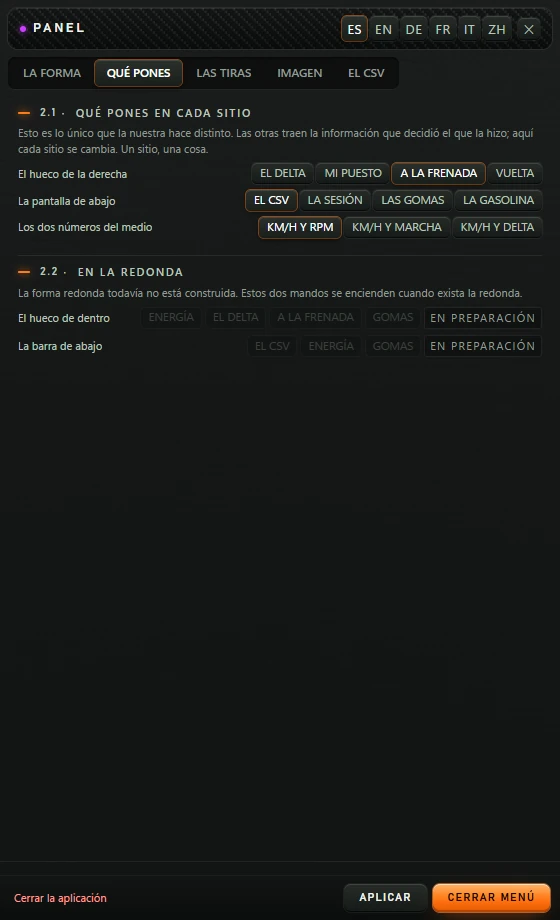
5.2 QUÉ PONES (WHAT TO SHOW)

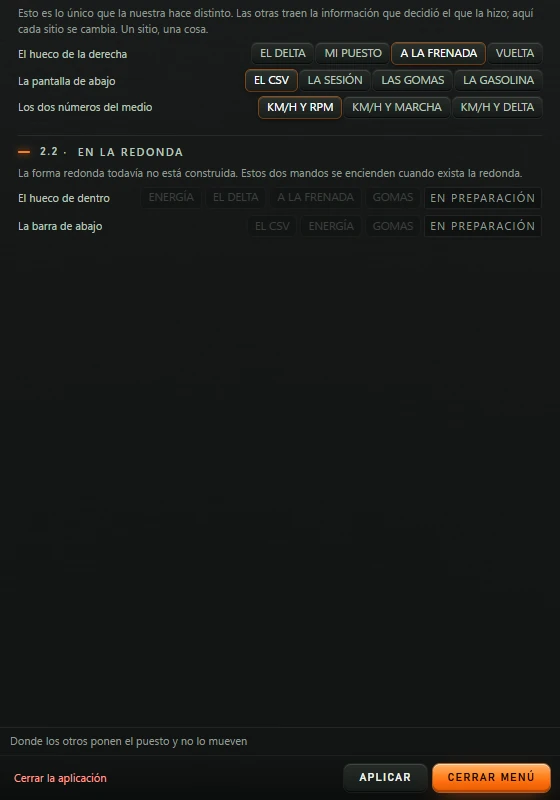
QUÉ PONES menu. Right space: EL DELTA, MI PUESTO, A LA FRENADA selected, VUELTA. Lower display: EL CSV selected, LA SESIÓN, LAS GOMAS, LA GASOLINA. Centre values: KM/H Y RPM selected, KM/H Y MARCHA, KM/H Y DELTA. Disabled EN LA REDONDA rows: inner space ENERGÍA/EL DELTA/A LA FRENADA/GOMAS and lower bar EL CSV/ENERGÍA/GOMAS, all marked EN PREPARACIÓN.
QUÉ PONES with defaults. The bottom two rows are greyed out.

El hueco de la derecha (A LA FRENADA) (Right space: braking)

The central value in the right circle. Help: where others put position and never move it.

ButtonWhat it shows
A LA FRENADA (BRAKING)Required brake percentage for the reference's next corner, and BRAKE/PUSH/LIFT according to what the reference does here (see 4.1).
EL DELTA (DELTA)Your delta in seconds, with DELTA below.
MI PUESTO (MY POSITION)Your position, with car count in smaller type, e.g. 4 /24; PUESTO below. Until standings are firm it says Aún no firme (Not confirmed yet).
VUELTA (LAP)Current lap and total laps in small type; VUELTA below. An estimated total is prefixed with ~.
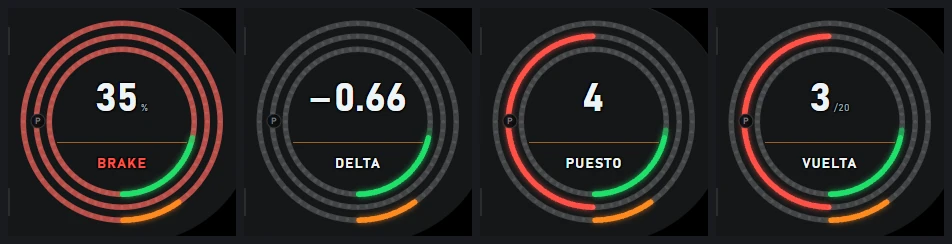
Four right-circle crops: red 35 % and BRAKE with red rings; −0.66 and DELTA; 4 and PUESTO; 3 /20 and VUELTA.
Right space showing A LA FRENADA, EL DELTA, MI PUESTO and VUELTA with demo data.

La pantalla de abajo (EL CSV) (Lower display: CSV)

The orange two-field screen below the large values.

ButtonLeft fieldRight field
EL CSV (THE CSV)DELTA against the reference lap.CURVA (CORNER): next corner / total · reference gear.
LA SESIÓN (SESSION)SESIÓN (SESSION): time remaining (minutes:seconds).VUELTA (LAP): current lap and laps left (2 · 17 restantes means 2 · 17 remaining).
LAS GOMAS (TYRES)DELANTERAS (FRONTS): temperatures of both front tyres.TRASERAS (REARS): temperatures of both rear tyres.
LA GASOLINA (FUEL)COMBUSTIBLE (FUEL): litres on board.DA PARA (RANGE): remaining fuel laps.

Help: contains temperature, SOF and time, and that is all.
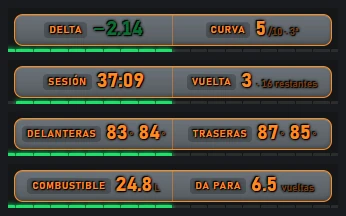
Four lower-display crops: DELTA −2.21 / CURVA 5/10 · 3ª; SESIÓN 37:09 / VUELTA 3 · 16 restantes; DELANTERAS 83° 84° / TRASERAS 87° 85°; COMBUSTIBLE 24.8 L / DA PARA 6.5 laps.
Lower display showing EL CSV, LA SESIÓN, LAS GOMAS and LA GASOLINA with demo data.

Los dos números del medio (KM/H Y RPM) (Middle values: KM/H and RPM)

Speed always remains. Changes the middle value between VELOCIDAD and PRÓXIMA FRENADA.
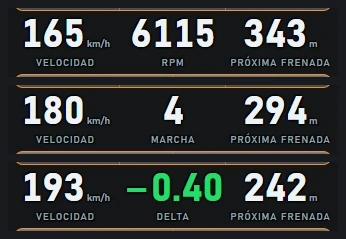
  • KM/H Y RPM (KM/H AND RPM): engine RPM.
  • KM/H Y MARCHA (KM/H AND GEAR): gear.
  • KM/H Y DELTA (KM/H AND DELTA): your delta, green or red.
Three large-value rows, each with speed left and braking metres right. Middle values: RPM, MARCHA 4, then green DELTA −0.40.
Middle values with KM/H Y RPM, KM/H Y MARCHA and KM/H Y DELTA.

EN LA REDONDA (IN THE ROUND SHAPE)

El hueco de dentro (Inner space) (ENERGÍA (ENERGY), EL DELTA (DELTA), A LA FRENADA (BRAKING), GOMAS (TYRES)) and La barra de abajo (Bottom bar) (EL CSV (THE CSV), ENERGÍA (ENERGY), GOMAS (TYRES)) are grey, marked EN PREPARACIÓN and cannot be clicked. They belong to the unbuilt round shape. Bottom-bar help: the upper one is always fuel because it determines the outcome.
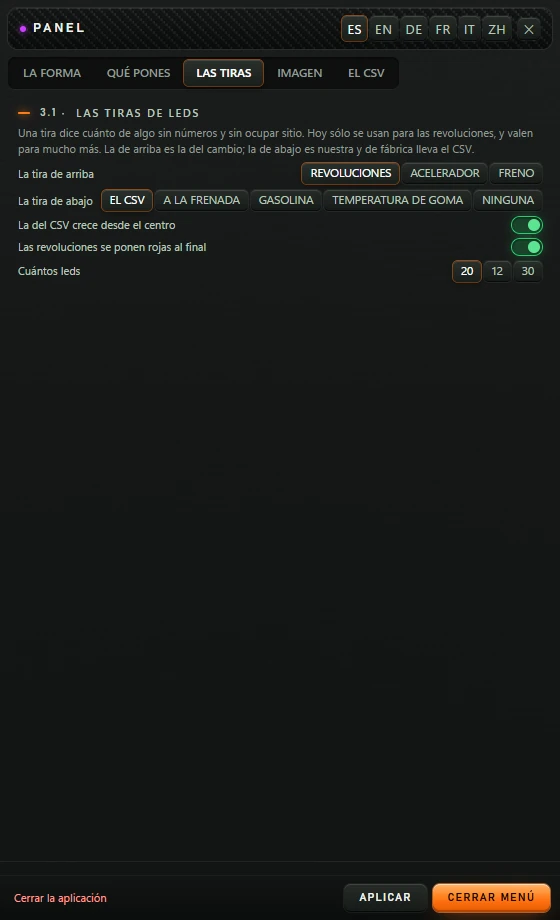
5.3 LAS TIRAS (THE STRIPS)

LAS TIRAS menu. Upper: REVOLUCIONES selected, ACELERADOR, FRENO. Lower: EL CSV selected, A LA FRENADA, GASOLINA, TEMPERATURA DE GOMA, NINGUNA. Centre-growing CSV and red-at-end RPM switches on. LED counts: 20 selected, 12 and 30 available.
LAS TIRAS with factory defaults.
OptionAction
La tira de arriba (Upper strip) (REVOLUCIONES)REVOLUCIONES (RPM): shift lights, green with the last three orange. ACELERADOR (THROTTLE): your throttle, green. FRENO (BRAKE): your brake, red.
La tira de abajo (Lower strip) (EL CSV)EL CSV (THE CSV): whether you gain or lose time against the reference. A LA FRENADA (BRAKING): fills orange over the last 300 metres before the next braking point. GASOLINA (FUEL): tank level, blue; red when insufficient to finish. TEMPERATURA DE GOMA (TYRE TEMPERATURE): four groups, one per wheel, fronts first then rears: blue below 48 °C, green up to 95 °C, red above. NINGUNA (NONE): strip stays off.
La del CSV crece desde el centro (CSV grows from centre) (on)On: CSV strip grows from centre, green left when gaining, red right when losing. Off: grows from the left in green or red.
Las revoluciones se ponen rojas al final (RPM turns red at the end) (on)On: at the shift point the last three lights flash red. Off: no flashing.
Cuántos leds (LED count): 20 12 30 (20)Number of lights per strip. Applies to both.
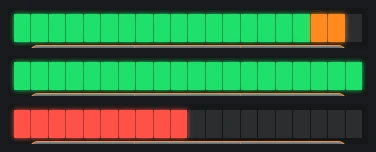
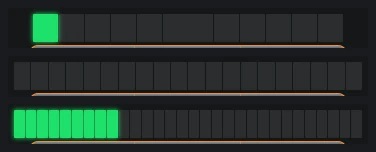
Three upper-strip crops with 20 lights each: REVOLUCIONES, ACELERADOR with several green lights, and FRENO.
Upper strip with REVOLUCIONES, ACELERADOR and FRENO, using demo data at that instant.
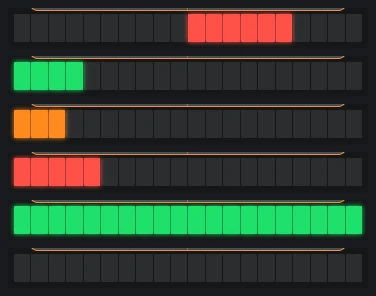
Six lower-strip crops: CSV from centre with six red LEDs right of centre; CSV from left with four green; braking with three orange at left; fuel with five red; tyre temperature with all twenty green; none with all off.
Lower strip: CSV from centre, CSV from left, A LA FRENADA, GASOLINA red because fuel is insufficient, TEMPERATURA DE GOMA and NINGUNA.
Upper strip with 12 wider LEDs, 20 LEDs and 30 narrower LEDs.
LED counts: 12, 20 and 30.

5.4 IMAGEN (APPEARANCE)

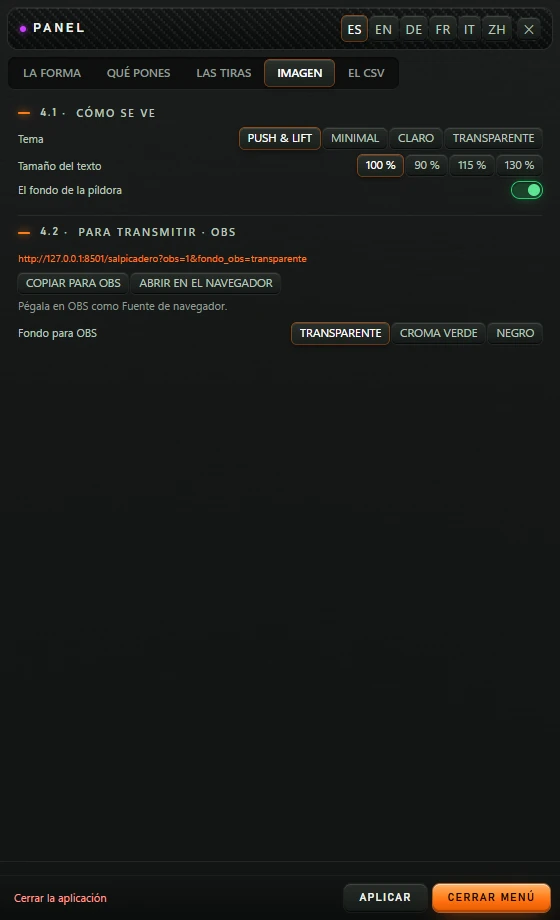
IMAGEN menu: PUSH & LIFT selected, MINIMAL/CLARO/TRANSPARENTE themes; text size 100 % selected, 90/115/130 %; pill background on. OBS address ends salpicadero?obs=1&fondo_obs=transparente. COPIAR PARA OBS/ABRIR EN EL NAVEGADOR buttons and browser-source help. OBS background TRANSPARENTE selected, with CROMA VERDE/NEGRO alternatives.
IMAGEN with factory defaults.
OptionAction
Tema (Theme) (PUSH & LIFT)PUSH & LIFT: dark grey pill. MINIMAL: darker pill without shadow. CLARO (LIGHT): light-coloured pill. TRANSPARENTE (TRANSPARENT): no pill or display backgrounds; only rings, lights and text remain.
Tamaño del texto (Text size): 100 % 90 % 115 % 130 % (100 %)Makes PANEL's letters and numbers larger or smaller.
El fondo de la píldora (Pill background) (on)Off: transparent pill, leaving text, rings and displays. Help describes leaving only letters on transparency.
Dirección para OBS (OBS address)PANEL's OBS address. Changes with the selected background.
COPIAR PARA OBS (COPY FOR OBS)Copies the address. Says Copiado — pégalo en OBS como «Navegador» (Copied: paste as Browser in OBS), or No se ha podido copiar. El enlace está ahí arriba. (Copy failed; link is above).
ABRIR EN EL NAVEGADOR (OPEN IN BROWSER)Opens the address separately to preview the OBS result.
Fondo para OBS (OBS background) (TRANSPARENTE)The background PANEL will have in OBS: TRANSPARENTE (TRANSPARENT), CROMA VERDE (GREEN CHROMA) (pure green for chroma-key removal) or NEGRO (BLACK).
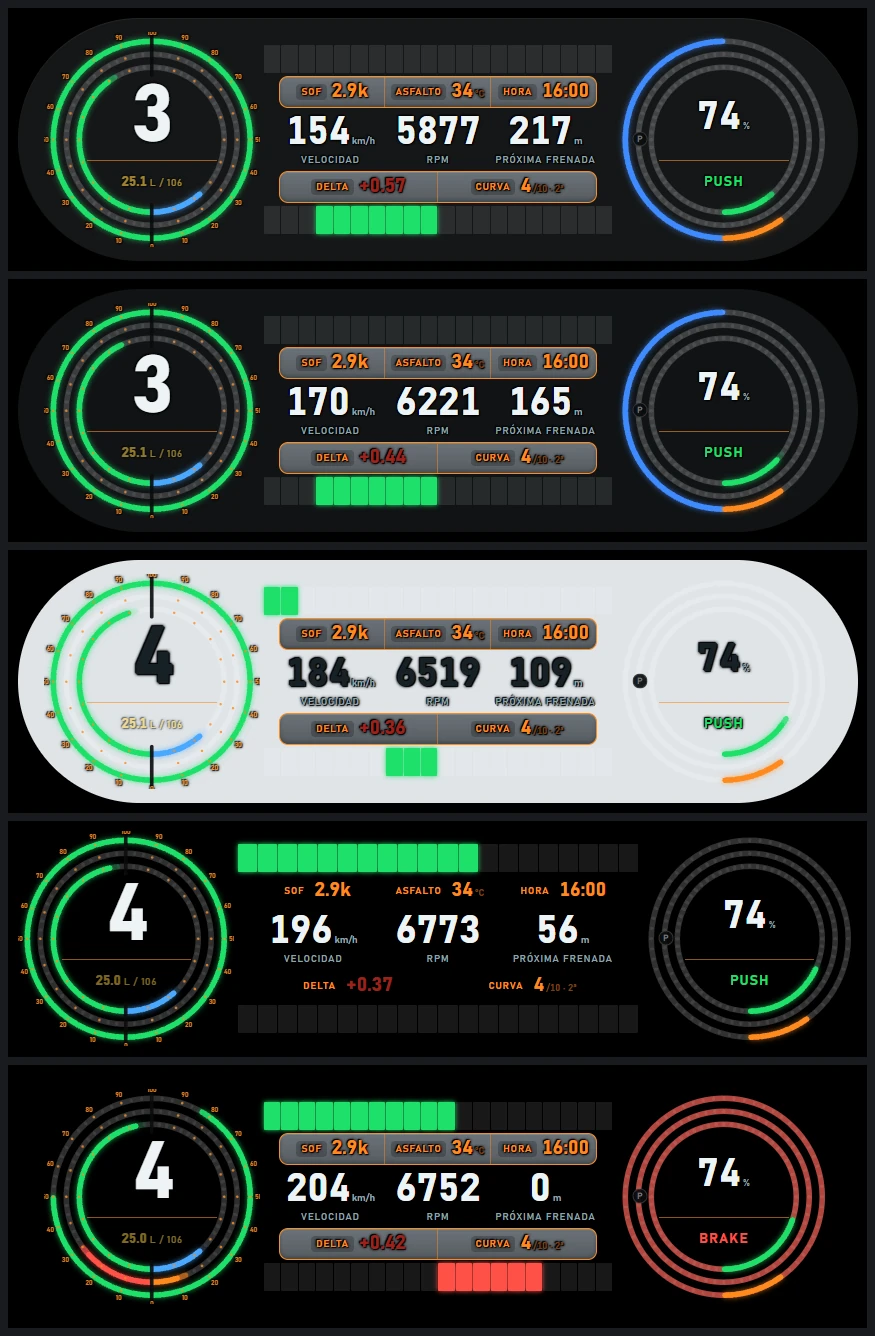
Five PANEL demo views on black: PUSH & LIFT dark grey; MINIMAL nearly black; CLARO very light grey with black numbers; TRANSPARENTE with only rings/lights/text and no backgrounds; PUSH & LIFT without pill background but retaining orange displays.
Top to bottom: PUSH & LIFT, MINIMAL, CLARO, TRANSPARENTE, then PUSH & LIFT with El fondo de la píldora off.
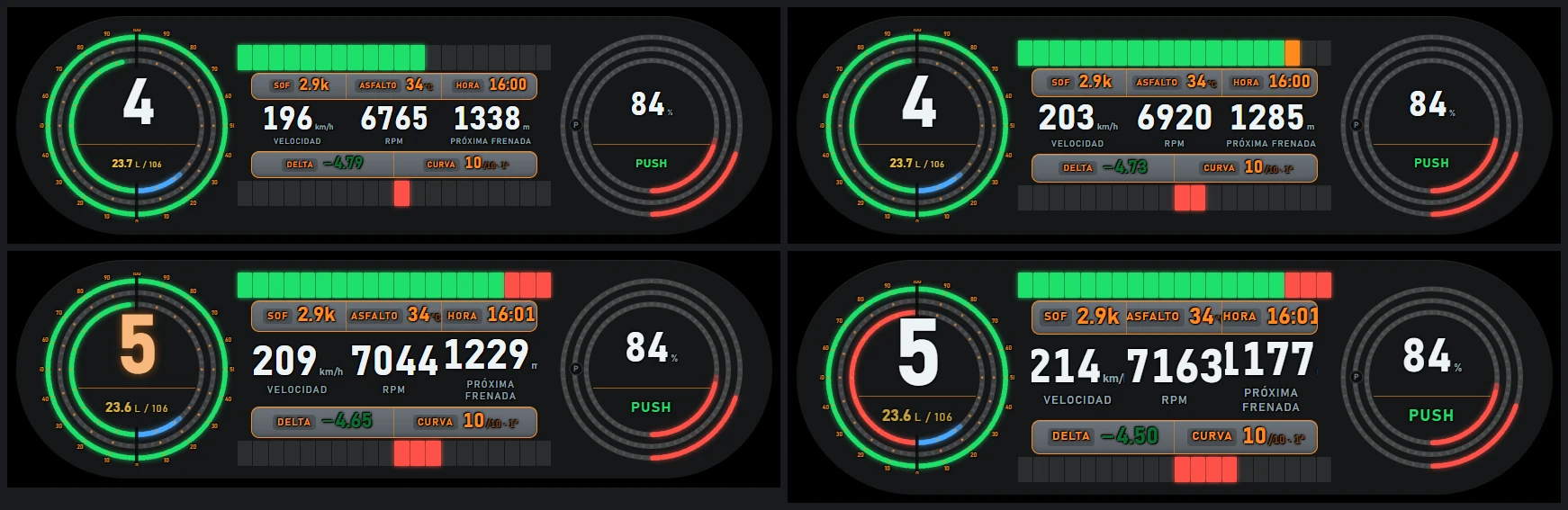
Four PANEL views in a 2×2 grid, text at 90 %, 100 %, 115 %, 130 %. The last two have larger central values.
Text size: 90 % and 100 % above, 115 % and 130 % below.

5.5 EL CSV (THE CSV)

Load the reference lap here. It supplies next braking point, corner, CSV delta and reference pedals. Without a loaded lap, those areas say so.
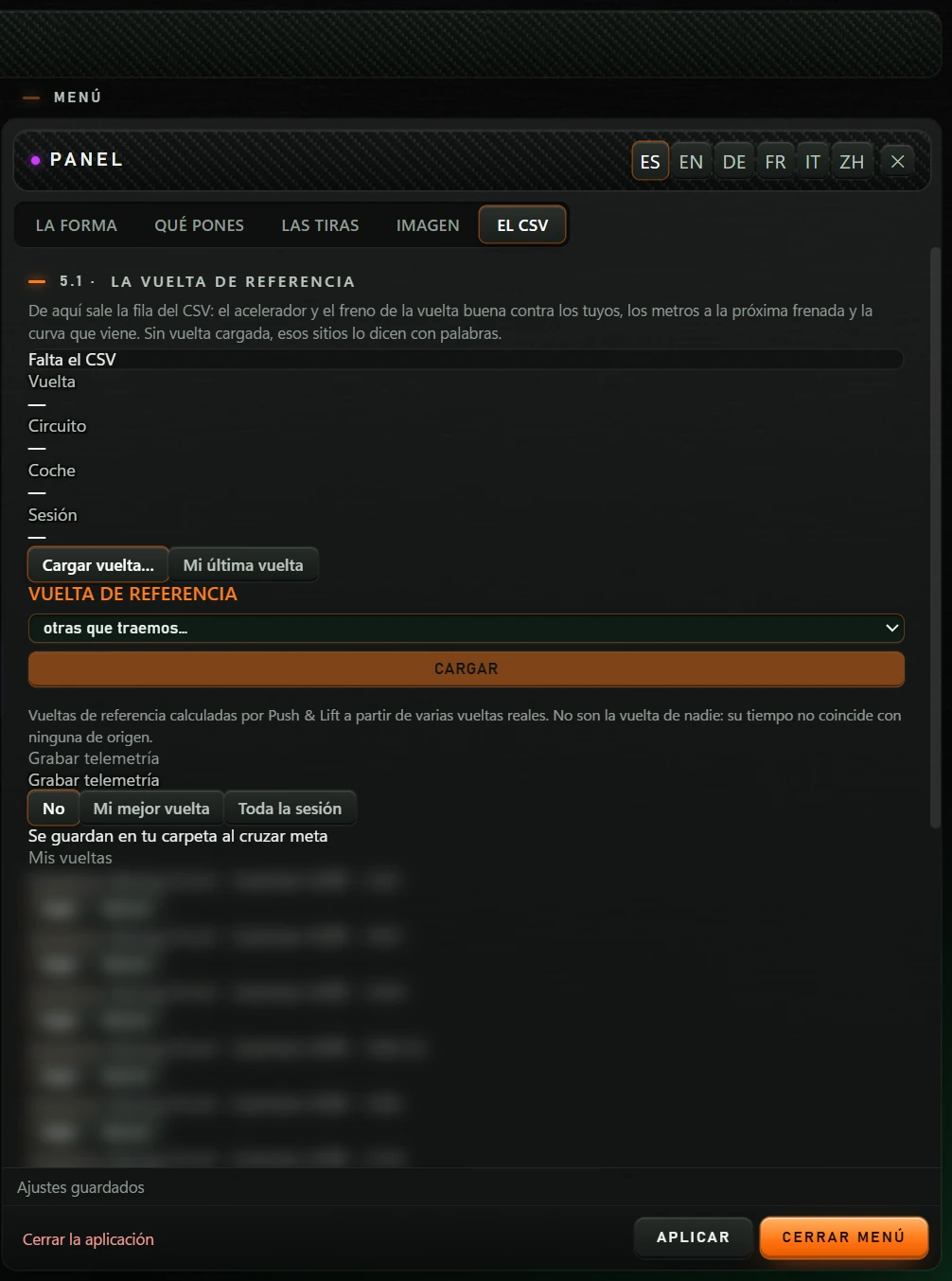
EL CSV menu in the Suite: missing-CSV notice, Vuelta/Circuito/Coche/Sesión rows with dashes, Cargar vuelta…/Mi última vuelta. Reference dropdown otras que traemos… and CARGAR, explanation of calculated reference laps. Recording choices No selected/Mi mejor vuelta/Toda la sesión and finish-line saving notice. Mis vueltas list blurred. Bottom help says Ajustes guardados.
EL CSV inside the Suite with no lap loaded. Mis vueltas list deliberately blurred.

Loaded lap

  • A status notice at the top: Falta el CSV (CSV missing), Vuelta cargada (Lap loaded), Coincide con la sesión (Matches session) (green), Otro circuito (Different track) or Es de otro coche (Different car) (orange: reference does not match where you are racing).
  • Vuelta (Lap), Circuito (Circuito (Track)), Coche (Car): loaded lap details. Sesión (Session): where you are racing now.
  • Cargar vuelta… (Load lap…): opens Windows file picker for a CSV. Only works from the Suite; otherwise says Esta ventana no puede abrir el explorador. Abre el menu desde PUSH & LIFT. (This window cannot open the picker; open the menu from PUSH & LIFT.)
  • Mi última vuelta (My last lap): uses your last lap as reference.

VUELTA DE REFERENCIA (las que trae Push & Lift) (REFERENCE LAPS supplied by Push & Lift)

  • A reference for the same car appears at the top with ▶ and either same car/same track or same car/other track. Click to load.
  • The list otras que traemos… (other supplied laps…) contains the rest (track · car · time). Choose one and click CARGAR (LOAD). During loading: CARGANDO… (LOADING). Then Cargada. Ya puedes rodar. (Loaded; ready to drive) or No se ha podido cargar (Unable to load). If empty: No hay ninguna todavía (None yet).
  • The text below explains these are references calculated by Push & Lift from several real laps, not a single person's lap.

Telemetry recording and My laps

  • Grabar telemetría (Record telemetry): No, Mi mejor vuelta (My best lap) or Toda la sesión (Whole session). Saved in your folder when crossing the finish line.
  • Mis vueltas (My laps): recorded laps, each with Usar (Use) (loads it as reference) and Borrar (Delete). If empty: Todavía no has grabado ninguna (No recorded laps yet).
  • Abrir la carpeta (Open folder): opens the storage folder.
Borrar (Delete) deletes the lap immediately, without confirmation.

Common tasks, step by step

Use PANEL on track

  1. Suite → DDU group → PANEL.
  2. Select the monitor in Pantalla (Screen).
  3. Click ENCENDER (TURN ON).
  4. Drag the orange frame into position and resize with a corner.
  5. Click ✓.

Automatic startup when racing

  1. Suite → DDU → PANEL.
  2. Click AUTOMÁTICO (AUTOMATIC). It now starts with iRacing or Le Mans Ultimate and stops when they close.

Race against a reference lap

  1. In the menu, on the tab EL CSV (THE CSV).
  2. Click Cargar vuelta… (Load lap…) and choose your CSV, or choose a lap from otras que traemos… (other supplied laps…) and click CARGAR (LOAD).
  3. Check the notice: it should say Coincide con la sesión or Vuelta cargada.
  4. On track, the right circle shows required braking for the next corner and whether the reference brakes (BRAKE), accelerates (PUSH) or lifts (LIFT). The lower strip shows gains/losses.

Record your best lap for later

  1. Tab EL CSV (THE CSV) → Grabar telemetría (Record telemetry) → Mi mejor vuelta (My best lap).
  2. Drive. The lap saves at the finish line.
  3. Next time, in Mis vueltas (My laps) click Usar (Use) on the lap you want.

Show tyre temperatures or fuel

  1. Tab QUÉ PONES (WHAT TO SHOW) → La pantalla de abajo (Lower display) → LAS GOMAS (TYRES) or LA GASOLINA (FUEL).
  2. For lights instead, open the tab LAS TIRAS (THE STRIPS) → La tira de abajo (Lower strip) → TEMPERATURA DE GOMA (TYRE TEMPERATURE) or GASOLINA (FUEL).

Show PANEL in OBS

  1. Tab IMAGEN (APPEARANCE) → Fondo para OBS (OBS background): choose TRANSPARENTE (TRANSPARENT), CROMA VERDE (GREEN CHROMA) or NEGRO (BLACK).
  2. Click COPIAR PARA OBS (COPY FOR OBS).
  3. In OBS add a browser source and paste the address.

You can also use the top button STREAMING which copies a transparent-background address and gives 1060×460 dimensions.

View in VR

  1. Turn on PANEL.
  2. In OpenKneeboard, capture PL OVERLAYS.

Set an exact size

  1. With PANEL off, look below the Suite preview: Tamaño del overlay (Overlay size).
  2. Enter width or height in pixels. The other scales proportionally.
  3. To restore factory size, click de fábrica (factory default).

Common problems and remedies

What happensWhat to do
Every field says Esperando iRacing.No data. Start the simulator and go on track. Le Mans Ultimate shows the same message while data is absent.
PRÓXIMA FRENADA, CURVA or the right circle says Sin referencia.Load a lap from EL CSV.
EL CSV says Otro circuito or Es de otro coche.The loaded reference does not match the session. Load one for the same track and car.
EL CSV says El motor no responde. Abre PUSH & LIFT.The engine is off. Open the Suite and turn on PANEL.
Cargar vuelta… says Esta ventana no puede abrir el explorador…Open the menu from PANEL's screen in the Suite.
PANEL is off-screen.With PANEL on, click Restablecer posición (Reset position) on LA FORMA to return to the centre.
I cannot move PANEL.Hover over it and click EDITAR (EDIT) or F6, then drag the frame.
PANEL blocks the view and captures clicks.Enable Pilotar (los clics pasan) in LA FORMA, or press Ctrl+Alt+L.
REDONDA and EN LA REDONDA options cannot be selected.Expected: they are still in preparation.
Fuel litres flash yellow.Fuel is insufficient to finish.
I accidentally deleted a recorded lap.Borrar deletes without confirmation and cannot be undone from the menu.
CERRAR MENÚ also hid the Push & Lift screen.That is its function. Reopen Push & Lift and select PANEL.