 PUSH & LIFTPUSH & LIFT

Push & Lift · your AI race engineer
PLIA is Push & Lift's AI assistant. Ask by typing or speaking, and it answers.
You can use PLIA for free. Choose its AI once. All three options are explained in 3. First use:
PLIA has several modes (PLIA, Setups, Coach, Spotter, Mi PC, Liveries, Vídeos, Directo, Coder and Fábrica). Each offers a different way of working. The normal mode is PLIA: your engineer, who helps you and distributes the work.
Only one PLIA window opens. If already open, it does not open another.
PLIA uses the language selected in the Suite.
At first launch, PLIA prepares its engine. The waiting screen shows:
Do not close it. Once ready, the normal PLIA screen appears. Later launches are immediate.
If startup fails, the window shows PLIA no ha podido abrir (PLIA could not open), explains the problem and asks you to close and reopen PLIA. If it persists, send the error through the program's Discord so it can be fixed. The COPIAR EL ERROR (COPY ERROR) button copies the error for pasting.
PLIA requires an active Push & Lift licence. If none is found, Windows asks you to open Push & Lift, go to Ajustes > Tu cuenta (Settings > Your account), check your account, purchase and connection, then reopen the app.
The Push & Lift bar has K, GPT, microphone, speaker and crossed-out microphone buttons. They let you talk to PLIA without opening its window, for example during a race. See the SUITE manual, The bar section. Inside PLIA the same controls are in the message box (see 4.5).
The first time, the Bienvenido a PLIA (Welcome to PLIA) box appears («Your race engineer inside Push & Lift»). It has three sections:
Two buttons below: Conseguir una clave (Get a key) closes the box and opens Ajustes → API (Settings → API), and Empezar (Start) only closes it. It will not appear again.
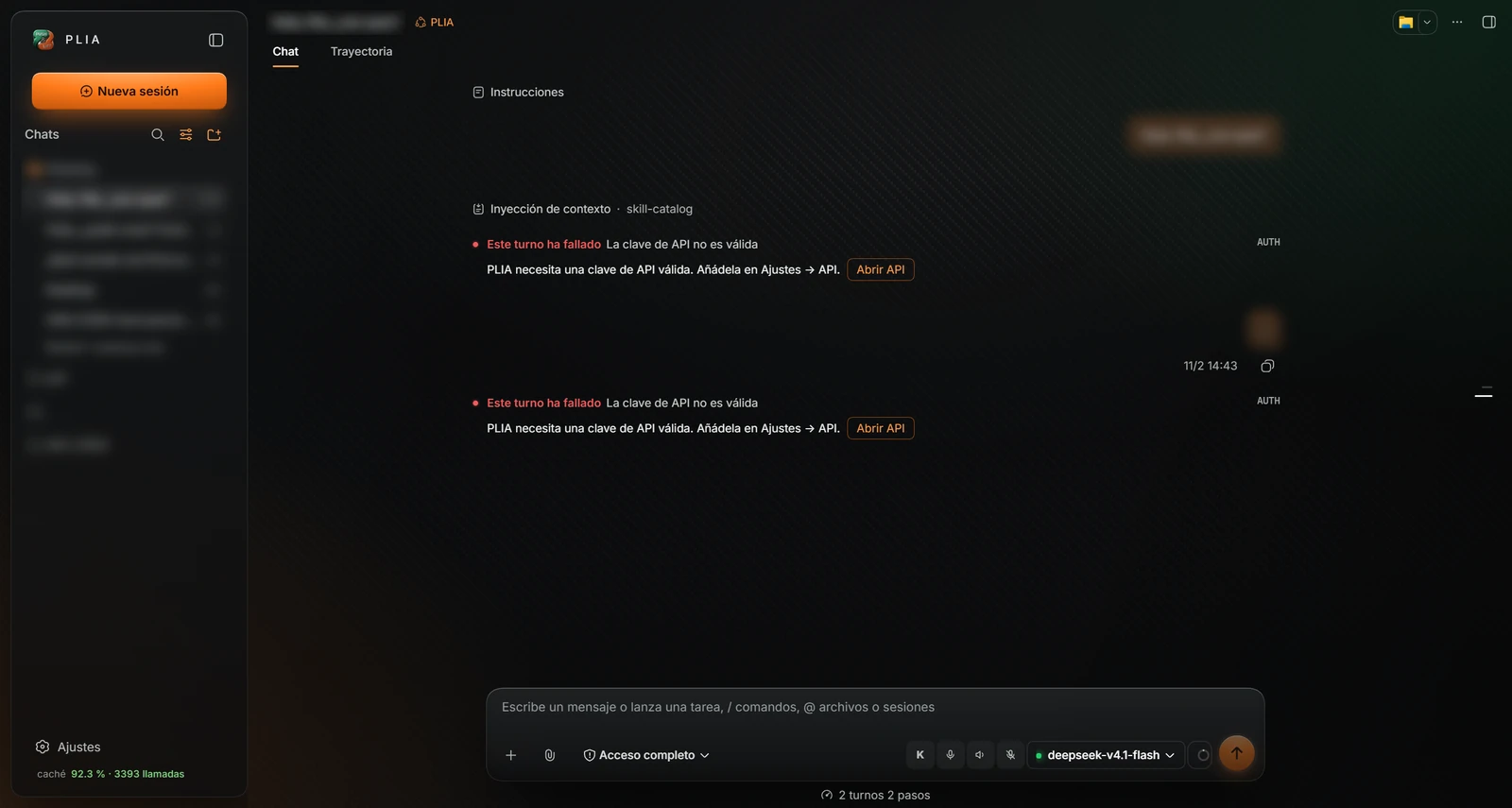
PLIA cannot answer until you enter a key, start a local model or connect your Claude Code or Codex account. Sending a message shows «Este turno ha fallado» (turn failed), asking for a valid API key in Ajustes → API, and the button Abrir API (Open API).
Details for this tab in 5.6 Local models.
For free use, choose NVIDIA NIM, Google AI Studio (shown as google) or Groq (shown as groq).
The key is stored only on your computer. Details in 5.5 API.
This uses your plan allowance without an API key. PLIA never sees your password. Details in 5.4 CLI.
Its areas are: on the left, the sidebar with your chats; at the top, the header of the open chat; in the centre, the conversation; at the bottom, the message box.
While PLIA thinks, the central logo breaks into particles with phrases such as «Rodando…», «Mirando la telemetría…» or «Hablando con el muro…» (running, checking telemetry, talking to the pit wall). Disable this animation in Settings → Appearance.
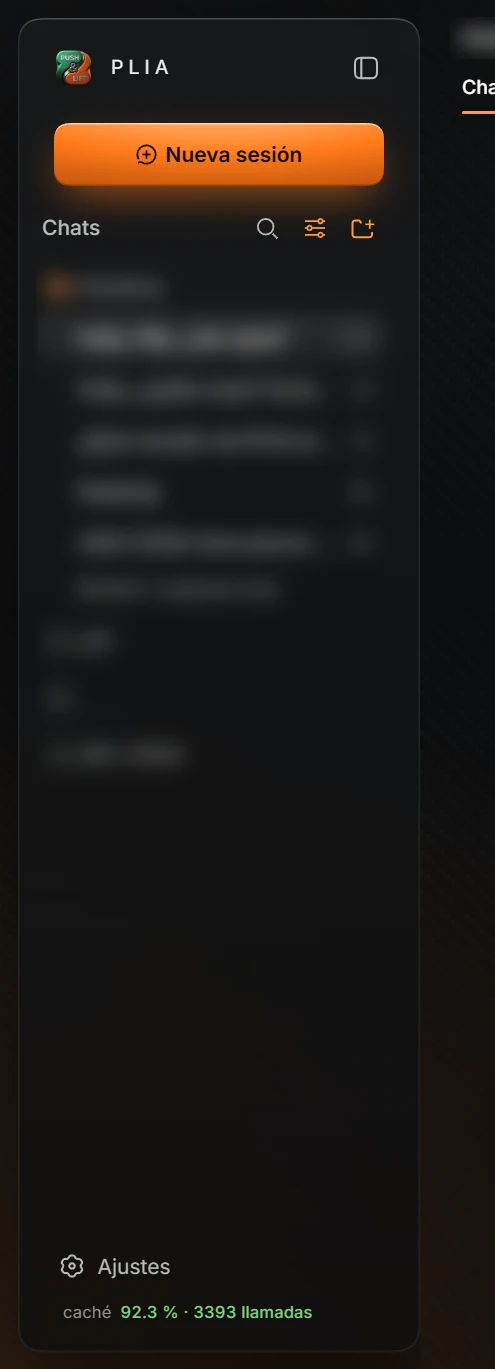
| Button or area | What it does |
|---|---|
| Logo PLIA | Starts a new session, like Nueva sesión. |
| Panel icon («Contraer barra lateral»: collapse sidebar) | Collapses the sidebar to free space. Click again to reopen it. |
| Nueva sesión (New session) | Opens the screen for starting a new conversation (see 4.6). |
| Magnifier («Buscar sesiones»: search sessions) | Opens the Buscar… (Search…) box to search your chats. The X («Borrar búsqueda») clears the search. |
| Settings icon («Opciones de vista»: view options) | Opens the list display menu (see below). |
| Folder with plus («Añadir espacio de trabajo»: add workspace) | Adds a PC folder as a workspace. PLIA works inside that folder. |
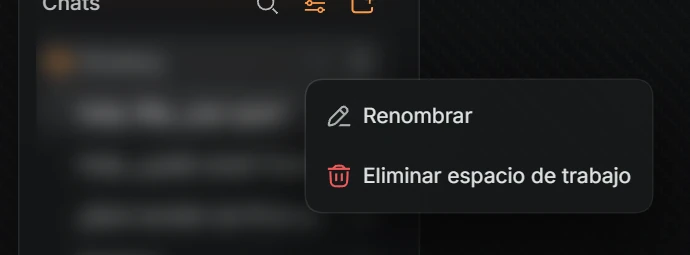
| Workspace name | Collapses or expands its chats. Hover to show two buttons: Nueva sesión en … (New session in …) (new chat in that folder) and Acciones del espacio de trabajo para … (Workspace actions for …) (menu: Renombrar (Rename) and Eliminar espacio de trabajo (Remove workspace)). |
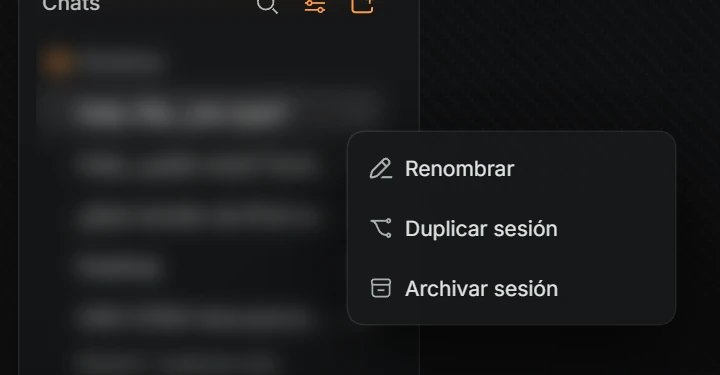
| A chat | Opens it. Beside it is time since last use (for example 23h, 1d). Hover to show Acciones de la sesión para … (Session actions for …) with the menu Renombrar, Duplicar sesión (Duplicate session) and Archivar sesión (Archive session). |
| Mostrar … sesiones más (Show … more sessions) | Shows the remaining chats in that workspace. |
| Ajustes | Opens settings (see 5). |
| caché (cache) … % · … calls | Provider cache counter: how much of PLIA's input is reused from previous requests. Green: 90% or more; yellow: 70% or more; red: lower. Hover for token counts. If the provider supplies no figure: «sin dato todavía» (no data yet). |
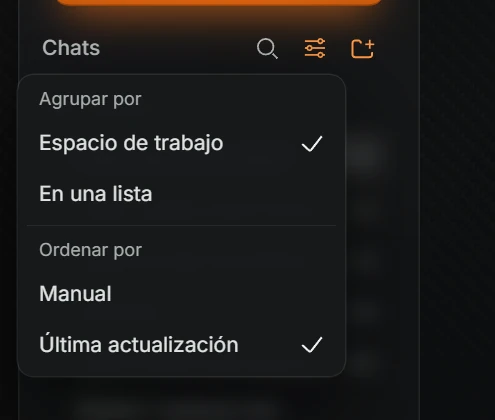
| Option | What it does |
|---|---|
| Agrupar por (Group by): Espacio de trabajo (Workspace) / En una lista (One list) | Shows chats grouped by folder or together in one list. |
| Ordenar por (Sort by): Manual / Última actualización (Last updated) | Sorts chats manually or most recent first. |

| Button | What it does |
|---|---|
| Chat title | Conversation name, with its initial mode beside it (for example PLIA). |
| Tab Chat | Normal conversation. |
| Tab Trayectoria (Trajectory) | Technical details of each PLIA step (see 4.7). |
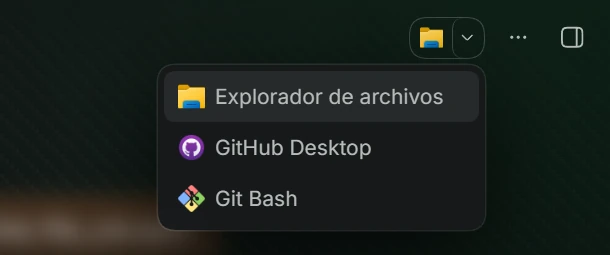
| Yellow folder («Abrir espacio de trabajo en Explorador de archivos»: open workspace in File Explorer) | Opens the chat folder in Windows File Explorer. |
| Arrow beside folder («Elige en qué aplicación abrir»: choose opening app) | Choose the program to open that folder. Installed programs appear, for example Explorador de archivos (File Explorer), GitHub Desktop or Git Bash. |
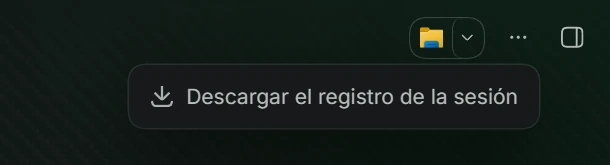
| Three dots («Más acciones»: more actions) | Menu with Descargar el registro de la sesión (Download session log): saves the complete conversation to a file. |
| Panel icon («Abrir la barra lateral derecha»: open right sidebar) | Opens the right panel (see 4.8). |
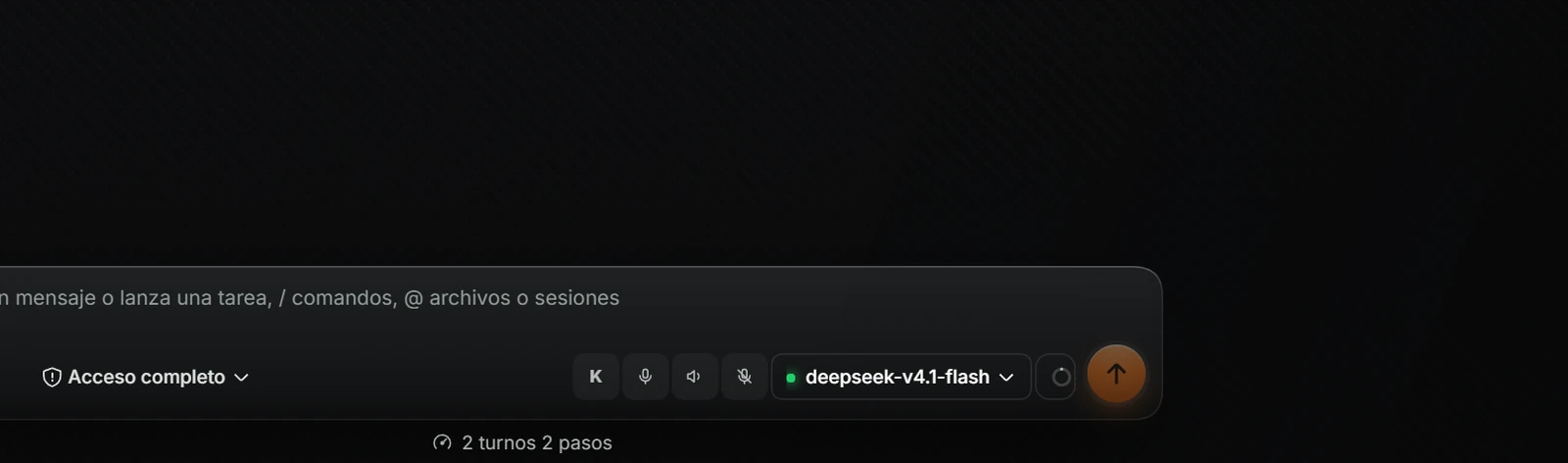
Type your question and press Enter or the orange arrow. You can also type / to see commands and @ to reference a file or session.
| Button | What it does |
|---|---|
| + («Comandos»: commands) | Opens the command list (see below). |
| Paperclip («Adjuntar»: attach) | Attaches files or images to your message. You can also drag them into the box. Accepted images: PNG, JPG, WebP or GIF. |
| Acceso completo (Full access) («Modo de acceso»: access mode) | What PLIA may do on your PC in this chat: Solo lectura (Read only), Escribir en el espacio de trabajo (Write in workspace) or Acceso completo. |
| K («Modo KITT — conversación continua, sin tocar nada más»: hands-free continuous conversation) | Starts hands-free voice conversation: you speak, PLIA answers aloud and listens again. Click again («Terminar el modo KITT») to end it. Requires a Groq key (see 6.4). |
| Microphone («Hablar»: speak) | Dictate: click, speak, then click again («Parar»: stop). Your words go into the box without sending automatically. |
| Speaker («Leer los mensajes»: read messages) | Reads the latest answer aloud. While reading, it becomes a square («Callar»: stop speaking). Without an answer it says «Aún no hay respuesta que leer» (no answer to read yet). |
| Crossed-out microphone («Silenciar el micrófono — deja de escucharte hasta que lo quites»: mute until re-enabled) | Mutes the microphone and turns yellow. Click again («Micrófono silenciado — pulsa para volver a escuchar») to listen again. |
| Model name («Seleccionar modelo»: select model) | Opens a menu containing Modelo (Model), which expands all available models (see below). Green dot means ready. |
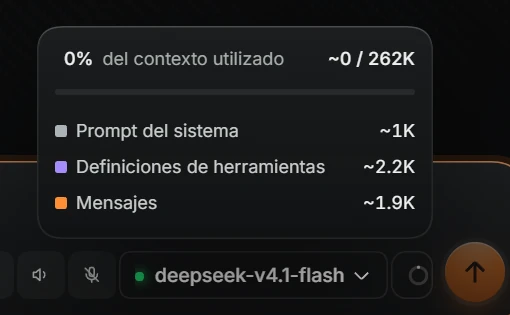
| Circle («… del contexto utilizado»: context used) | How much conversation memory the model has used. Click for a breakdown into Prompt del sistema (System prompt), Definiciones de herramientas (Tool definitions) and Mensajes (Messages). Only appears inside a chat. |
| Orange arrow («Enviar mensaje»: send message) | Sends. While PLIA works, becomes Detener generación (Stop generation) to stop it. A new message written while it works is En cola (Queued) or sent to Dirigir (Steer), depending on your choice in Ajustes → General (Settings → General). |
Voice notices appear below: «Escuchando…», «Transcribiendo…», «Pensando…», «Leyendo…» (listening, transcribing, thinking, reading) and errors.
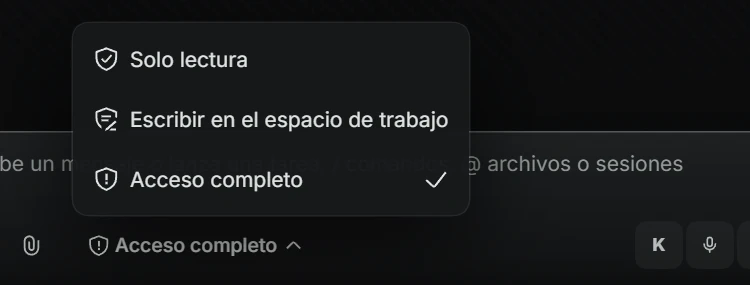
| Option | Permissions granted |
|---|---|
| Solo lectura | PLIA can inspect but cannot change anything. |
| Escribir en el espacio de trabajo | Can change files inside the chat folder. |
| Acceso completo | Fewer confirmations: can act directly more often, including sensitive actions. Selecting it may require confirmation through Habilitar acceso completo (Enable full access) («I understand the risks and want to continue») or Cancelar (Cancel). |
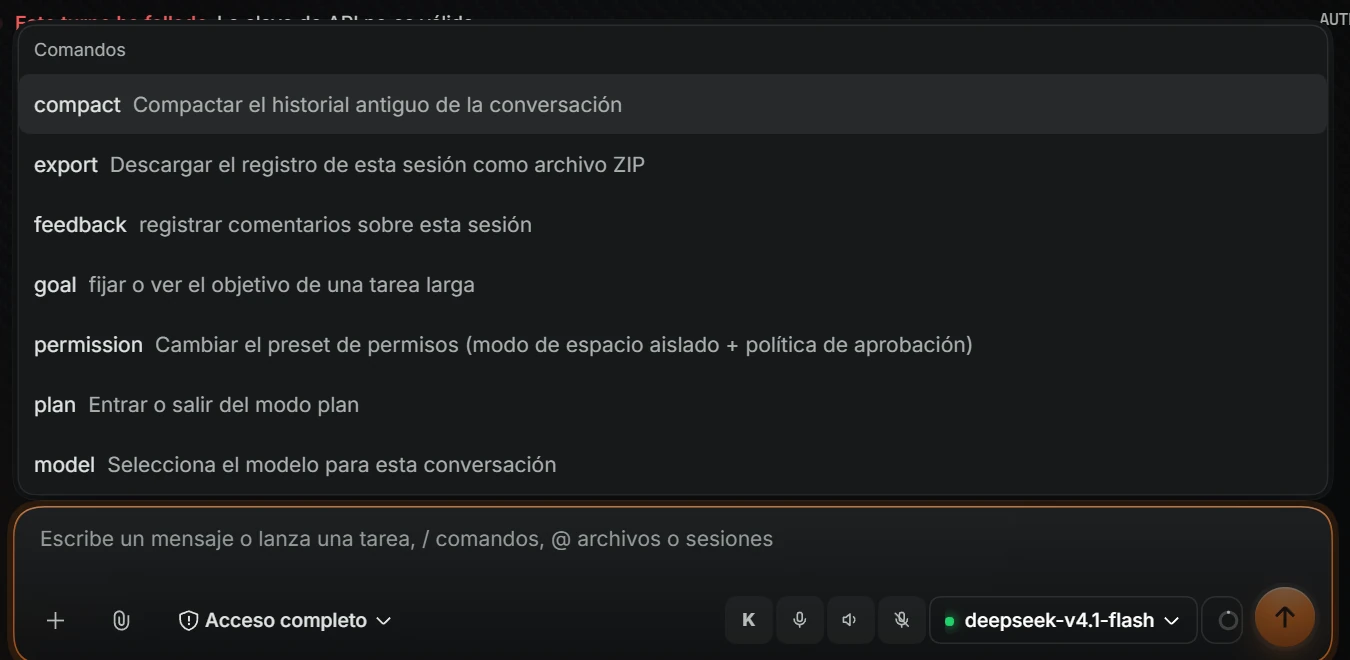
| Command | What it does |
|---|---|
| compact | Compacts older conversation history to use less space. |
| export | Downloads this session's log as a ZIP file. |
| feedback | Records feedback about this session. |
| goal | Sets or shows the goal for a long task. |
| permission | Changes the permission preset, like access mode. |
| plan | Enters or leaves plan mode: describe a task and PLIA prepares a plan. |
| model | Selects the model for this conversation. |
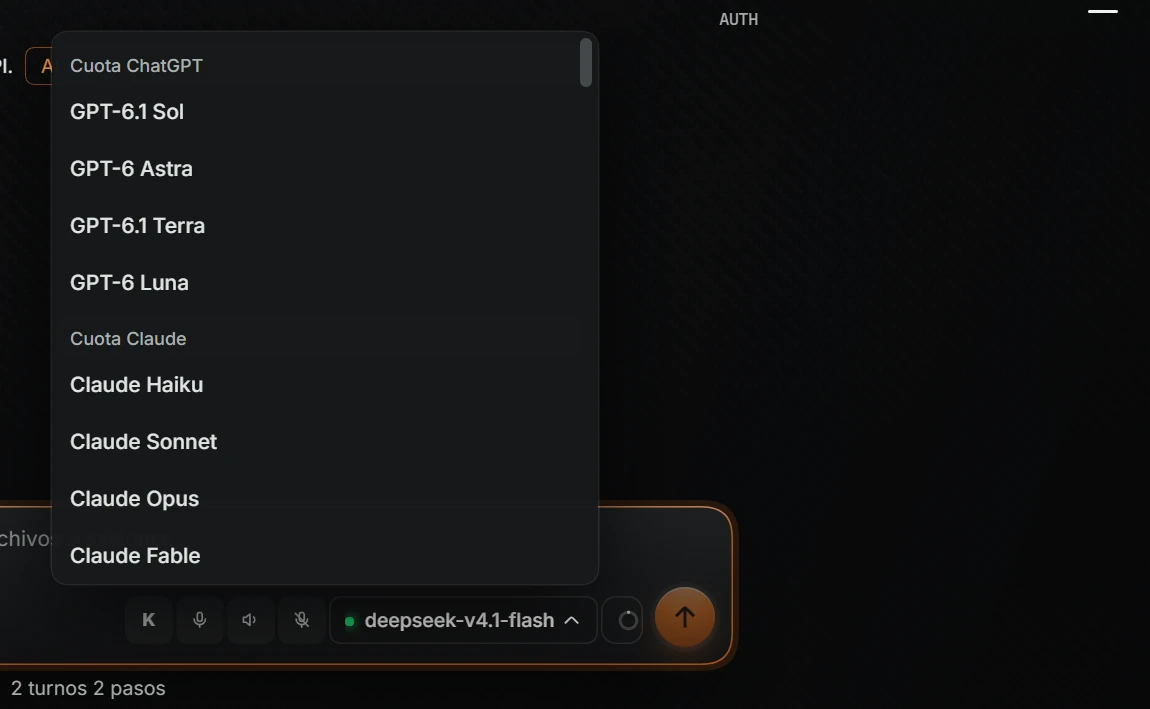
Models are grouped by provider (DeepSeek, groq, google, anthropic, OpenRouter…). Providers with active keys, installed local models and your accounts for Cuota Claude and Cuota ChatGPT appear first. Providers and models disabled in Ajustes → API (Settings → API) do not appear here.
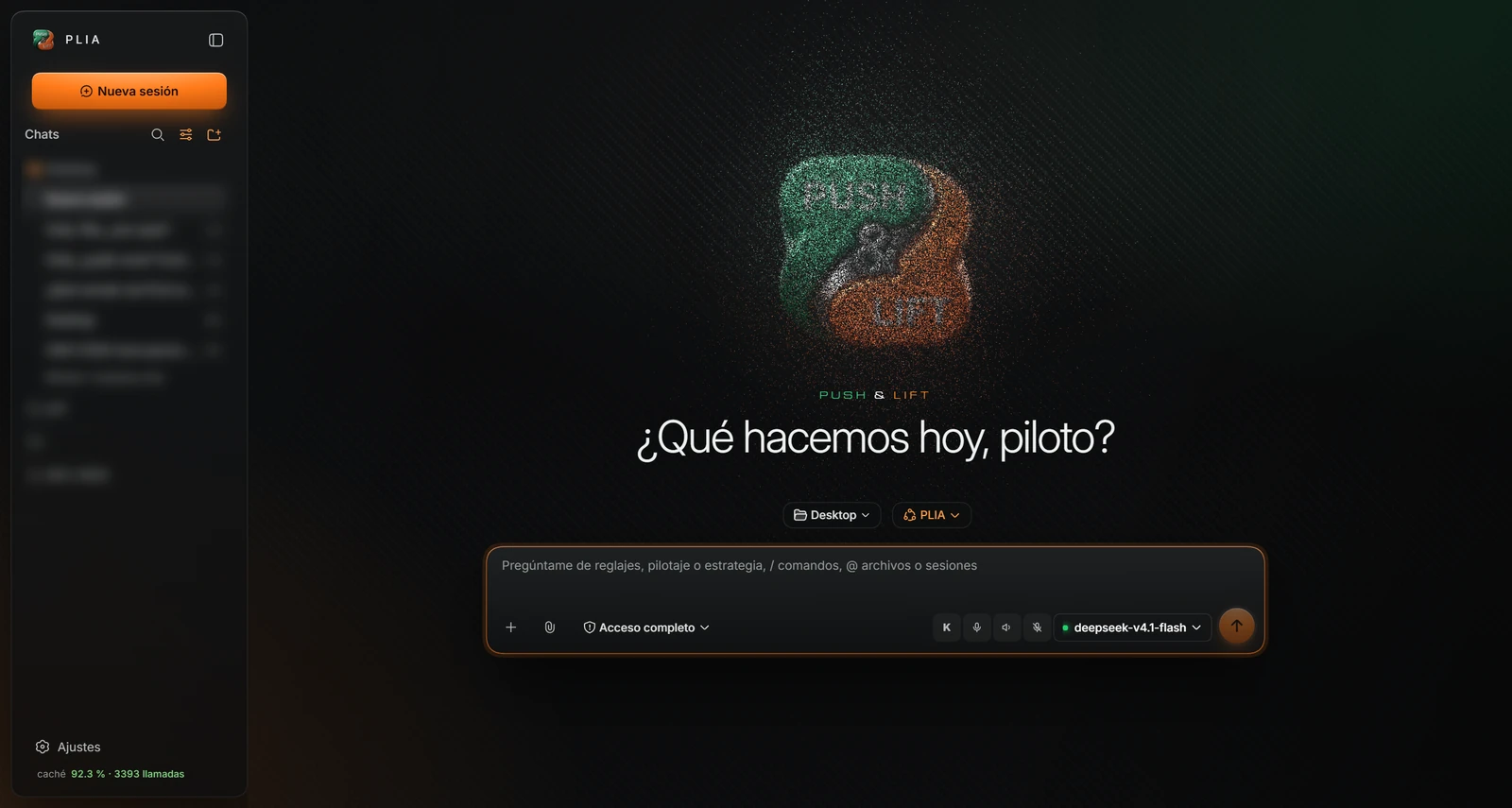
Clicking Nueva sesión shows the Push & Lift logo and «¿Qué hacemos hoy, piloto?» (what shall we do today, driver?). Two buttons sit above the box:
| Button | What it does |
|---|---|
| Folder («Elegir espacio de trabajo»: choose workspace) | Choose the chat's working folder. Lists your workspaces and, at the end, Añadir espacio de trabajo… (Add workspace…). |
| PLIA («Ajuste de agente para la sesión que vas a iniciar»: agent preset for the new session) | Chooses the new chat's mode (table below). |
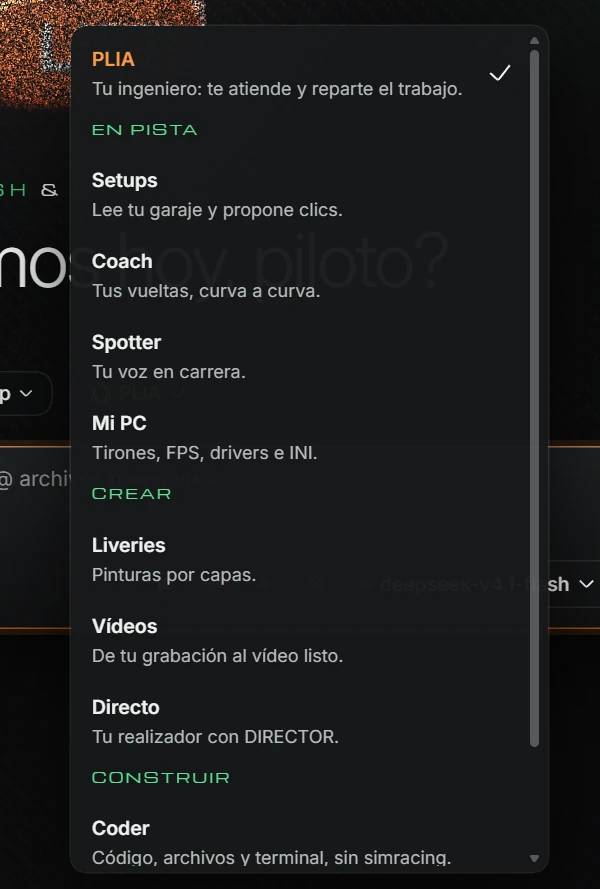
| Mode | Purpose |
|---|---|
| PLIA | Your engineer: helps you and distributes work. The normal mode. |
| En pista (On track) | |
| Setups | Reads your garage and suggests adjustment clicks. |
| Coach | Your laps, corner by corner. |
| Spotter | Your voice during the race. |
| Mi PC (My PC) | Stutters, FPS, drivers and INI files. |
| Crear (Create) | |
| Liveries | Layered liveries. |
| Vídeos (Videos) | From your recording to a finished video. |
| Directo (Live) | Your production assistant with DIRECTOR. |
| Construir (Build) | |
| Coder | Code, files and terminal, without sim racing. |
| Fábrica (Factory) | Build an app even if you do not know how to ask for it. Beta. |
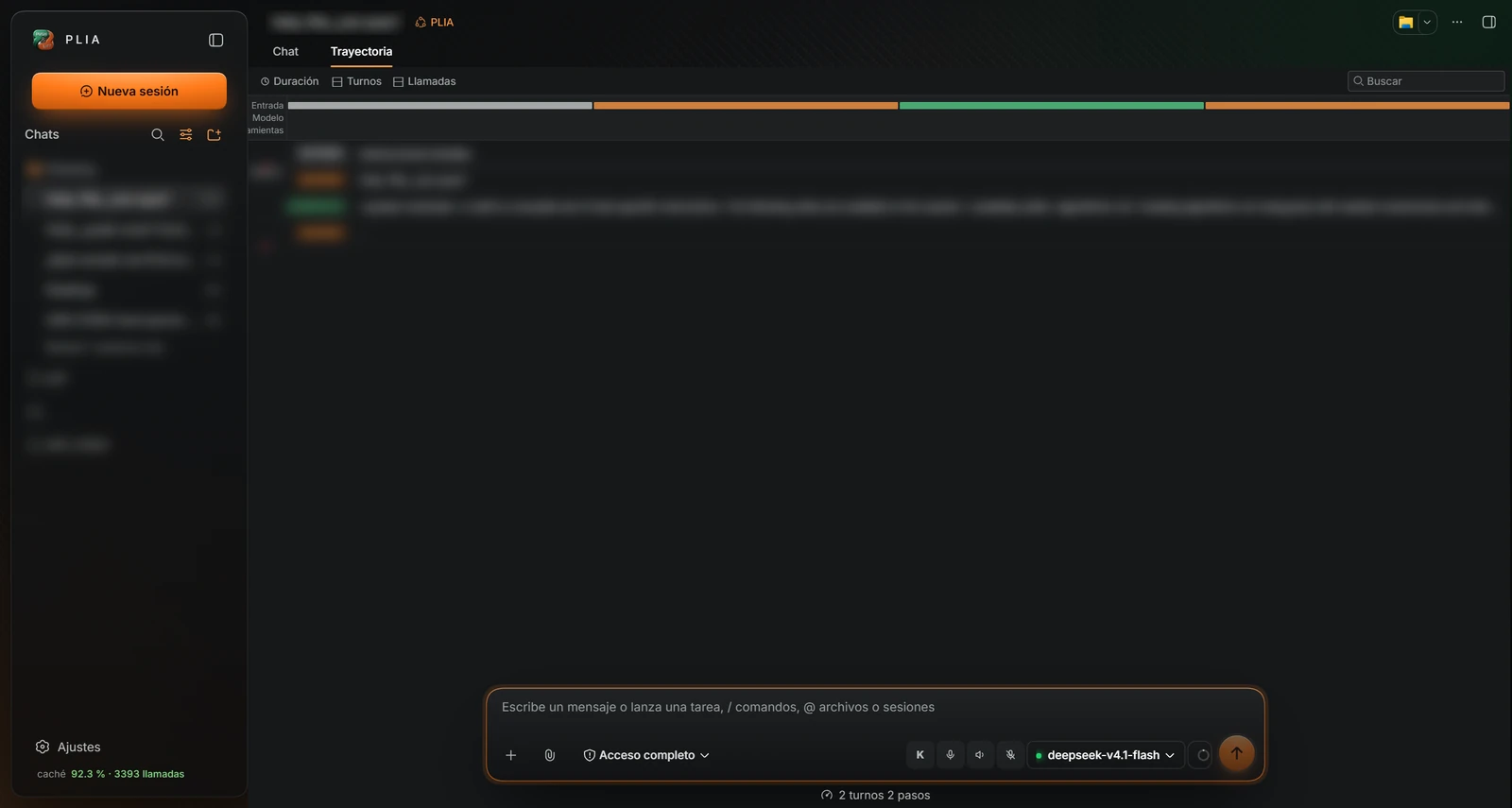
Shows PLIA's actions step by step: inputs, model answers and tools used. Helps explain delays or failures.
| Item | What it does |
|---|---|
| Duración (Duration) | Timeline with the rows Entrada (Input), Modelo and Herramientas (Tools). |
| Turnos (Turns) («Contraer turnos»: collapse turns) | Collapses or expands turns. |
| Llamadas (Calls) («Contraer llamadas»: collapse calls) | Collapses or expands each turn's calls. |
| Buscar (Search) («Buscar en trayectoria»: search trajectory) | Searches text within the trajectory. |
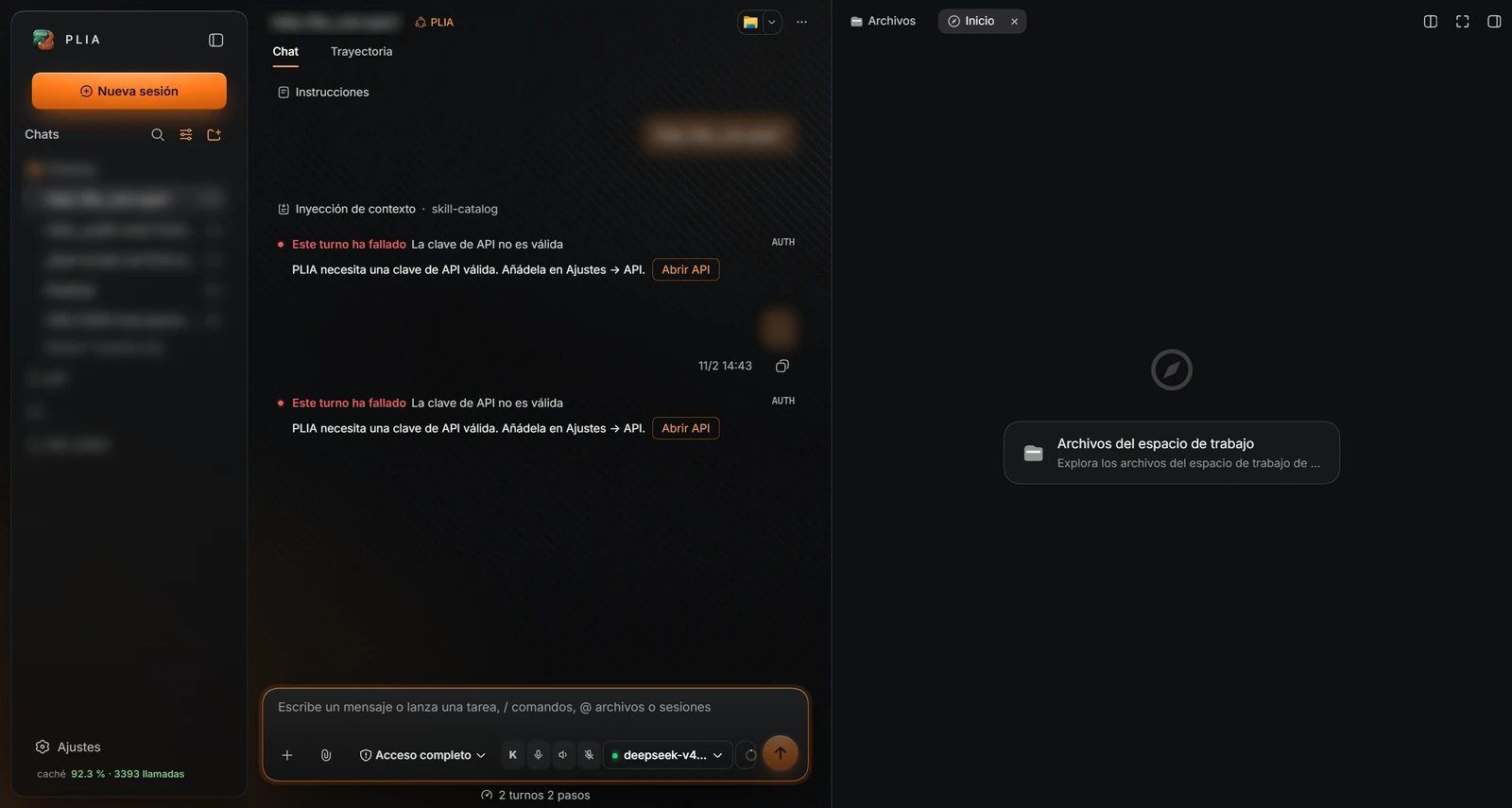
| Button | What it does |
|---|---|
| Tab Archivos (Files) | Shows the chat folder's files. The circular arrow («Recargar»: reload) refreshes them. |
| + («Pestaña nueva»: new tab) | Opens a tab named Inicio (Home) with the card Archivos del espacio de trabajo (Workspace files). |
| X on a tab («Cerrar»: close) | Closes that tab. |
| «Dividir» (Split) | Splits the panel in two. |
| «Pantalla completa» (Full screen) | Makes the panel full screen. |
| «Plegar la barra lateral derecha» (Collapse right sidebar) | Closes the panel. |
A separate small bar that stays above other windows. Lets you talk to PLIA without keeping its main window in front. Open it from Settings → Voice using Abrir ventana flotante (Open floating window), or automatically at startup by enabling «Abrir la ventana flotante sola» (open floating window automatically).

| Button | What it does |
|---|---|
| K («Modo KITT»: KITT mode) | Starts or ends hands-free conversation, like K in the message box. |
| Push & Lift | When neither speaking nor listening, opens the Push & Lift website. |
| Red microphone | Starts dictation to PLIA, like the message-box microphone. |
| Speaker («Leer los mensajes»: read messages) | Reads the latest answer aloud. |
| Yellow crossed-out microphone | Mutes or re-enables the microphone. |
| Gear («Menú»: menu) | Opens the sound and keys menu (below). |
| X («Cerrar»: close) | Closes the floating window. |
Move it by dragging any area without buttons.
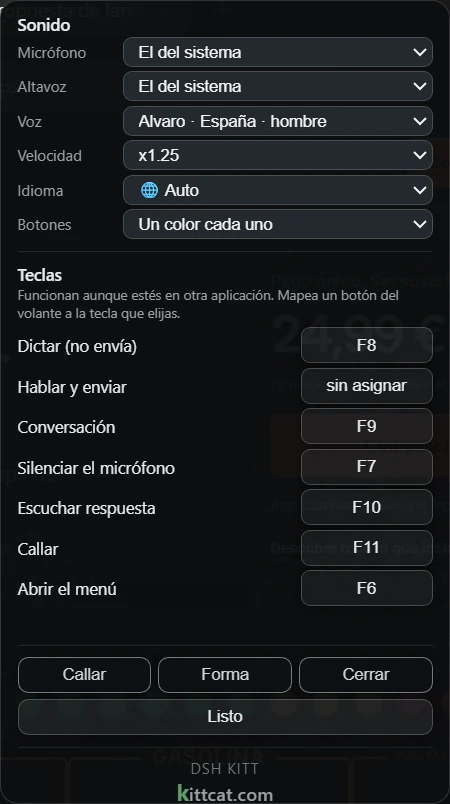
| Option | What it does |
|---|---|
| Sonido (Sound) | |
| Micrófono (Microphone) | Microphone used to listen to you. El del sistema (System default) uses the Windows device. |
| Altavoz (Speaker) | Output device for PLIA's voice. |
| Voz (Voice) | Voice used for answers. La del sistema (System default) uses Windows voice. «En esta máquina (sin internet)» voices work offline. |
| Velocidad (Speed) | Speaking speed. x1 (normal) is normal speed. |
| Idioma (Language) | Window language: Auto, Español, English or 中文. |
| Botones (Buttons) | Un color cada uno (A colour for each) or Todos en blanco (All white). |
| Teclas (Keys) — Work even inside another application. Map a wheel button to your chosen key. | |
| Dictar (no envía) (Dictate (does not send)) | Dictates into PLIA's box without sending. |
| Hablar y enviar (Speak and send) | Dictates and sends when finished. |
| Conversación (Conversation) | Starts or ends KITT mode. |
| Silenciar el micrófono (Mute microphone) | Mutes or re-enables the microphone. |
| Escuchar respuesta (Listen to answer) | Reads the latest answer. |
| Callar (Stop speaking) | Stops reading. |
| Abrir el menú (Open menu) | Opens or closes this menu. |
| To assign a key, click the button to the right of the action («pulsa una tecla…») and press a key or wheel button. Clicking again without pressing anything keeps the old assignment. «sin asignar» means unassigned. | |
| Callar | Stops reading and closes the menu. |
| Forma (Shape) | Changes window shape: symbol only or symbol with name. |
| Cerrar (Close) | Closes the floating window. |
| Listo | Closes the menu. |
Click Ajustes at the bottom left. Opens a window with left-hand tabs grouped into General; Preferencias (Preferences) (Aspecto and Voz: appearance and voice); Cerebro (Brain) (CLI, API and Modelos locales); Conexiones (Connections) (Paddock Connect and Tu canal); and Avanzado (Advanced) (Plugins and Ajustes de agente).
At the top right, Abrir archivo de configuración (Open configuration file) opens PLIA's settings file on your PC, and X («Cerrar») closes settings. Changes save automatically except where there is a Guardar (Save) or Aplicar (Apply).
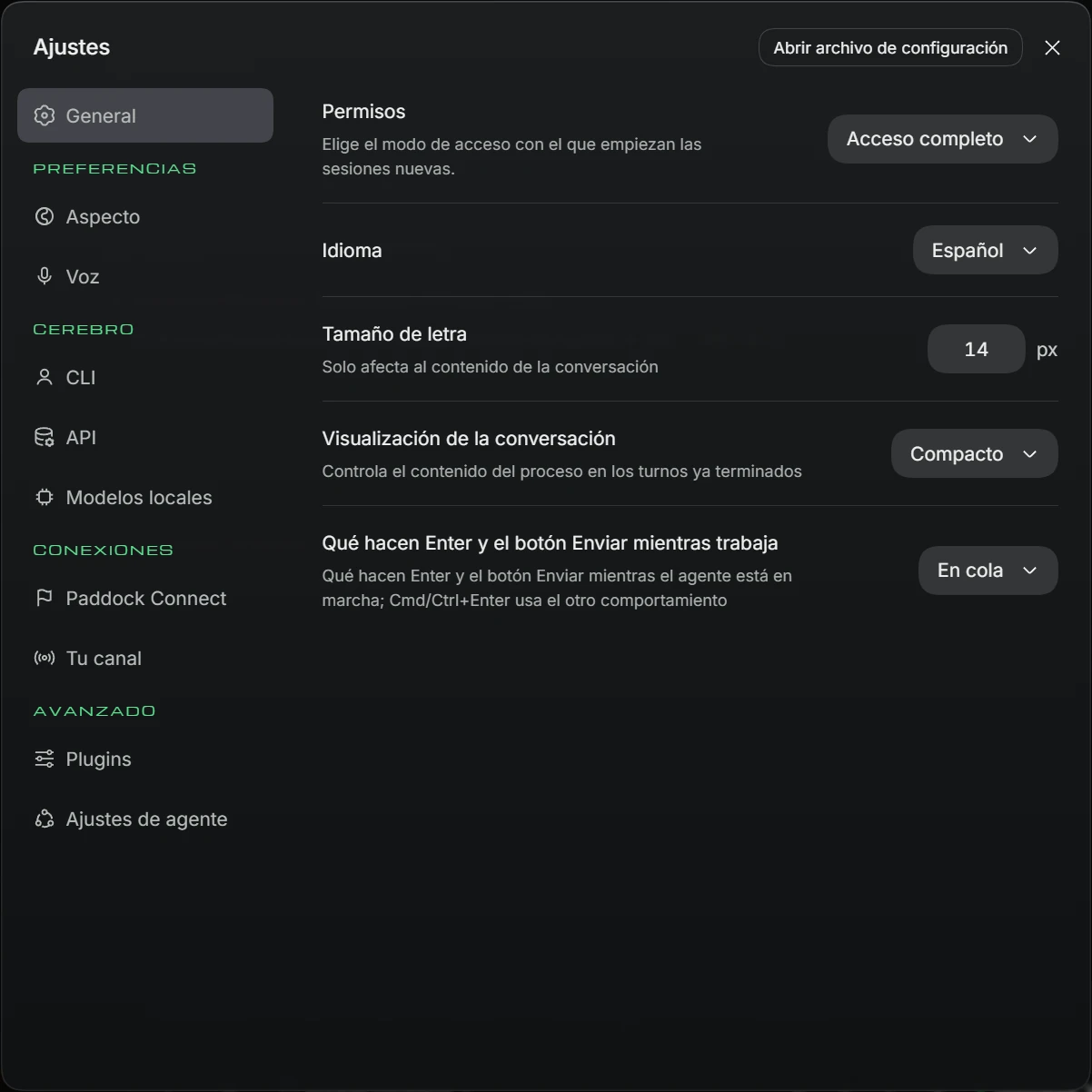
| Option | What it does | Values |
|---|---|---|
| Permisos (Permissions) | Access mode used by new sessions. | Solo lectura, Escribir en el espacio de trabajo, Acceso completo. |
| Idioma | PLIA language. | 中文, English, Español, Deutsch, Français, Italiano |
| Tamaño de letra (Font size) | Conversation font size (conversation only). Change it with «Aumentar el tamaño de letra» and «Reducir el tamaño de letra» (increase/decrease size). | Pixels; 14 in the example. |
| Visualización de la conversación (Conversation display) | How much process detail completed turns show. | Normal, Compacto (Compact) |
| Qué hacen Enter y el botón Enviar mientras trabaja (What Enter and Send do while working) | What happens when you send another message while PLIA works. Cmd/Ctrl+Enter does the opposite. | En cola: waits until it finishes. Dirigir: sends immediately to change direction. |
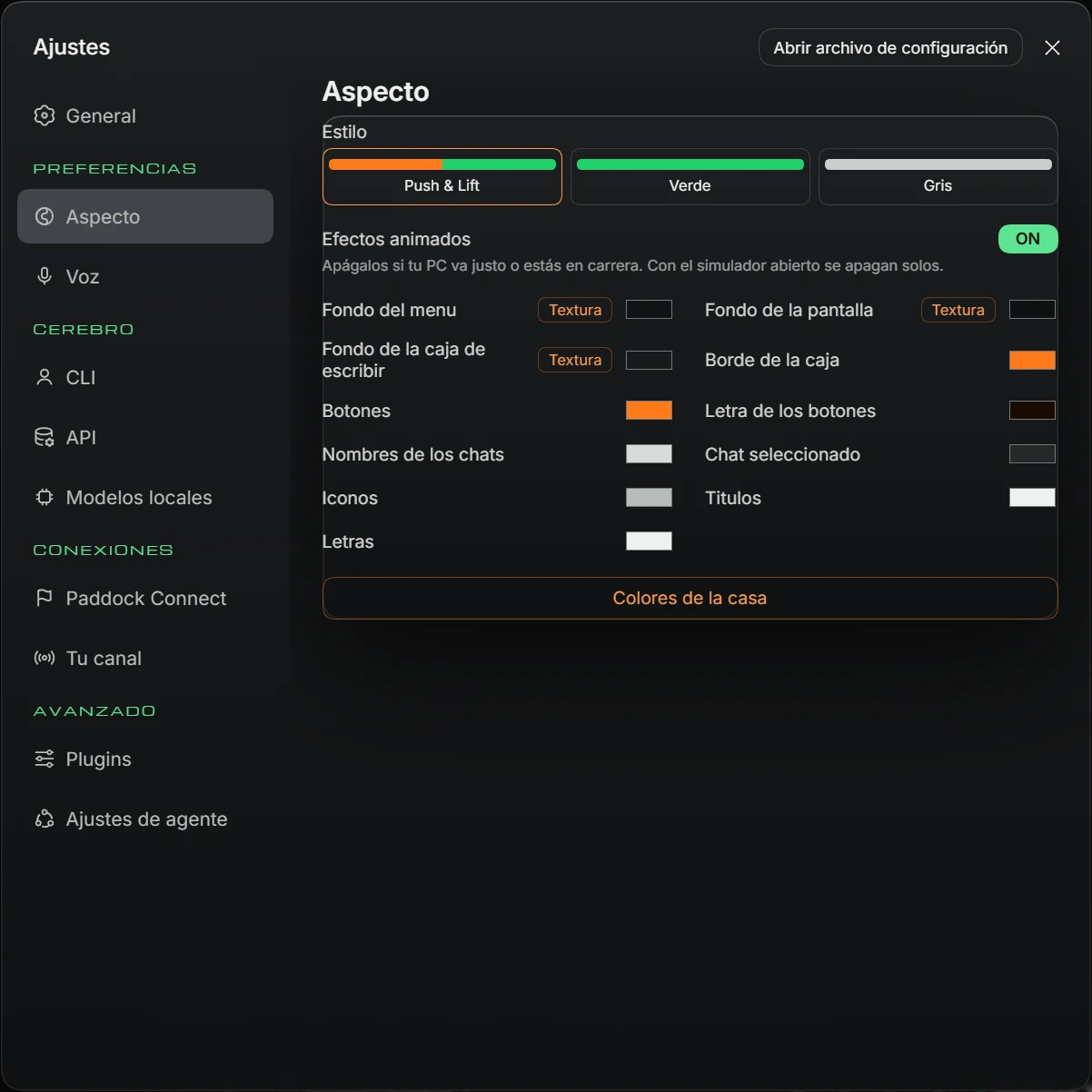
| Option | What it does |
|---|---|
| Estilo (Style): Push & Lift, Verde (Green), Gris (Grey) | PLIA's main colour. Push & Lift is the brand orange. |
| Efectos animados (Animated effects) (ON / OFF) | Background and logo animations. Turn them off if your PC struggles or during a race. They switch off automatically with the simulator open. |
| Fondo del menu (Menu background), Fondo de la pantalla (Screen background), Fondo de la caja de escribir (Message-box background) | Each background's colour. The Textura (Texture) button («Cargar una textura»: load texture) uses your own image as background, maximum 2 MB. It turns green when a texture is set; click again to remove it. |
| Borde de la caja (Box border) | Message-box border colour. |
| Botones, Letra de los botones (Button text) | Main-button and button-text colours. |
| Nombres de los chats (Chat names), Chat seleccionado (Selected chat) | Chat-list and open-chat colours. |
| Iconos (Icons), Titulos (Titles), Letras (Text) | Icon, heading and text colours. |
| Colores de la casa (Brand colours) | Restores default colours and removes textures. |
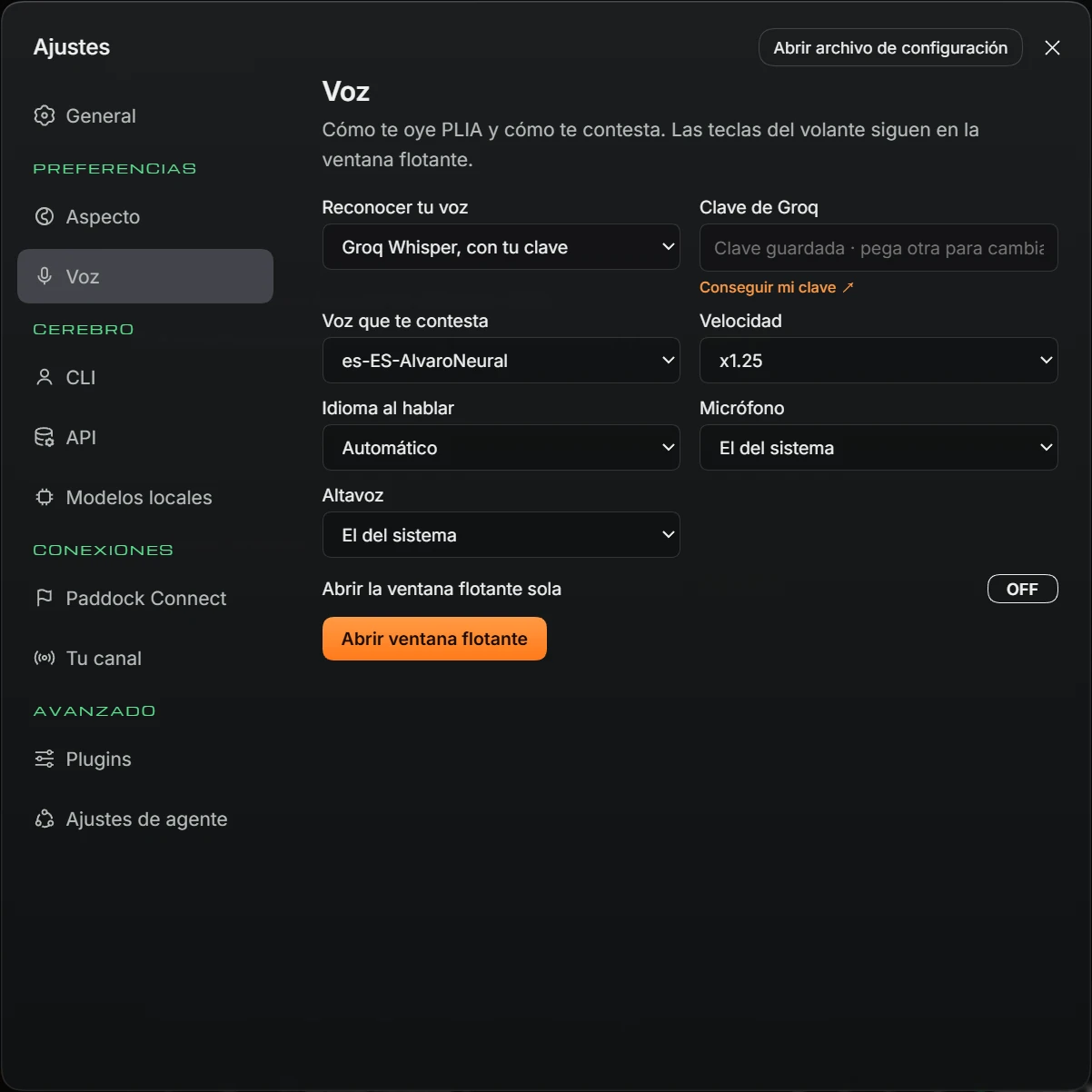
| Option | What it does | Values |
|---|---|---|
| Reconocer tu voz (Recognise your voice) | Who converts your speech into text. | Navegador, gratis (Browser, free) or Groq Whisper, con tu clave (Groq Whisper, with your key) |
| Clave de Groq (Groq key) | Only shown with Groq selected. Paste your key; saves when you leave the box. The link opens Groq's website to obtain it. | «Pega aquí tu clave» (paste key here) or «Clave guardada · pega otra para cambiarla» (saved; paste another to replace it). |
| Voz que te contesta (Answering voice) | PLIA's voice. | Voz de Windows (Windows voice), Microsoft neural voices (text is sent to their service) and local voices, if available. |
| Velocidad | Speaking speed. | x0.8, x0.9, x1, x1.1, x1.25, x1.5, x1.75, x2 |
| Idioma al hablar (Speaking language) | The language you speak to it. | Automático (Automatic), Español, English |
| Micrófono | Microphone to use. | El del sistema or your PC's devices |
| Altavoz | Audio output device. | El del sistema or your PC's devices |
| Abrir la ventana flotante sola (Open floating window automatically) | Opens the floating voice window when PLIA starts. | ON / OFF |
| Abrir ventana flotante | Opens it now (see 4.9). |
Browser recognition does not work inside the PLIA window. For dictation or K mode, choose Groq Whisper, con tu clave and enter your Groq key. Groq has a free tier. Without a key, written chat and reading answers still work.
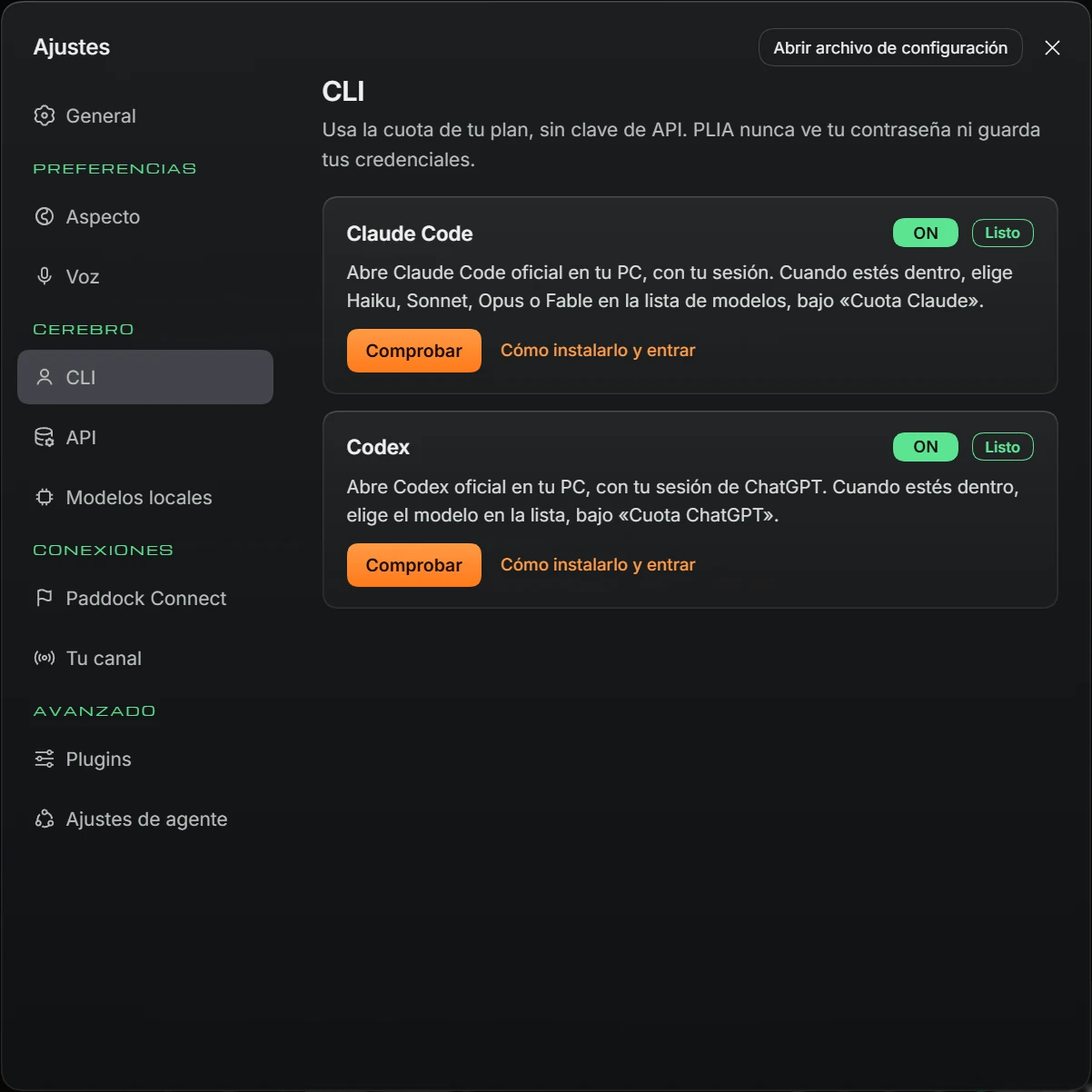
Two cards: Claude Code and Codex. Each contains:
| Item | What it does |
|---|---|
| Status | Comprobando… (Checking…), No instalado (Not installed), Sin sesión (Not signed in) (installed but not signed in) or Listo. |
| ON / OFF switch | Only shown when Listo. Disabled accounts disappear from the model selector. |
| Entrar (Sign in) | Only shown with Sin sesión. Opens sign-in: click Entrar, approve in the browser, then use Comprobar again. |
| Comprobar | Checks installation and sign-in again. |
| Cómo instalarlo y entrar | Opens official installation instructions. |
With Claude Code ready, select Haiku, Sonnet, Opus or Fable under Cuota Claude. With Codex, select a model under Cuota ChatGPT.
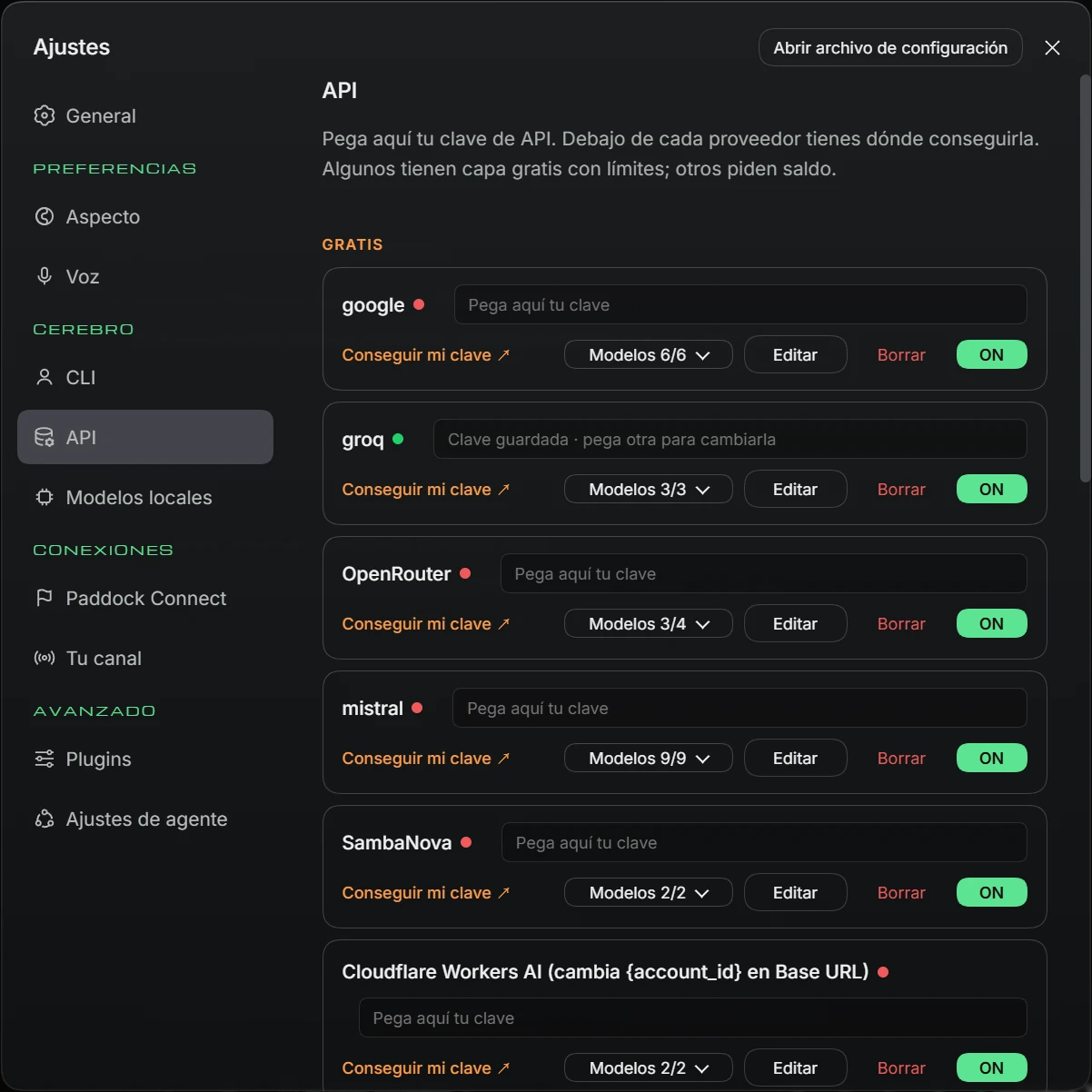
Paste your API key here. Each provider includes a link to obtain one. Some offer a limited free tier; others require credit. Providers appear in two groups: GRATIS and DE PAGO. Each provider has a card:
| Item | What it does |
|---|---|
| Dot beside name | Green: key present. Red: no key. |
| Key box | Paste the key here; saves automatically. Shows «Pega aquí tu clave» or «Clave guardada · pega otra para cambiarla». |
| Conseguir mi clave ↗ | Opens the provider's key-creation page. |
| Modelos …/… (Models …/…) | Expands provider models, each with ON / OFF. Disabled models do not appear in the selector. Numbers show enabled models out of the total. |
| Editar (Edit) | Opens provider details (below). |
| Borrar (Delete) | Removes the provider from the list. |
| ON / OFF switch | Disables the entire provider, hiding it from the model selector. |
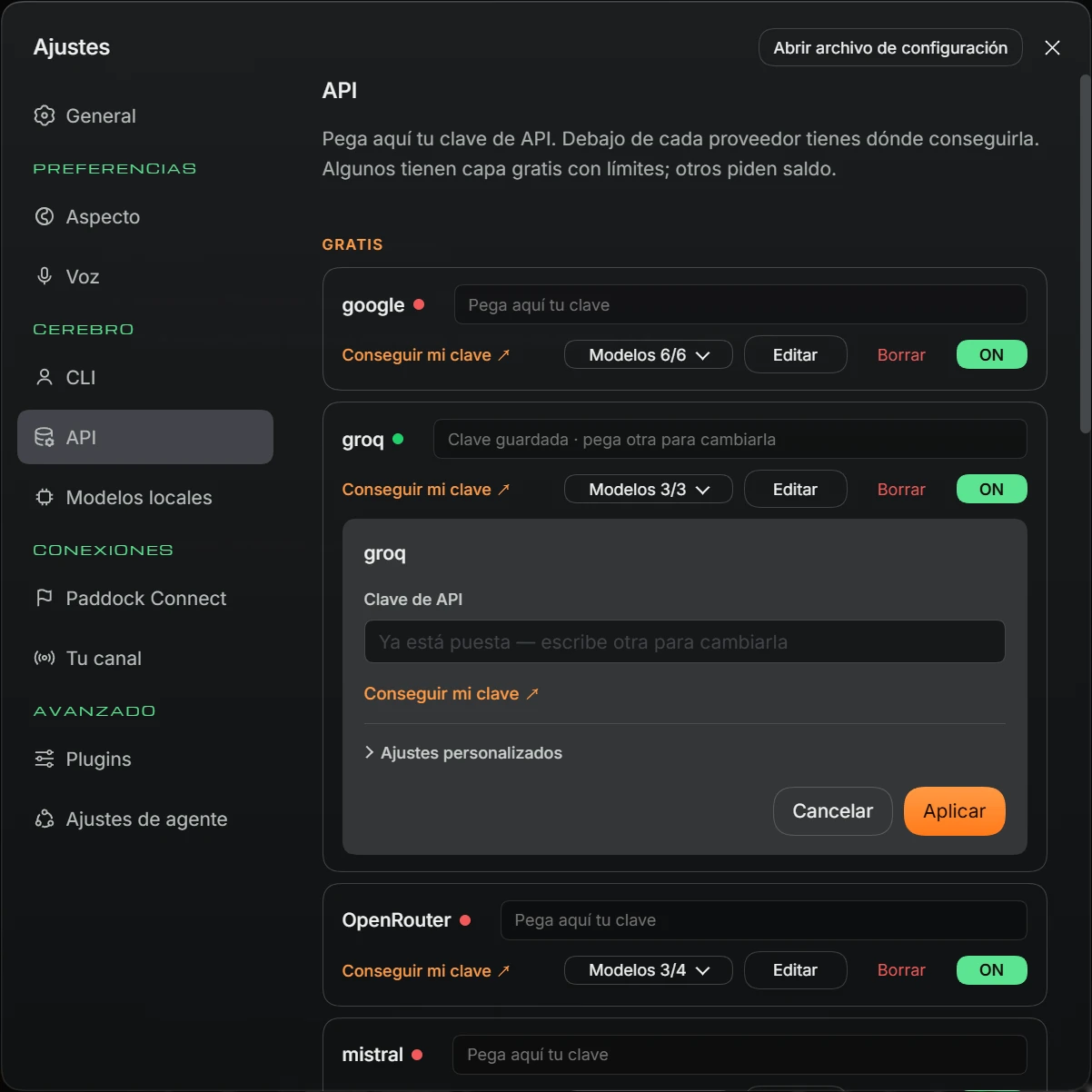
| Details field | Meaning |
|---|---|
| Clave de API (API key) | Provider's key. |
| Ajustes personalizados (Custom settings) | Expands to show URL base (Base URL) and the model list: ID del modelo (Model ID), Nombre visible (Display name), Capacidades (Capabilities) and Borrar modelo (Delete model) for each, and Añadir modelo (Add model). |
| Cancelar / Aplicar | Discards or saves changes in the details card. |
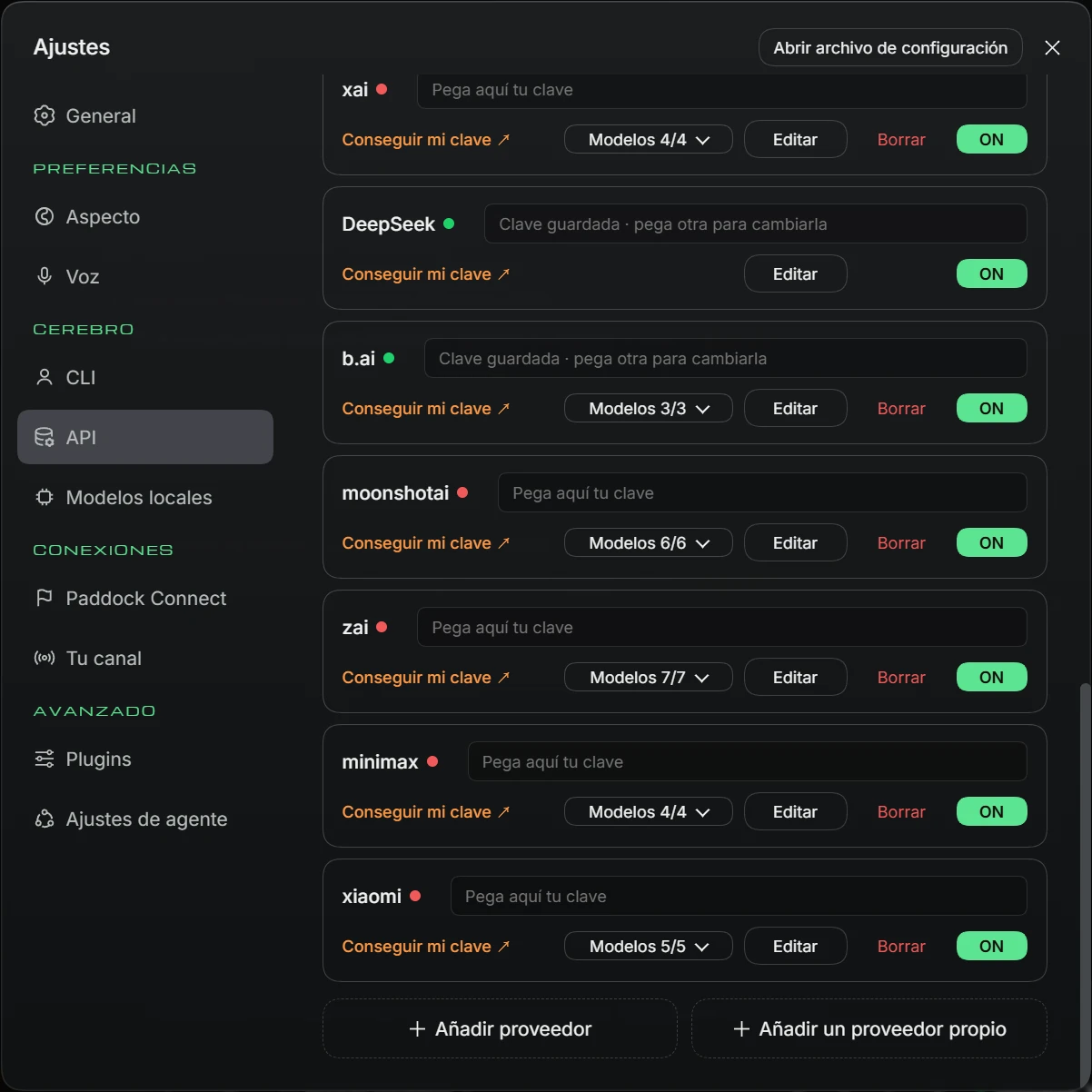
| Button | What it does |
|---|---|
| + Añadir proveedor (+ Add provider) | Opens a card to add a provider you do not yet have from the Proveedor (Provider) list. Requests the Clave de API (with «Dónde encontrar la clave de este proveedor»: where to find its key) and includes Ajustes personalizados. Finish with Aplicar. |
| + Añadir un proveedor propio (+ Add a custom provider) | For a provider absent from the list. Requests ID del proveedor (Provider ID) (lowercase, starting with a letter), Nombre visible, URL base, Protocolo de la API (API protocol) (openai-completions, openai-responses or anthropic-messages), Clave de API and Modelos (Models), with Buscar modelos disponibles (Find available models) and Añadir modelo. Finish with Crear proveedor (Create provider) or Cancelar. |
Free: Google AI Studio and Groq work immediately, and NVIDIA NIM provides free credits for DeepSeek V4 Flash and Pro. DeepSeek costs cents. Anthropic and OpenAI require credit.
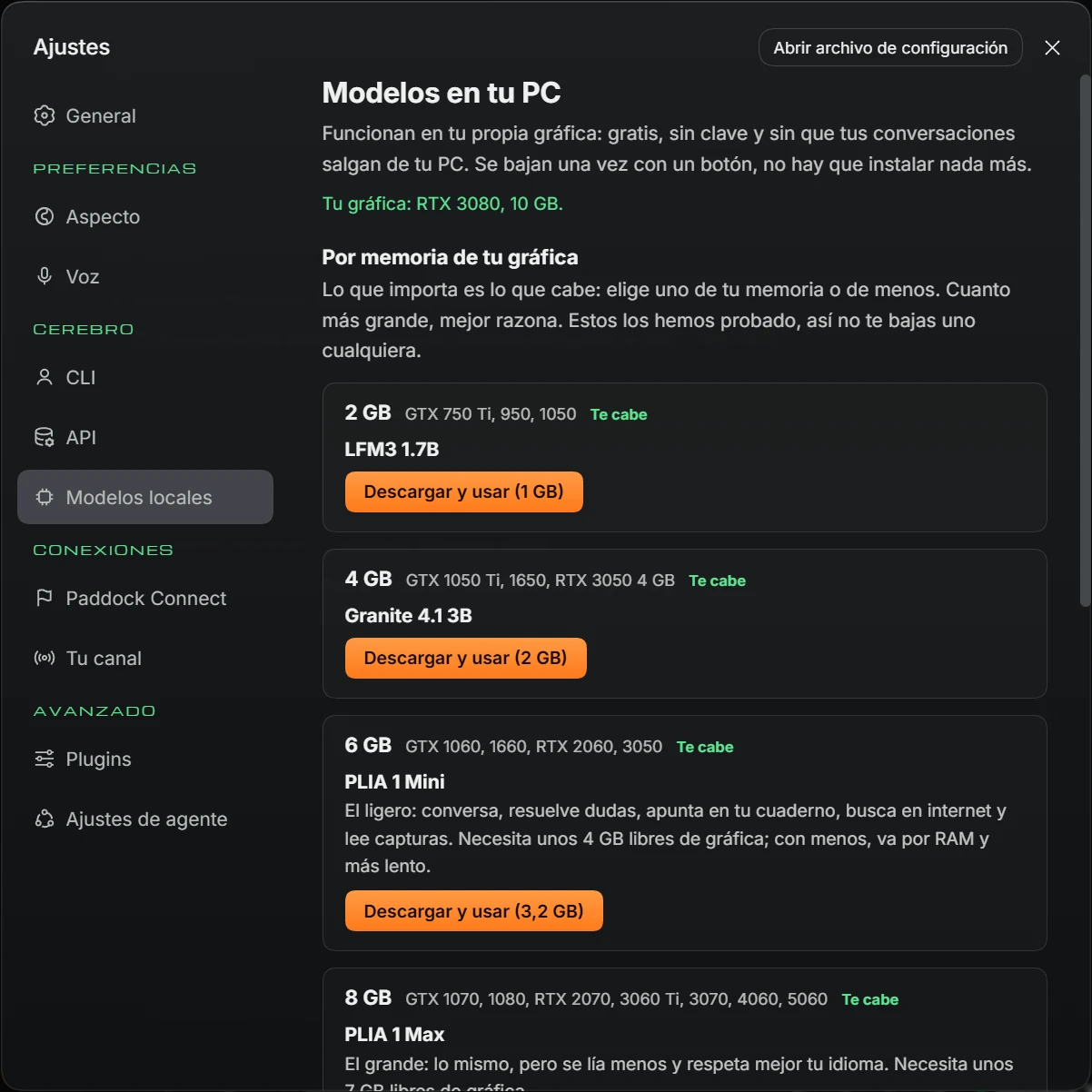
They run on your own graphics card: free, no key, and conversations stay on your PC. Download once with a button; no extra installation.
The top shows your graphics card and memory. Below, Por memoria de tu gráfica (By graphics-card memory) lists tested models grouped by memory requirements. Choose your memory group or lower. Models that fit are marked Te cabe.
| Group | Example graphics cards | Models |
|---|---|---|
| 2 GB | GTX 750 Ti, 950, 1050 | LFM3 1.7B (1 GB) |
| 4 GB | GTX 1050 Ti, 1650, RTX 3050 4 GB | Granite 4.1 3B (2 GB) |
| 6 GB | GTX 1060, 1660, RTX 2060, 3050 | PLIA 1 Mini (3,2 GB): lightweight; chats, answers questions, writes in your notebook, searches online and reads screenshots. Needs about 4 GB free GPU memory. |
| 8 GB | GTX 1070, 1080, RTX 2070, 3060 Ti, 3070, 4060, 5060 | PLIA 1 Max (6,1 GB): larger; makes fewer mistakes and follows your language better. Needs about 7 GB free. |
| 10-16 GB | RTX 3060 12 GB, 3080, 4070, 4080, 5070, 5080 | Gemma 4 12B (6,8 GB), GPT-OSS 20B (10,8 GB) |
| 24 GB | RTX 3090, 4090, 5090 | Qwen3.8 27B (16,2 GB) |
| Button | What it does |
|---|---|
| Descargar y usar (… GB) | Downloads the model («Descargando… %», then «Preparando…») and selects it in the chat box. If interrupted, click again to resume. |
| Usar en el chat (Use in chat) | Shown on downloaded models. Selects it in the chat box. |
| Quitar (Remove) | Shown on downloaded models. Removes it from PLIA. |
Selecting PLIA 1 Mini or PLIA 1 Max shows an Aviso (Notice): PLIA is experimental and models are being improved; report any failures. Click Continuar (Continue).
Local models handle conversation, sim-racing questions, your notebook, web searches and simple app commands. They make more mistakes than larger models: use an API model or CLI account for serious setup work, coding or videos.
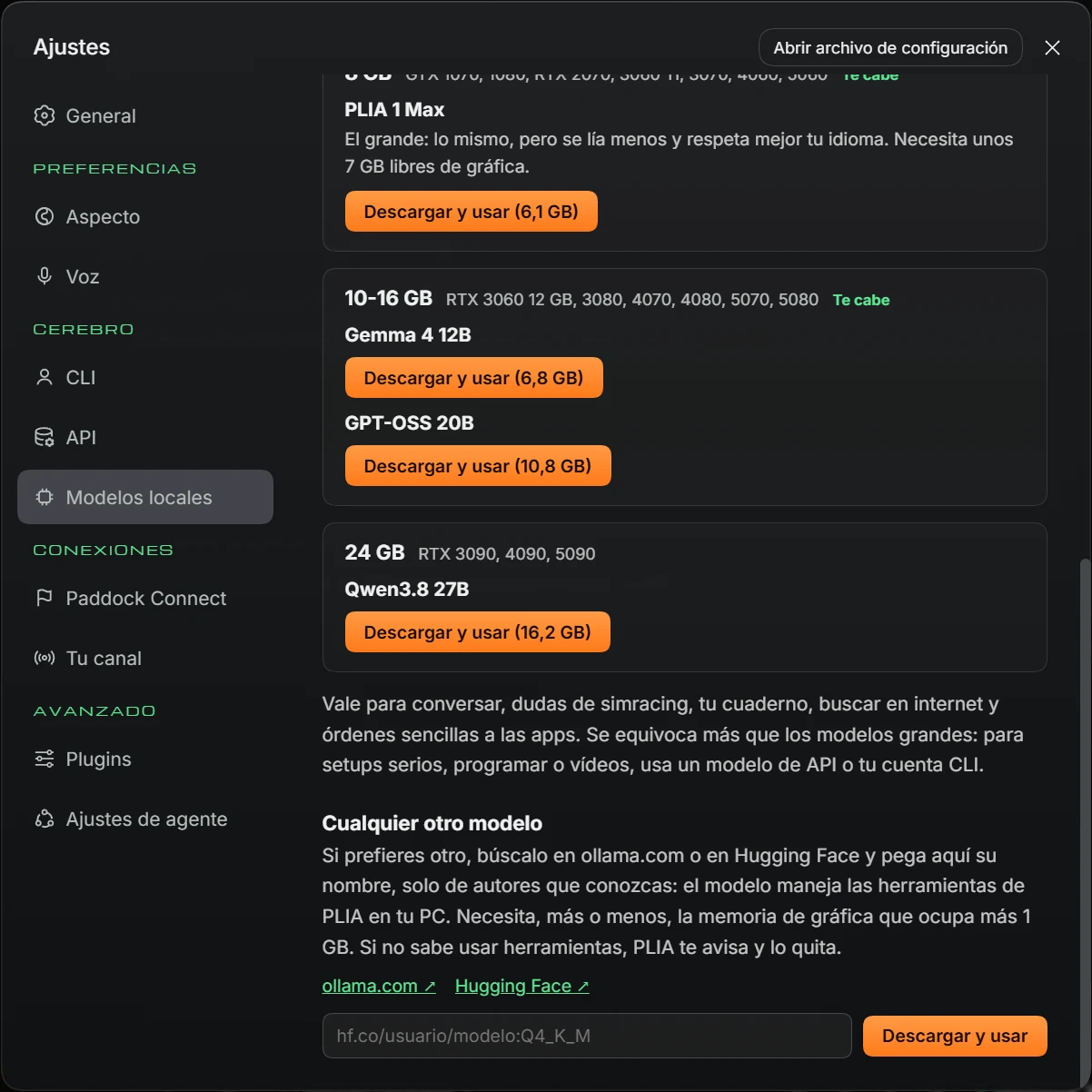
For another model, search ollama.com ↗ or Hugging Face ↗, paste its name into the box (example: hf.co/usuario/modelo:Q4_K_M) and click Descargar y usar (Download and use). Only use models from authors you know: the model operates PLIA tools on your PC. It needs approximately its file size plus 1 GB of GPU memory. If it cannot use tools, PLIA warns you and removes it.
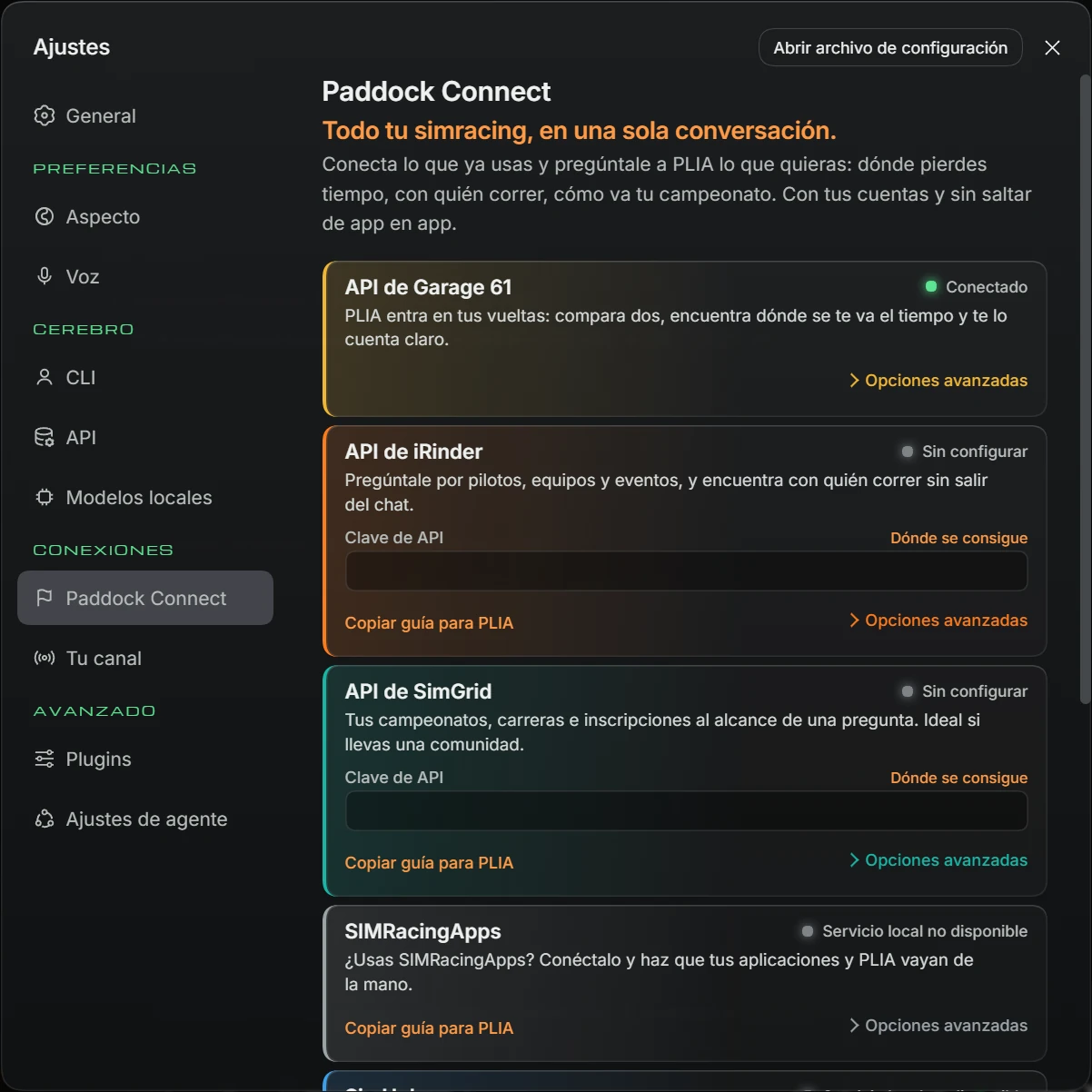
Connect services you already use and ask PLIA where you lose time, who to race with or how your championship is going. Each service has a card:
| Service | Purpose | Requires |
|---|---|---|
| API de Garage 61 (Garage 61 API) | PLIA accesses your laps: compares two and finds where you lose time. | API key (your application's personal token in My applications) |
| API de iRinder (iRinder API) | Drivers, teams and events; who to race with. | API key (starts with irinder_) |
| API de SimGrid (SimGrid API) | Your championships, races and entries. | Your community API key (Pro plan) |
| SIMRacingApps | Connects your apps with PLIA. | Program running on this PC |
| SimHub | Lets PLIA inspect your effects and trigger actions. | SimHub 9.11 or later, open with the Property Server plugin |
| iRacing Data API | iRacing results, schedule, statistics and profiles. | Client ID and Client secret from an existing iRacing OAuth client |
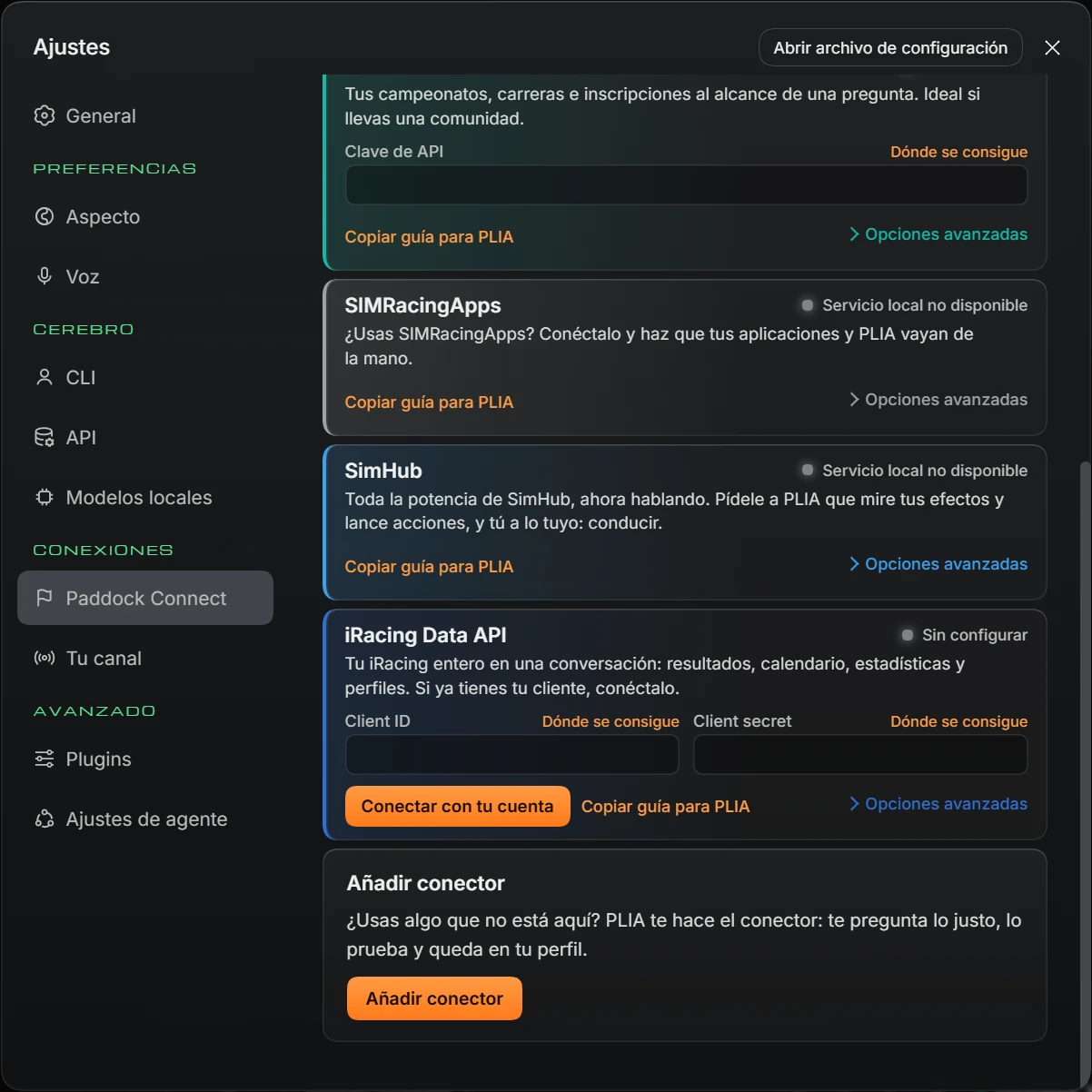
Each card contains:
| Item | What it does |
|---|---|
| Status | Sin configurar (Not configured), Conectado (Connected), Pendiente de acceso (Access pending), Permisos insuficientes (Insufficient permissions), Error or Servicio local no disponible (Local service unavailable). |
| Fields Clave de API, Client ID, Client secret or Dirección del webhook (Webhook address) | Paste the value. Key-based services save when you leave the box; account services save when you click Conectar con tu cuenta. If already set: «Ya está puesta — escribe otra para cambiarla» (already set; enter another to replace it). |
| Dónde se consigue (Where to get it) | Opens the service page where you obtain the value. |
| Conectar con tu cuenta (Connect your account) | For account services (iRacing Data API, YouTube, Twitch, Kick): saves the details and opens the browser for authorisation. |
| Copiar guía para PLIA (Copy guide for PLIA) | Copies text to paste into chat so PLIA guides the connection step by step. Confirmation asks you to paste it into PLIA chat. Enter the key yourself in Ajustes, never in chat. |
| Opciones avanzadas (Advanced options) | Expands the steps for obtaining the value, failure reason, links Dónde se consigue and Documentación (Documentation) and rows Conexión (Connection), Qué necesitas (What you need), Límites (Limits), Peticiones que te quedan (Remaining requests) and Disponible (Available) (what PLIA can do with the service). When connected, also includes Desconectar (Disconnect). |
| Añadir conector (Add connector) | If a service is missing, PLIA can build its connector. Closes Ajustes and inserts «Quiero añadir un conector para » in the message box: complete the sentence and send. |
Local PC services (SIMRacingApps, SimHub) are tested automatically when opening the tab.
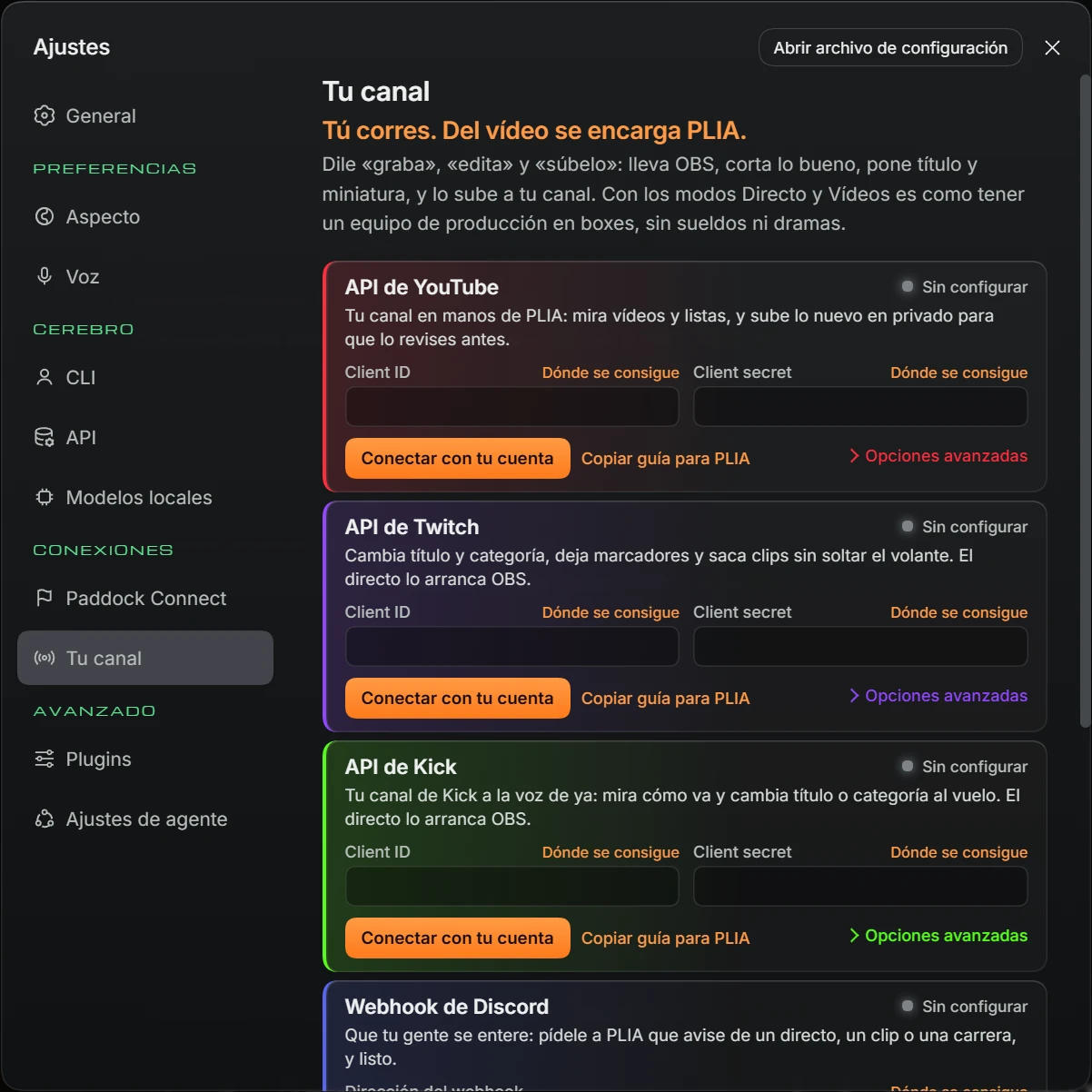
Ask it to record, edit and upload: controls OBS, cuts the best moments, adds a title and thumbnail, and uploads to your channel. Uses Directo and Vídeos modes. Cards work like Paddock Connect:
| Service | Purpose | Requires |
|---|---|---|
| API de YouTube (YouTube API) | Views videos and playlists, and uploads new content privately for your review. | Client ID and Client secret from your own Google Cloud project; then Conectar con tu cuenta |
| API de Twitch (Twitch API) | Changes title and category, adds markers and creates clips. | Client ID and Client secret; then Conectar con tu cuenta |
| API de Kick (Kick API) | Checks channel status and changes title or category. | Client ID and Client secret; then Conectar con tu cuenta |
| Webhook de Discord (Discord webhook) | Notifies your community about streams, clips or races. | Webhook address |
| OBS Studio | Switches scenes, records and starts or stops streaming. | OBS 28 or later running, with WebSocket server enabled |
| Streamlabs Desktop | Scenes, recording and streaming. | API key (remote-control token), with the program open |
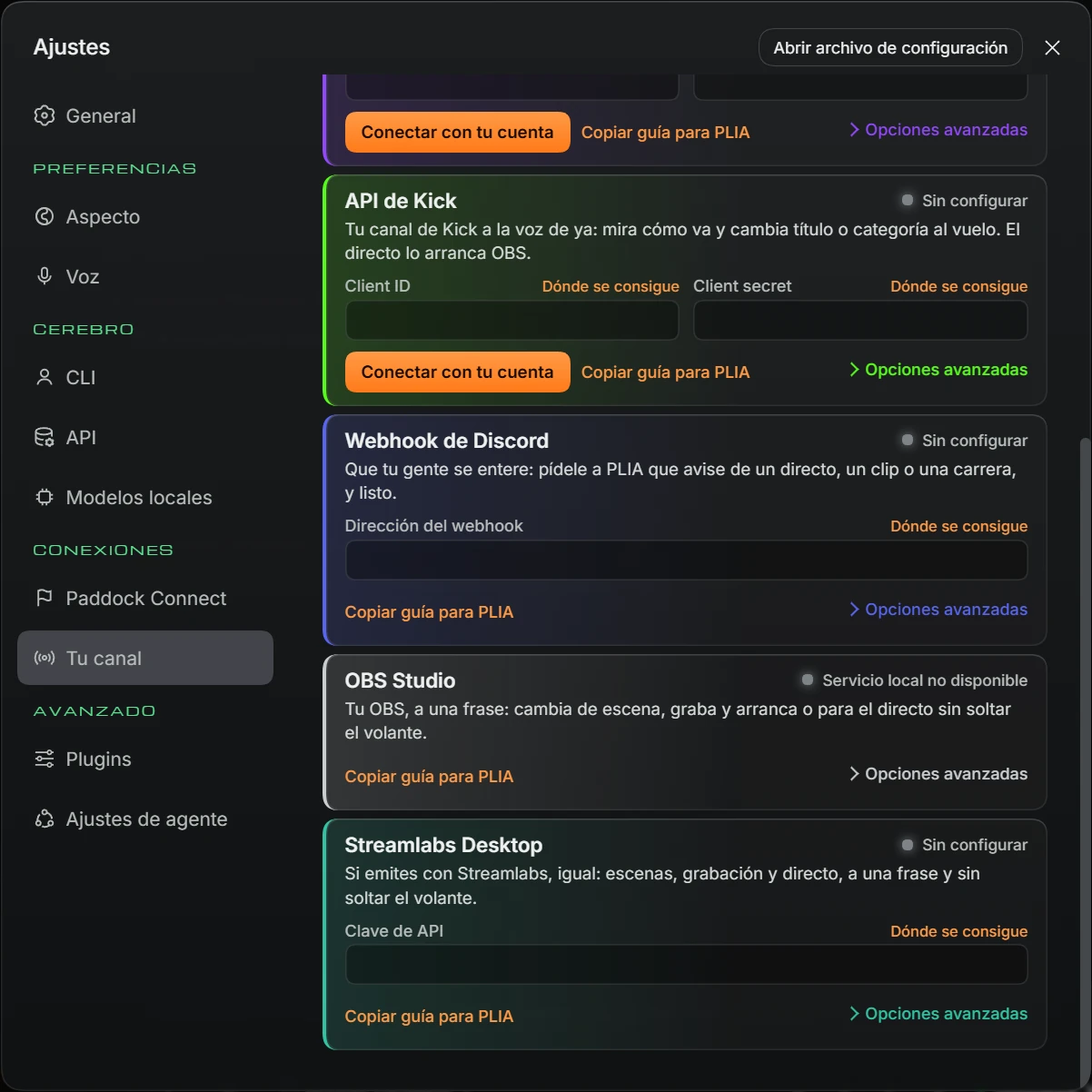
PLIA always uploads privately to YouTube: you decide when to publish.
Configure and inspect installed plugins. This advanced tab contains two subtabs.
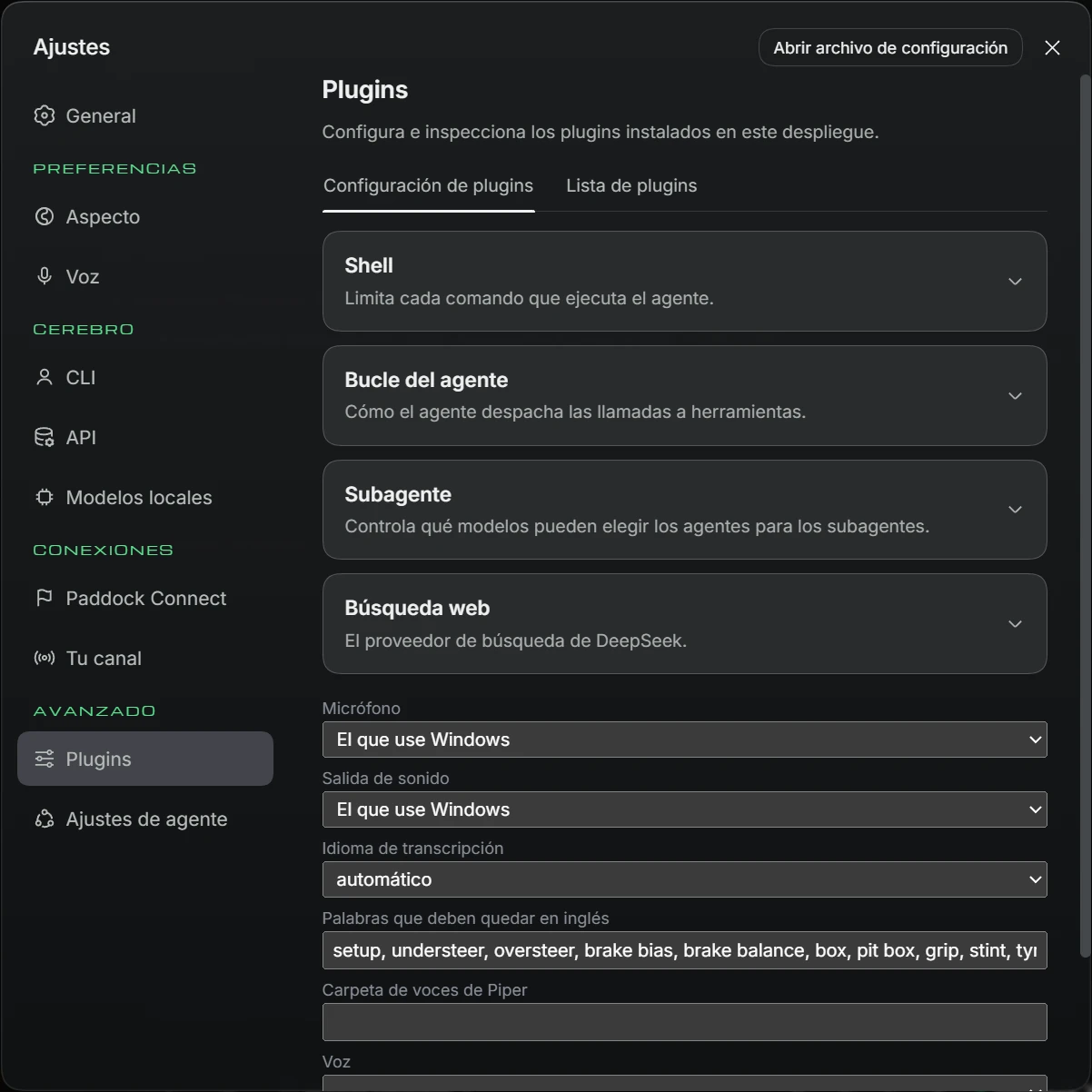
| Section | Options |
|---|---|
| Shell — Limits each command executed by the agent. | Tiempo de espera del comando (ms) (Command timeout (ms)) (120000 in the example) and Límite de salida por flujo (bytes) (Output limit per stream (bytes)) (64000). |
| Bucle del agente (Agent loop) | Llamadas a herramientas en paralelo (Parallel tool calls) (10 in the example). |
| Subagente (Subagent) | Permitir que los agentes elijan modelos para los subagentes (Allow agents to choose subagent models). |
| Búsqueda web (Web search) — DeepSeek's search provider. | Clave de API, Endpoint (blank uses provider default) and Máximo de búsquedas por solicitud (Maximum searches per request) (5 in the example). |
| Voice | Micrófono and Salida de sonido (Sound output) («El que use Windows»: Windows default, or a PC device), Idioma de transcripción (Transcription language) (automatic, Español, English), Palabras que deben quedar en inglés (Words to keep in English) (setup, understeer, oversteer, brake bias…), Carpeta de voces de Piper (Piper voices folder) and Voz. Below are instructions for the Groq key. |
Click each section to open it; each has Descartar (Discard) and Guardar.
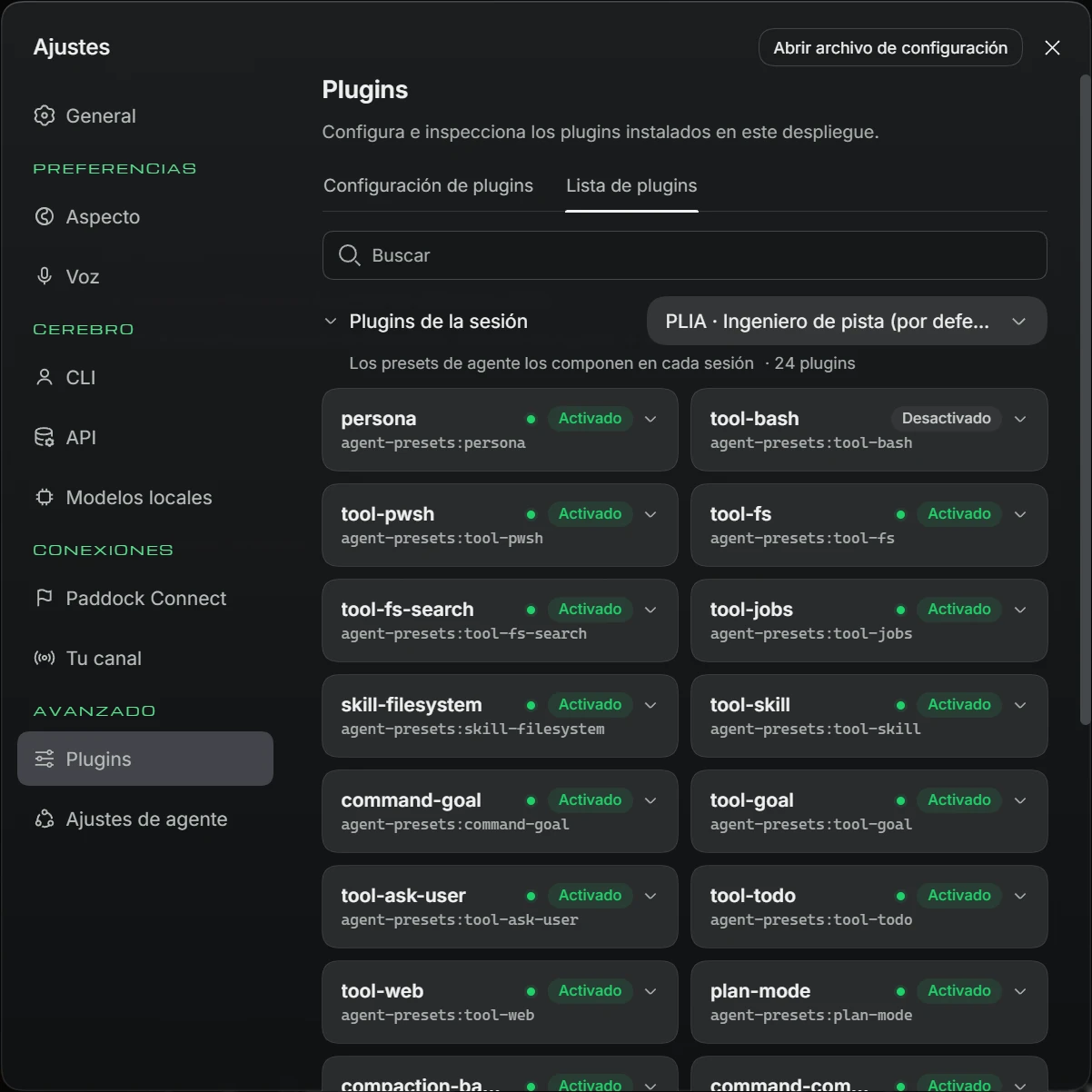
Lista de plugins (Plugin list) shows each mode's components as Activado (Enabled) or Desactivado (Disabled). Includes a Buscar box, the group Plugins de la sesión (Session plugins) with a selector for the mode to inspect («Elige el preset de agente que quieres inspeccionar»), and the group Plugins globales (Global plugins).
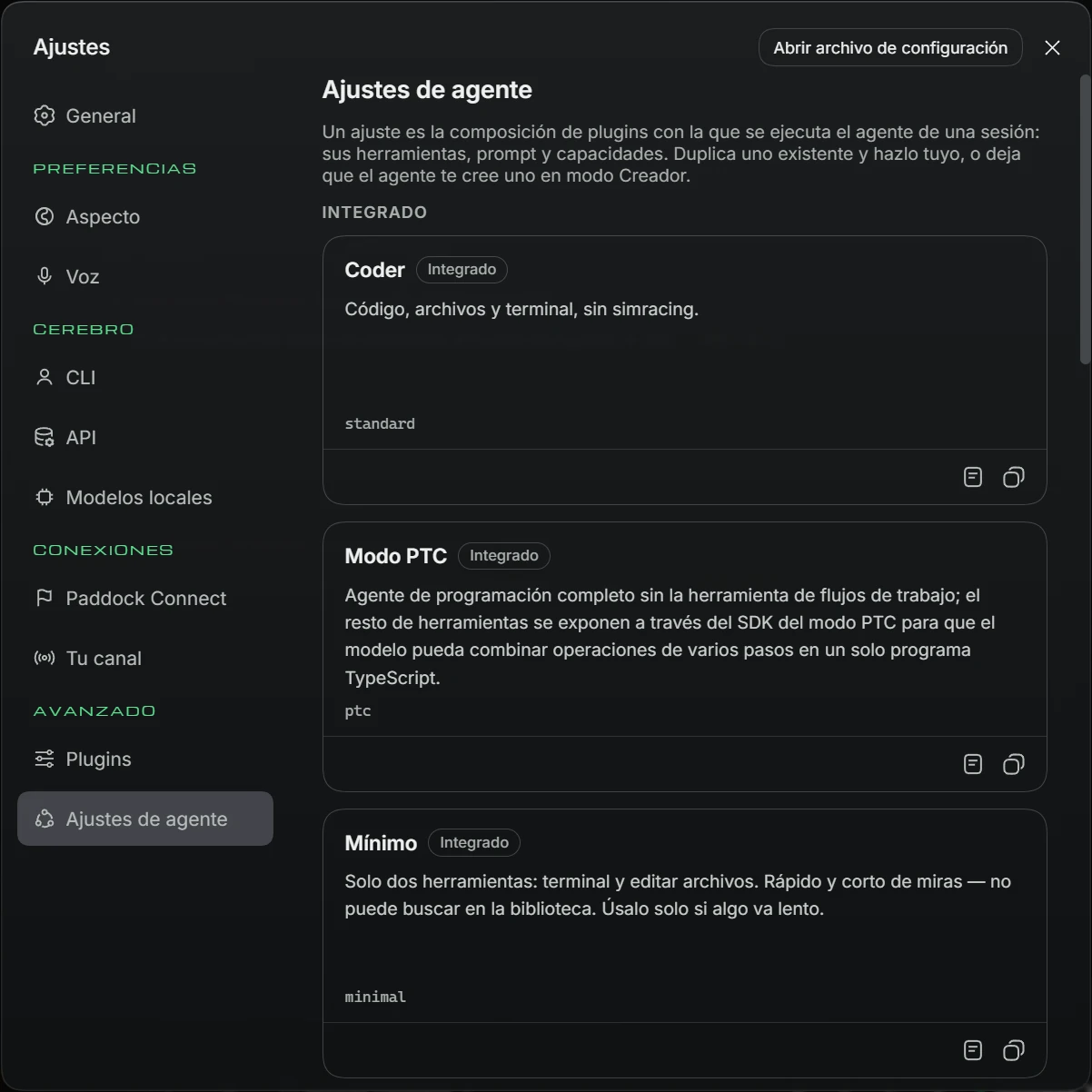
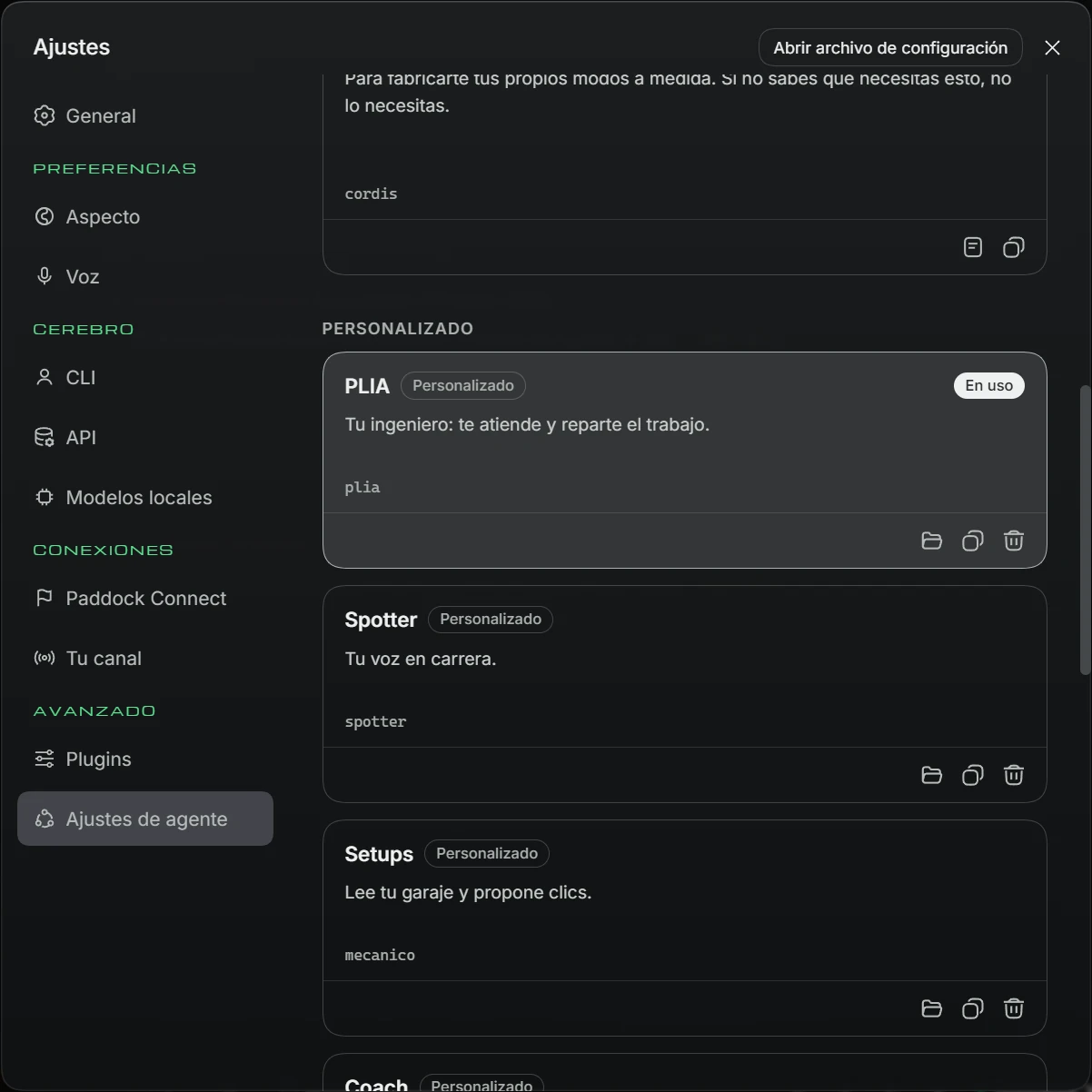
All modes are here. A preset defines the plugins used by a session's agent: tools, prompt and capabilities.
| Button | What it does |
|---|---|
| Click card («Establecer como predeterminado»: set default) | Makes that mode the default for new sessions. Selected mode is marked En uso (In use). |
| Page icon («Ver»: view) | For built-in modes: shows their composition read-only. Close with Cerrar. |
| Copy icon («Duplicar»: duplicate) | Copies the mode so you can customise it. |
| Folder («Abrir carpeta»: open folder) | For custom modes: opens their PC folder. |
| Bin («Eliminar»: delete) | For custom modes: deletes the mode. |
| + Redactar un preset personalizado con el modo Creador (+ Write a custom preset with Creator mode) | At the end of the list. Starts a chat with Creador de modos to build a custom mode. |
Continue the conversation in the same chat box. To return to an older chat, click it in the sidebar.
Images can be PNG, JPG, WebP or GIF. The model must support images; otherwise it asks you to switch: «El modelo actual no admite imágenes; cambia a un modelo que las admita».
First, once only:
To dictate a question:
For a hands-free conversation:
Click the speaker to hear the latest written answer. Click the crossed-out microphone to pause listening.
Keys work even while inside the simulator.
You can also type /model in the box.
To make a mode the default, click it in Ajustes → Ajustes de agente (Settings → Agent settings).
In Ajustes → Aspecto (Settings → Appearance), set Efectos animados to OFF. They turn off automatically when iRacing or Le Mans Ultimate is open.
| What you see | What to do |
|---|---|
| «Este turno ha fallado · La clave de API no es válida» and «PLIA necesita una clave de API válida…» (turn failed, invalid API key). | The selected model lacks a valid key. Click Abrir API and paste that provider's key, or switch to a keyed model, local model or CLI account. |
| PLIA answers nothing | It needs an AI. Free option: download PLIA 1 Mini or PLIA 1 Max in Modelos locales, or add a free NVIDIA NIM, Google or Groq key in API. Follow 3. First use. Other Suite functions are unaffected. |
| «El modelo actual no admite imágenes; cambia a un modelo que las admita» (model does not support images). | Choose another model in the selector. |
| «Solo se admiten imágenes PNG, JPG, WebP y GIF» (accepted image formats). | Save the image in one of those formats. |
| «Dentro de esta aplicación el reconocimiento del navegador no funciona…» or «La conversación por micrófono necesita Groq…» (browser recognition unavailable; voice needs Groq). | Enter your Groq key and choose Groq in Settings → Voice. |
| «No se ha oído nada por el micrófono…» (no microphone audio heard). | Check the microphone selected in Ajustes → Voz and ensure it is not muted (yellow crossed-out microphone). |
| «El micrófono se oye muy bajo…» / «El micrófono está saturando…» (too quiet / clipping). | Move closer or farther away, or adjust microphone level in Windows. |
| «La conversación está en marcha: basta con hablar…» (conversation active; just speak). | Dictation is unavailable in K mode. End the conversation with K first. |
| «Aún no hay respuesta que leer» (no answer to read yet). | The speaker reads the latest answer; this chat has none yet. |
| Modelos locales: «La descarga se ha parado…» (download stopped). | Click again to resume where it stopped. |
| Modelos locales: «Ese modelo no sirve aquí…» (model unsuitable). | The model cannot use tools. PLIA removed it; try another. |
| Modelos locales: «Ese nombre no vale…» (invalid name). | Paste the name exactly as on the website, without spaces. |
| CLI: No instalado or Sin sesión | Install through Cómo instalarlo y entrar, sign in through Entrar and click Comprobar. |
| Paddock Connect or Tu canal: Servicio local no disponible | That optional program is not running on your PC. Open it and return to the tab. |
| Paddock Connect: «La clave es incorrecta o ha caducado. Pega otra.» (invalid or expired key). | Get a new key through Dónde se consigue and paste it. |
| First launch takes a long time | It is preparing its engine. Wait and do not close it. This only happens once. |
| PLIA no ha podido abrir | Close the window and reopen PLIA. If it persists, click COPIAR EL ERROR and send it through the program's Discord. |
| Licence warning on opening | Open Push & Lift and check your account and licence, then reopen PLIA. |
| PLIA is slow or PC resources are limited | Turn off Efectos animados in Ajustes → Aspecto. |
| Ajustes → Aspecto: «La textura pesa demasiado…» (texture too large). | Use an image of 2 MB or less. |