PUSH & LIFTPUSH & LIFT

Push & Lift · an onboard instrument with a split screen and LED strip
RACE is an overlay that resembles an onboard instrument: a carbon housing, black screen and LED strip at the top. It floats over the simulator while you drive.
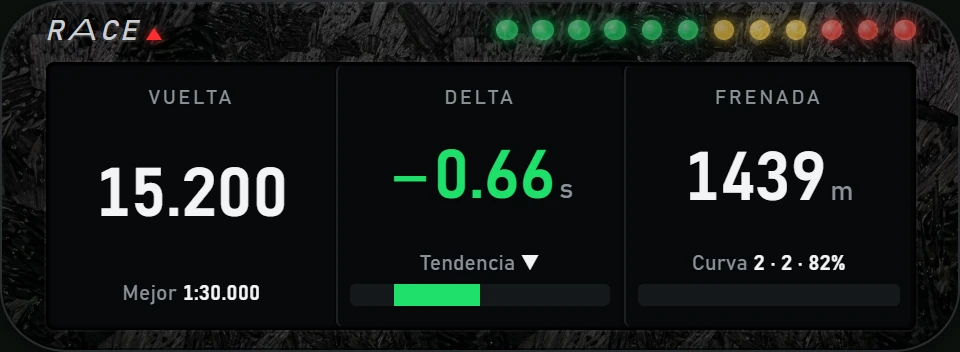
RACE is in the DDU group of the Suite menu. It works with iRacing and Le Mans Ultimate.
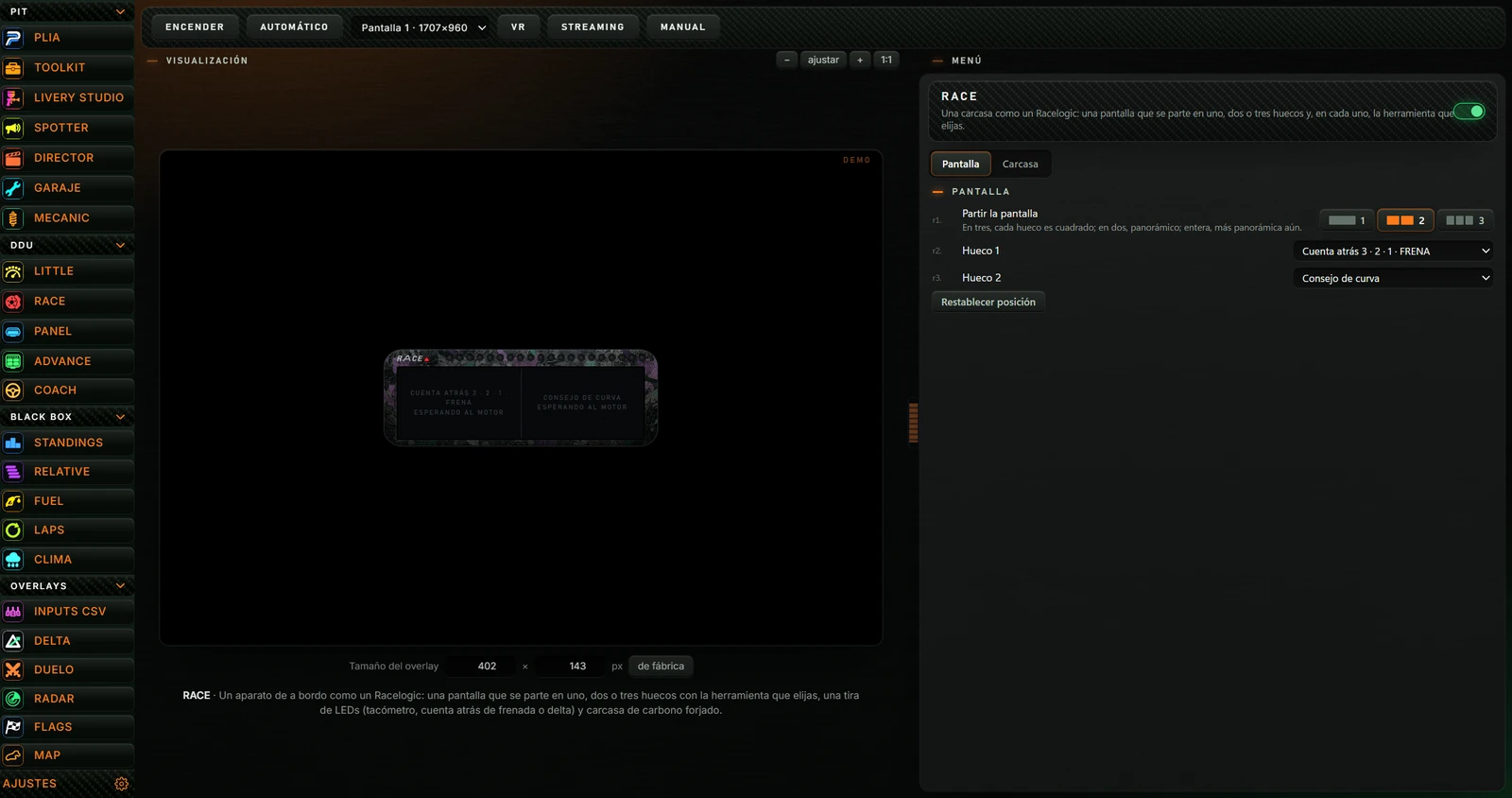

| Button | Action |
|---|---|
| ENCENDER (TURN ON) / APAGAR (TURN OFF) | Turns RACE on or off on your screen. When on, the button says APAGAR and RACE is marked as on in the left menu. |
| AUTOMÁTICO (AUTOMATIC) | When enabled, RACE starts with the simulator (iRacing or Le Mans Ultimate) and stops when you close it. Click again to disable it. The button is highlighted when enabled. |
| Monitor dropdown | Choose the monitor on which RACE appears. Each monitor has a number and resolution, for example “Pantalla 1 · 1707×960” (Screen 1). |
| VR | Explains how to view it in VR: “En OpenKneeboard, captura la ventana «PL OVERLAYS».” (In OpenKneeboard, capture the PL OVERLAYS window). |
| STREAMING | Copies the RACE address for an OBS browser source. The message “Enlace copiado para OBS (fuente de navegador, 480×176):” (Link copied for OBS, browser source) appears beside it with the address and the required source dimensions. |
| MANUAL (MANUAL) | Opens the RACE manual on the Push & Lift website in your browser. |
With RACE off, the left area shows the result. At top right it says DEMO: the preview uses sample data, not your simulator. Menu changes appear here immediately.
| Control | Action |
|---|---|
| − and + | Zoom the preview out and in. |
| ajustar (fit) | Fits and recentres the preview in the available area. |
| 1:1 | Shows it at actual size. |
| Drag with the mouse | Moves the preview. Double-click to centre it again. |
| Tamaño del overlay (Overlay size) (width × height, in px) | Enter the width or height. RACE scales proportionally: changing either dimension adjusts the other automatically. RACE defaults to 480 × 176. |
| de fábrica (factory default) | Restores RACE's original size. |
A sentence below explains what RACE is. Drag the divider between preview and menu to divide the space differently; double-click to return it to the centre.
RACE is ready to use. Factory settings are:
Every menu change is saved automatically and applied immediately, including while RACE is on.
| Part | Description |
|---|---|
| Branding RACE with a red triangle | At top left. Hide it with La marca RACE (RACE branding). |
| Tira de LEDs (LED strip) | At top right. Choose its function in Qué enseña la tira (What the strip shows) (see 4.4). |
| Pantalla (Screen) | The black glass, divided into 1, 2 or 3 slots. |
| Each slot | A small data label at the top (such as VUELTA). A large value in the centre. A smaller secondary value below (such as MEJOR) and, for some tools, a bar. |
The large value's colour gives a warning:
A missing value is shown as a dash (—).
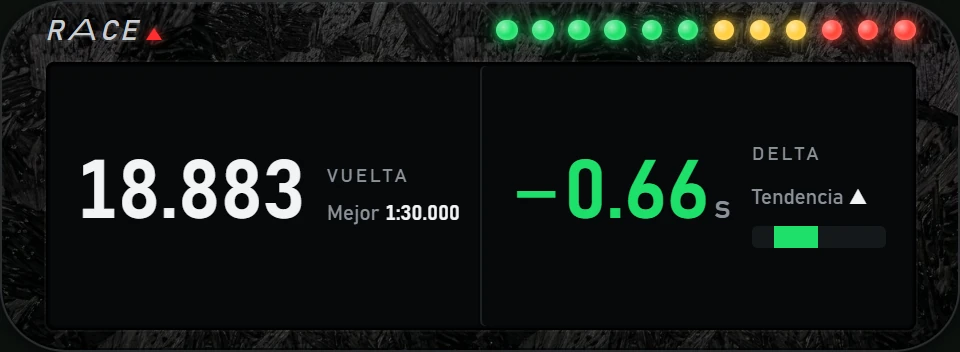
Each tool changes its layout to suit the available space:
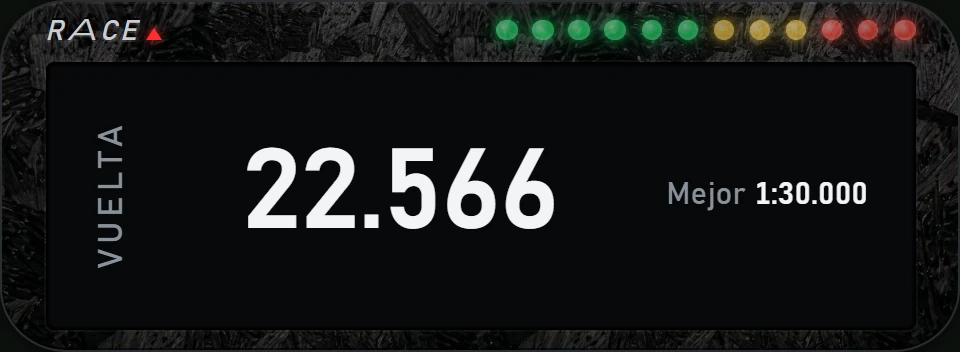
TOOLKIT lets you build your own displays for RACE, called Barra RACE · 7 × 2 (RACE bar). Saving one automatically adds it to RACE's lists Hueco 1 (Slot 1), Hueco 2 (Slot 2) and Hueco 3 (Slot 3) with a dot before it: · and your kit's name.
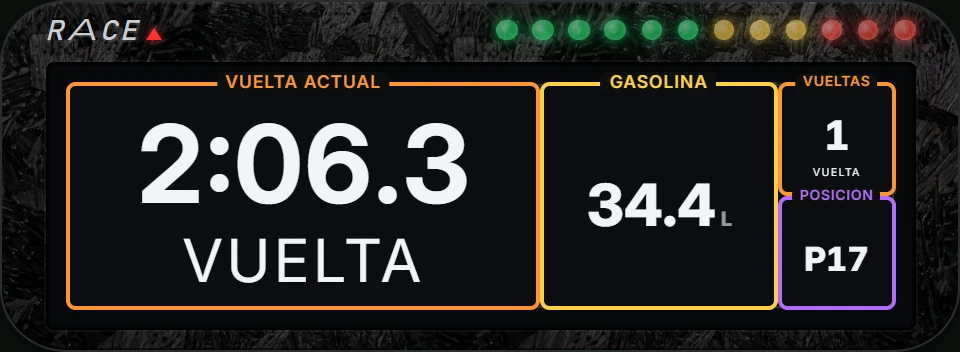
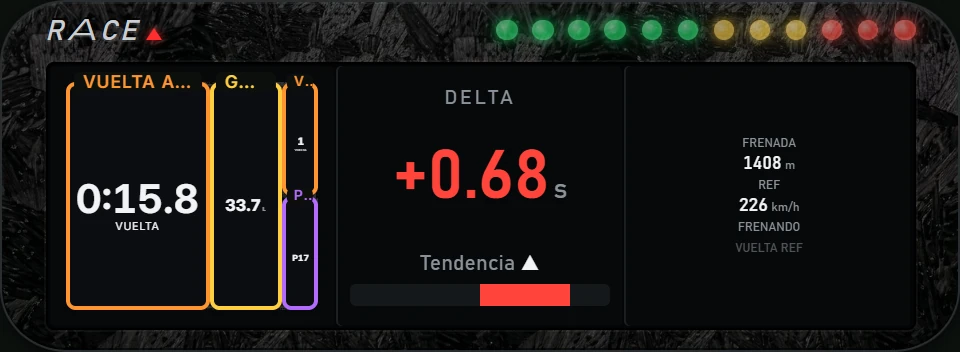
These are the kits currently on this PC (the list changes as you save or delete kits in TOOLKIT):
The strip has 6–20 LEDs (12 by default). It performs one of three functions:
| Option | How it lights up |
|---|---|
| Tacómetro (régimen y punto de cambio) (Tachometer: RPM and shift point) | LEDs light up from left to right as RPM rises, from the car's warning threshold to its shift point. The first LEDs are green the last six and the last three red. At the shift point the entire strip flashes: change gear. |
| Cuenta atrás de la frenada (últimos 300 m) (Braking countdown: last 300 m) | In the last 300 metres before the next braking point, LEDs light up from left to right: orange then and finally red. Below 25 m they flash. While braking, the whole strip turns red. |
| Delta a mi mejor vuelta, desde el centro (Delta to my best lap, from the centre) | LEDs spread from the centre. When faster than your best lap, they light towards the right in green; when slower, towards the left in red. At a difference of one second or more, that entire half is lit. |
Without simulator data the strip remains off.
Tachometer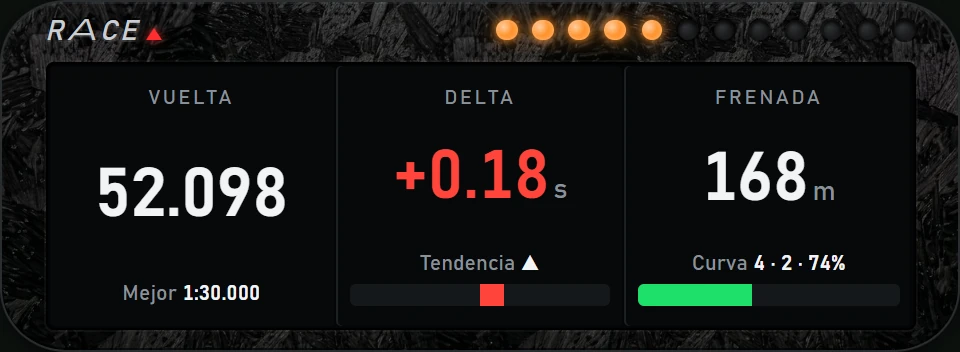 Braking countdown, at 168 m
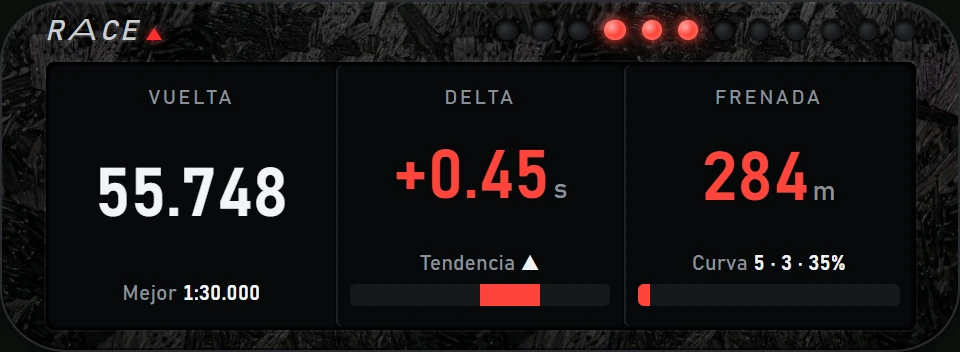 Delta: 0.45 s slower
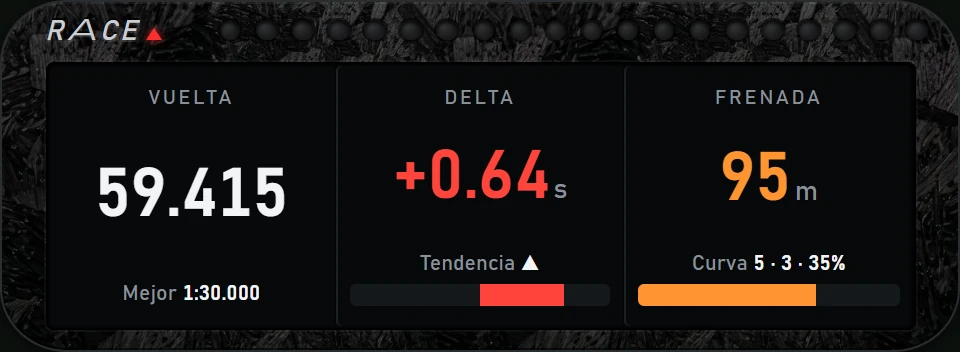 20 LEDs
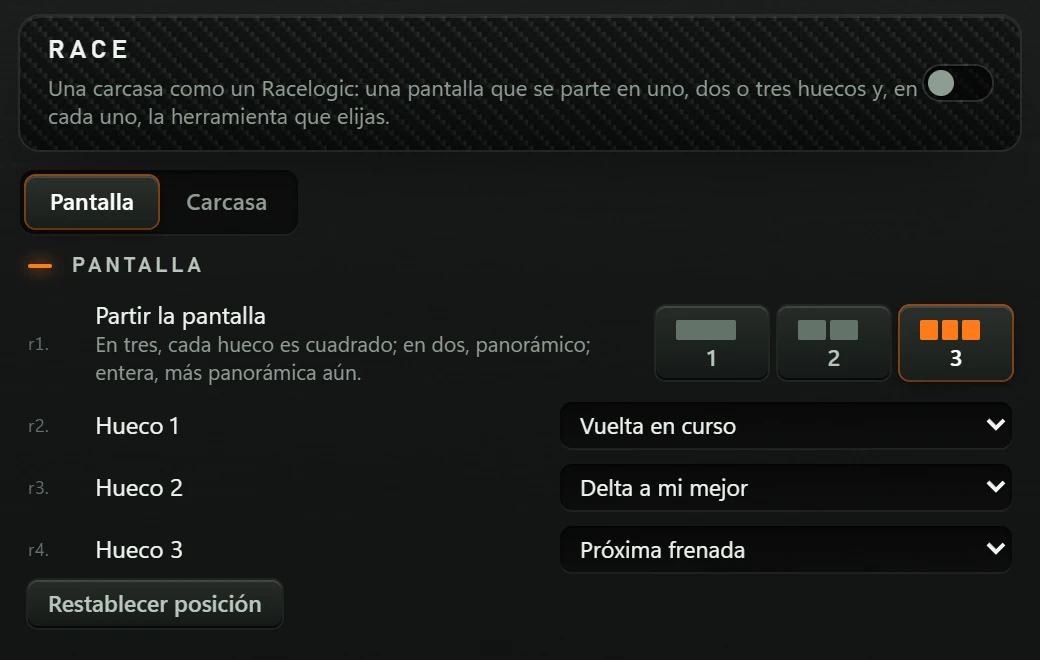
The menu is on the right of RACE's workbench in the Suite. A header and two tabs appear at the top: Pantalla (Screen) and Carcasa (Housing).
| Item | Action |
|---|---|
| RACE and the sentence below it | The name and purpose: “Una carcasa como un Racelogic: una pantalla que se parte en uno, dos o tres huecos y, en cada uno, la herramienta que elijas.” (A Racelogic-style housing: a screen split into one, two or three slots, each with your chosen tool). |
| Header switch (on the right) | In green, RACE is visible. If you turn it off (dark, with the knob on the left), RACE disappears even though it is still running, and the preview is empty. Click it again to show RACE. |
| Tab Pantalla (Screen) | Number of slots and their contents (see 5.1). |
| Tab Carcasa (Housing) | Texture, branding, LED strip, opacity and font (see 5.2). |
| Small grey numbers (r1., r2.…) | To the left of each setting. They number menu rows so you can refer to them; clicking them does nothing. |
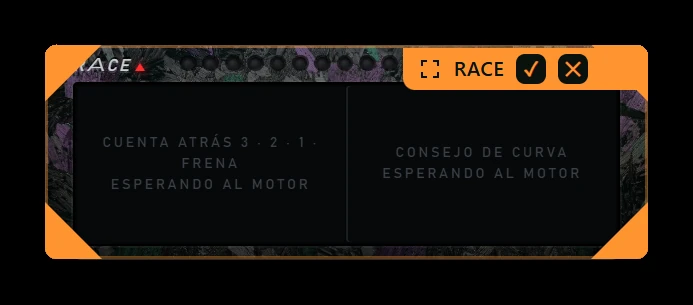
When turned on, RACE appears with a flashing orange frame, its name at top right and two buttons:
| Control | Action |
|---|---|
| Drag the frame | Moves RACE. |
| Orange corners | Drag a corner to resize. RACE scales without distortion. |
| ✓ (“Terminar de editar”: Finish editing) | Locks RACE in its current position. |
| ✕ (“Cerrar el overlay”: Close overlay) | Turns RACE off. |
Once fixed, clicks pass through RACE to the simulator. Hover over it to reveal the orange tab EDITAR (EDIT) in its top-right corner: click to move it again. Right-click EDITAR (EDIT) (or the orange frame) opens Push & Lift with RACE selected.
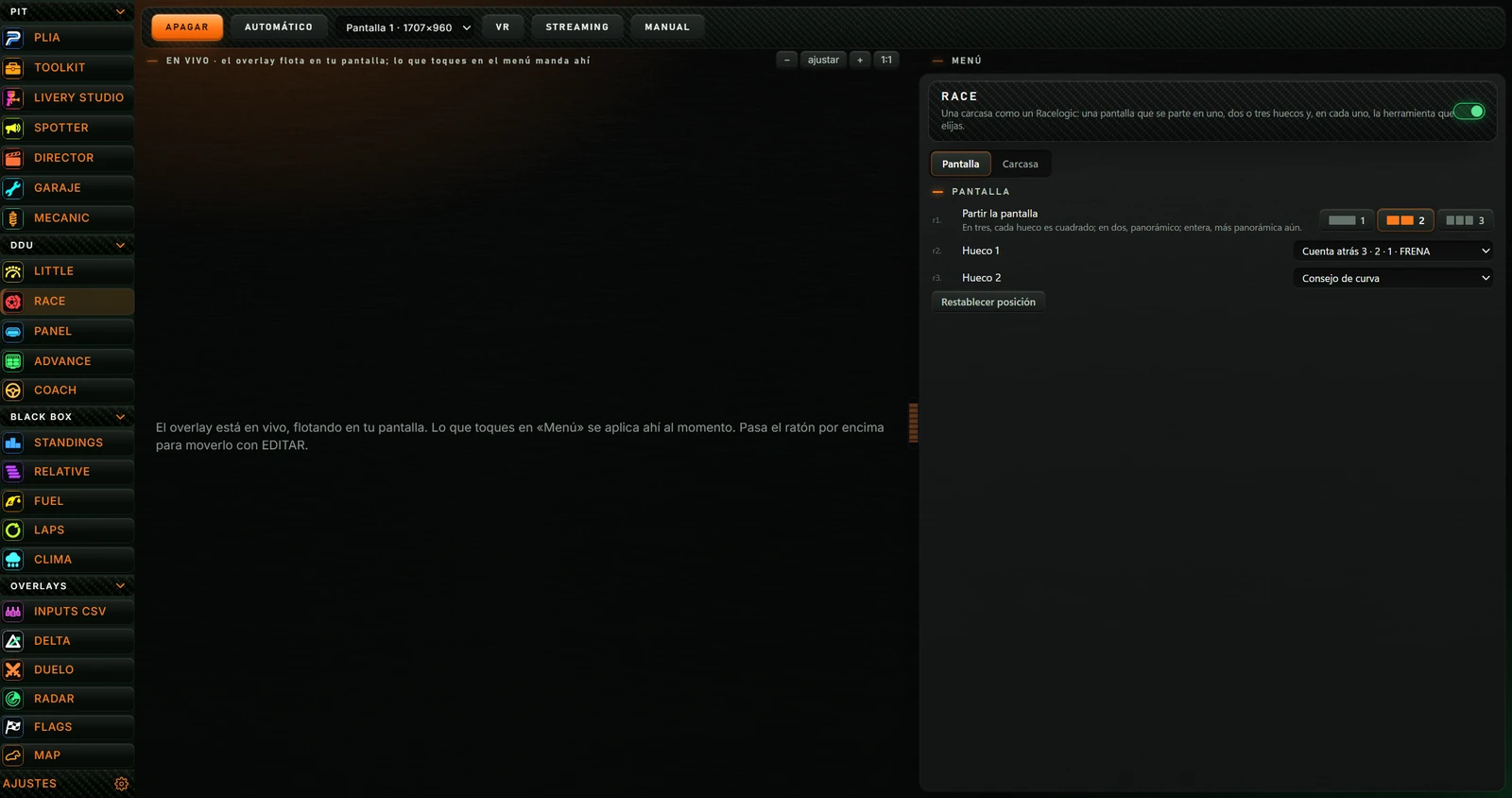
With RACE on, the Suite preview is replaced by a notice explaining that the overlay is live on your screen, menu changes apply immediately, and hovering reveals EDITAR for moving it. The top label changes to “EN VIVO” (LIVE).
Everything saves automatically and applies immediately.
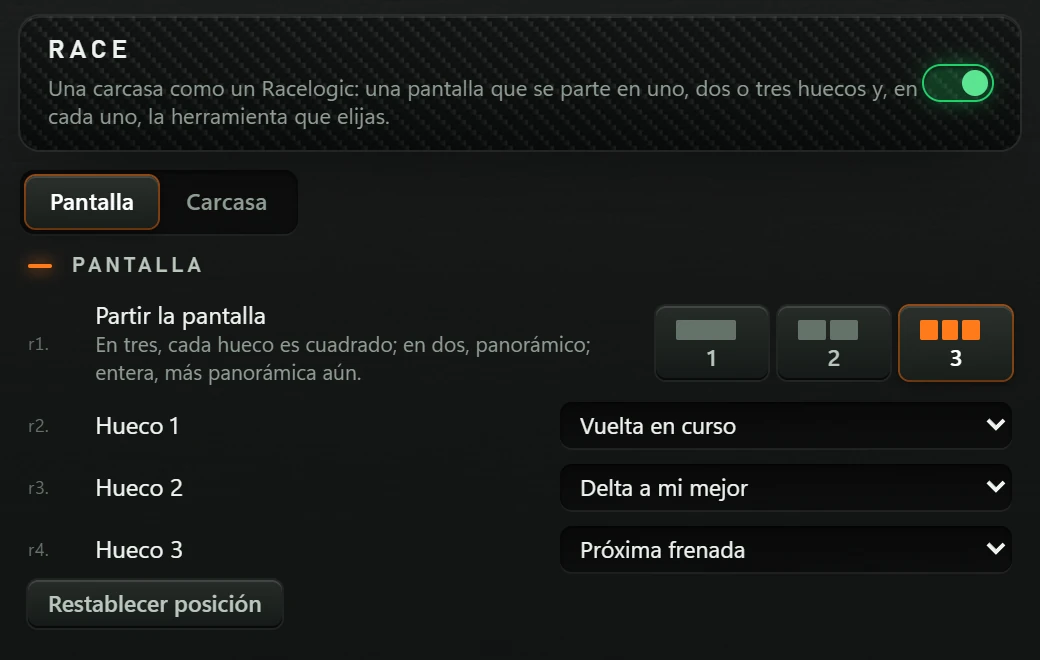
| Option | Action | Factory default |
|---|---|---|
| Partir la pantalla (Split screen): 1 2 3 | How many slots the screen has. Each button depicts its slots; the selected button is orange. The explanation below says that three slots are square, two are wide, and one full-screen slot is wider still. Changing this displays as many slot lists as there are slots. | 3 |
| Hueco 1 (Slot 1), Hueco 2 (Slot 2), Hueco 3 (Slot 3) | What appears in each slot, from left to right. Lists contain (vacío) (empty) the 34 tools in groups and, at the end, your TOOLKIT kits preceded by a dot. The complete list is in the appendix. | Vuelta en curso (Current lap), Delta a mi mejor (Delta to my best), Próxima frenada (Next braking point) |
| Restablecer posición (Reset position) | Centres RACE on the screen. Use it if you lose sight of the overlay. Only works while RACE is on. | — |
Tool groups in the lists: BANDERAS E INCIDENTES (FLAGS AND INCIDENTS), COACH, COCHE Y MOTOR (CAR AND ENGINE), COMBUSTIBLE Y BOXES (FUEL AND PITS), DELTA Y REFERENCIA (DELTA AND REFERENCE), FRENADA (BRAKING), FUERZAS G (G-FORCES), RIVALES Y CLASIFICACIÓN (RIVALS AND STANDINGS) and TIEMPOS Y VUELTAS (TIMES AND LAPS).
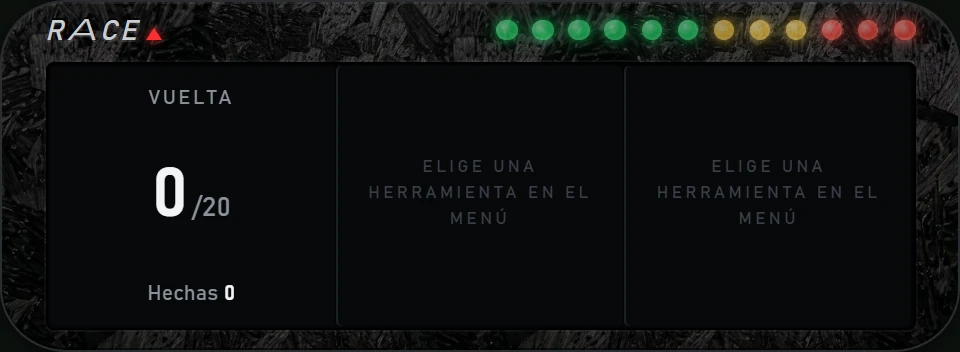
A slot set to (vacío) (empty) shows “Elige una herramienta en el menú” (Choose a tool in the menu).
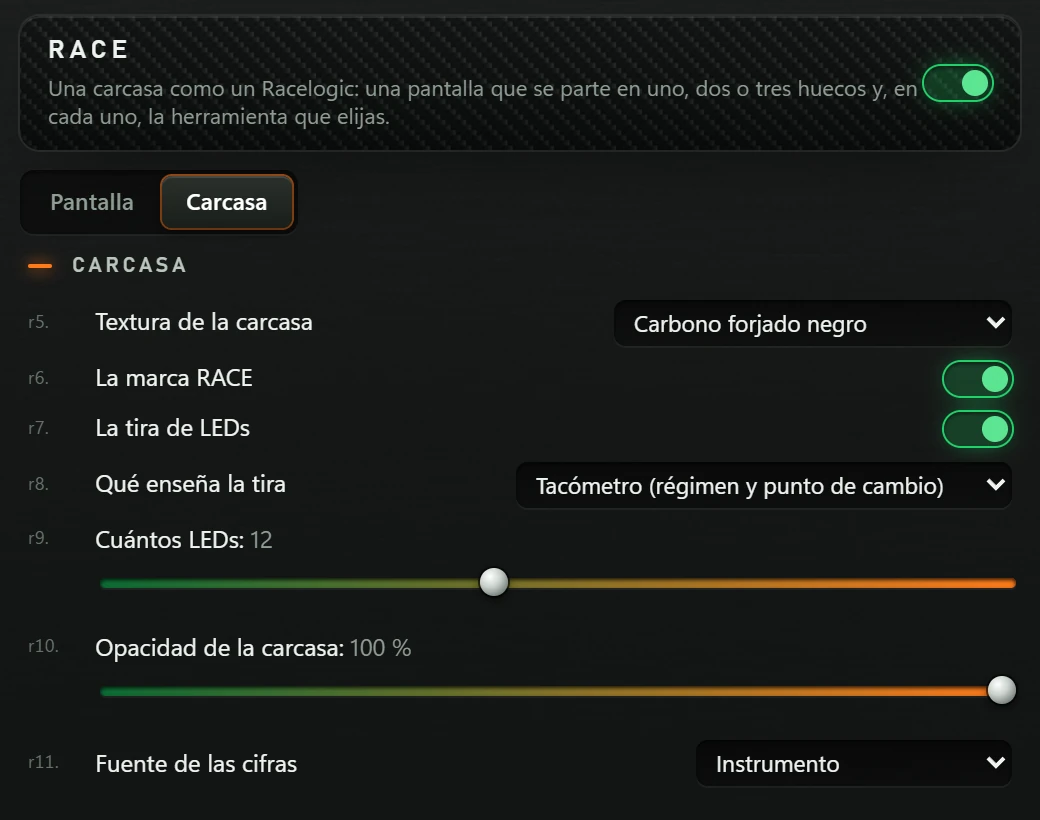
| Option | Action | Factory default |
|---|---|---|
| Textura de la carcasa (Housing texture) | The housing finish. Options: Plástico mate (Matt plastic), Carbono forjado negro (Black forged carbon), Carbono forjado con cobre (Forged carbon with copper), Carbono forjado verde y morado (Green and purple forged carbon), Carbono dorado (Gold carbon), Carbono clásico (Classic carbon) and Carbono azul (Blue carbon). | Carbono forjado negro (Black forged carbon) |
| La marca RACE (RACE branding) | Switch. Shows or hides the RACE name and red triangle. | On |
| La tira de LEDs (The LED strip) | Switch. Shows or hides the LED strip. | On |
| Qué enseña la tira (What the strip shows) | Tacómetro (régimen y punto de cambio) (RPM and shift point), Cuenta atrás de la frenada (últimos 300 m) (Braking countdown, last 300 m) or Delta a mi mejor vuelta, desde el centro (Delta to my best lap, from centre). See 4.4. | Tachometer |
| Cuántos LEDs (LED count) | Slider from 6 to 20. The number appears next to the label. | 12 |
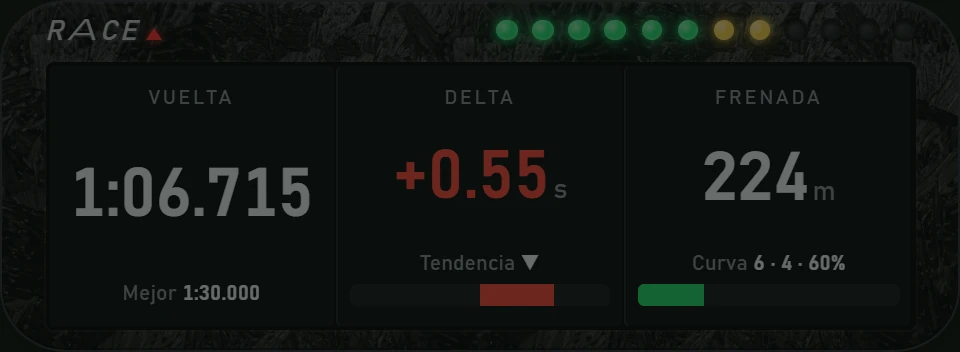
| Opacidad de la carcasa (Housing opacity) | Slider from 20 % to 100 %, in steps of 5. Below 100 %, the whole RACE overlay becomes transparent: housing, screen and LEDs. | 100 % |
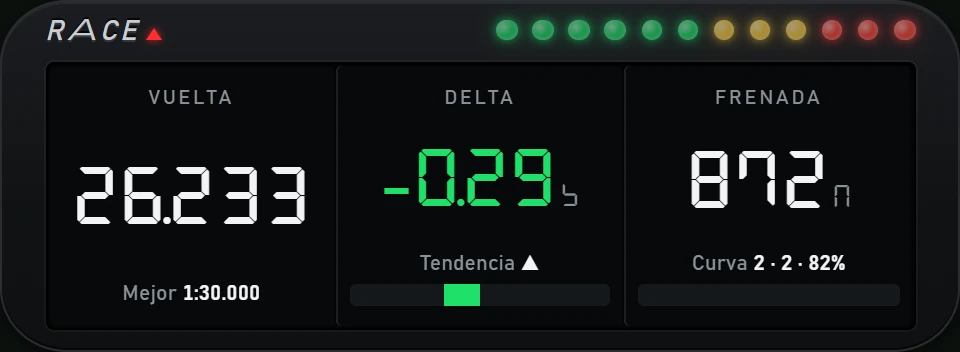
| Fuente de las cifras (Digit font) | Instrumento (Instrument) or Digital (siete segmentos) (Digital, seven segments), like a digital clock. | Instrumento (Instrument) |
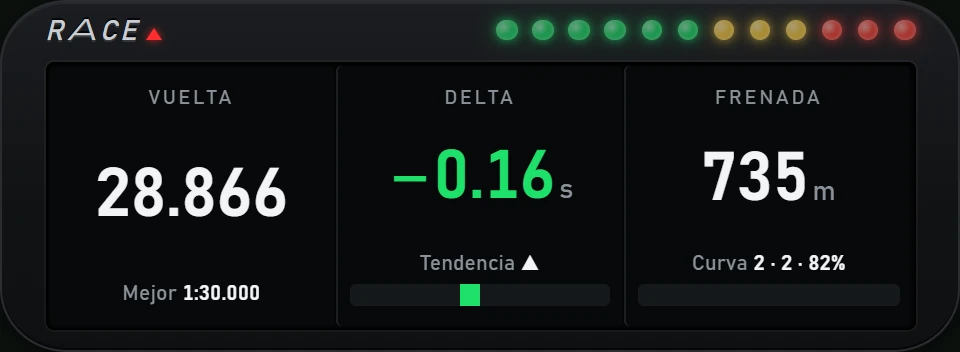 Plástico mate (Matt plastic)
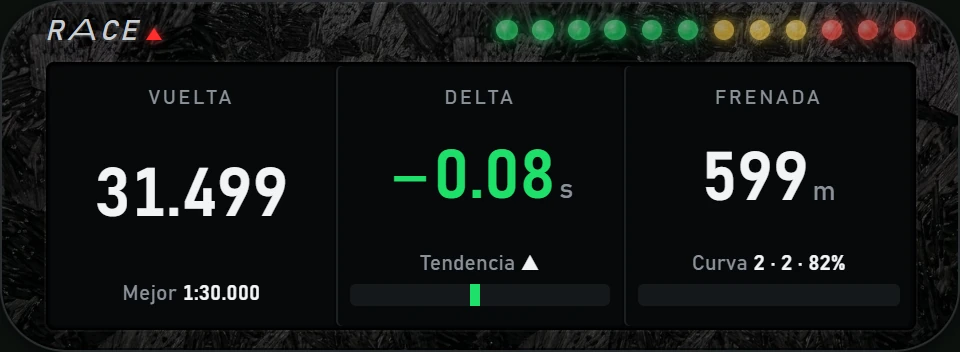 Carbono forjado negro (Black forged carbon)
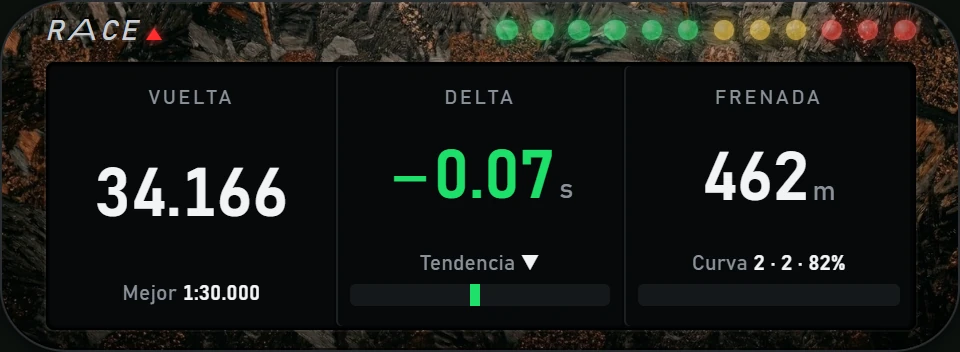 Carbono forjado con cobre (Forged carbon with copper)
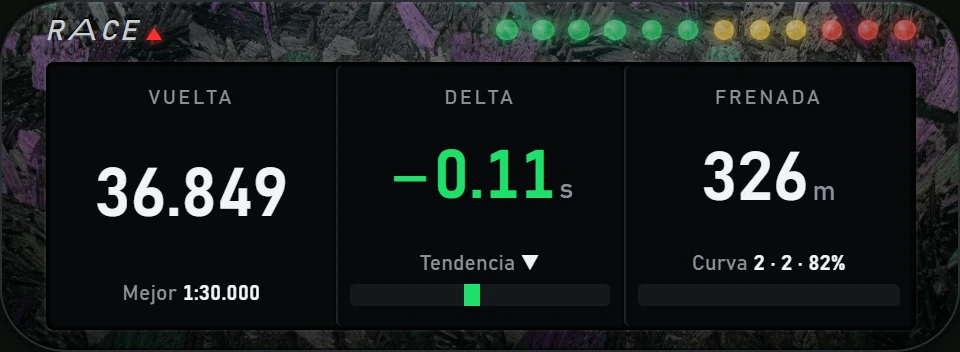 Carbono forjado verde y morado (Green and purple forged carbon)
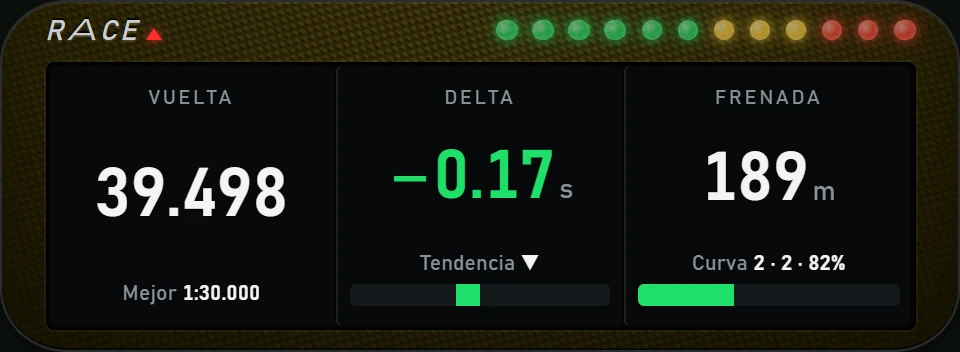 Carbono dorado (Gold carbon)
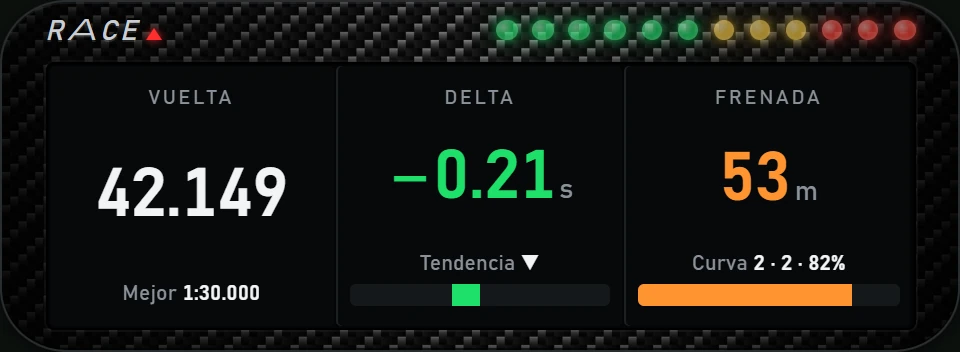 Carbono clásico (Classic carbon)
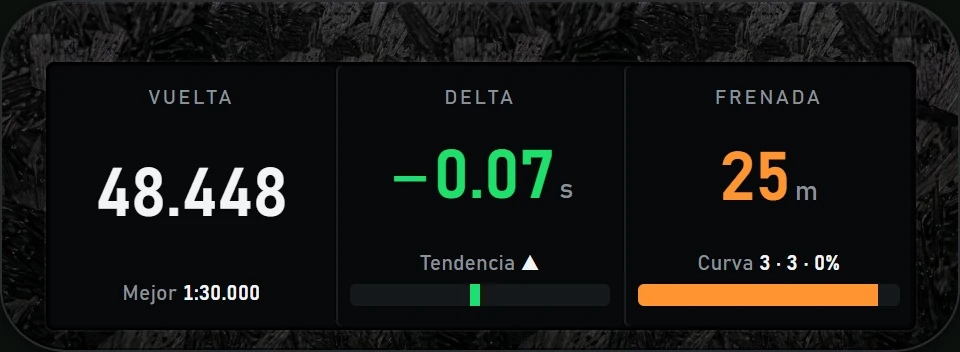
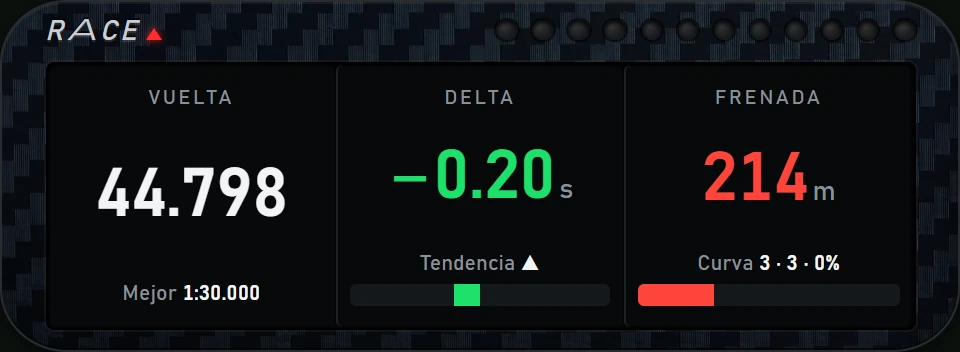 Carbono azul (Blue carbon)
| What happens | What to do |
|---|---|
| Each slot shows its name and “esperando al motor” (waiting for the engine) | No data is arriving. Open the simulator and go on track. If data stops arriving for 4 seconds, RACE returns to this notice and turns off the LEDs. |
| A slot says “Elige una herramienta en el menú” (Choose a tool in the menu) | That slot is set to (vacío) (empty). Choose a tool from its list. |
| A slot says “Herramienta no encontrada” (Tool not found) | The kit previously used there no longer exists (it was deleted in TOOLKIT). Choose something else for that slot. |
| Delta al CSV or Referencia CSV cargada says “Sin CSV” (No CSV) | No reference lap is loaded. Load one in AJUSTES (SETTINGS), under La barra (The bar), with Cargar CSV (Load CSV). |
| A value appears as a dash (—) | The simulator does not currently provide that value (for example, best lap before completing your first lap). |
| RACE is on but invisible | Check the menu header switch: it must be green. Also check Opacidad de la carcasa (Housing opacity) and the monitor selected in the Suite. Otherwise, click Restablecer posición (Reset position). |
| The LED strip does not light up | Check that La tira de LEDs (The LED strip) is on. Without simulator data it stays off. Delta mode also needs an existing best lap. |
| I cannot click or move RACE | When fixed, RACE passes clicks to the simulator. Hover over it and click the tab EDITAR (EDIT). |
| Clicking ENCENDER does not start RACE | RACE needs the Push & Lift engine and your account. If the Suite says “Crea tu cuenta en la pantalla de Push & Lift para abrir las apps.” (Create an account in the Push & Lift screen to open apps), sign in first. Also check the engine indicator on the bar (see the SUITE manual). |
| Preview slots say “esperando al motor” even though the top label says DEMO | The preview sometimes fails to receive sample data. Menu selections are still saved. To see live data, turn on RACE with the simulator on track. |
| OBS shows nothing | The STREAMING address only works while the engine is running: turn on RACE in the Suite. |
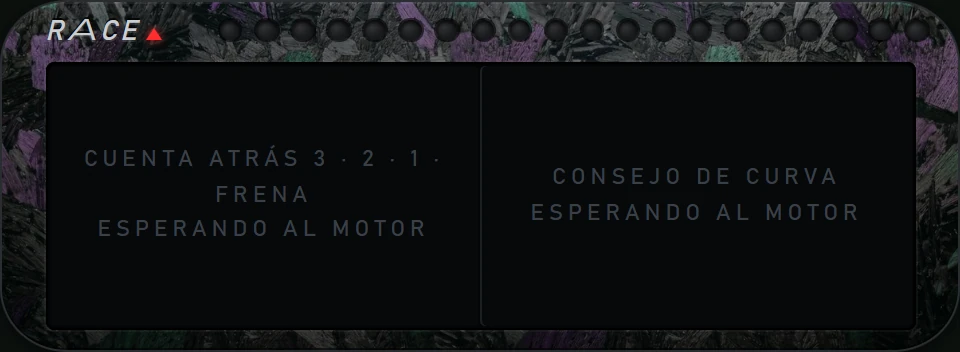
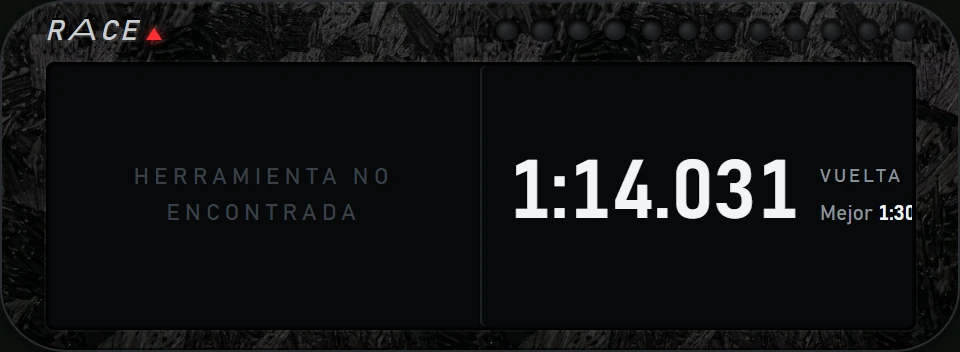
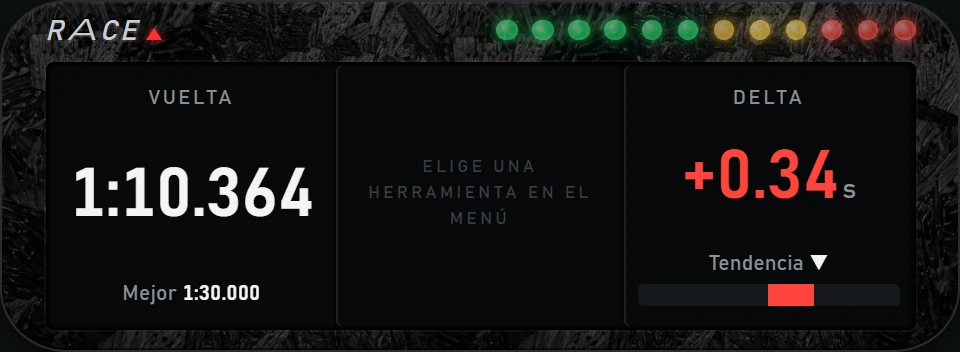
The 34 tools you can put in a slot, grouped in list order. “Large value” is shown in the centre; “Small value” below it.
| Tool | Label | Large value | Small value | Colours |
|---|---|---|---|---|
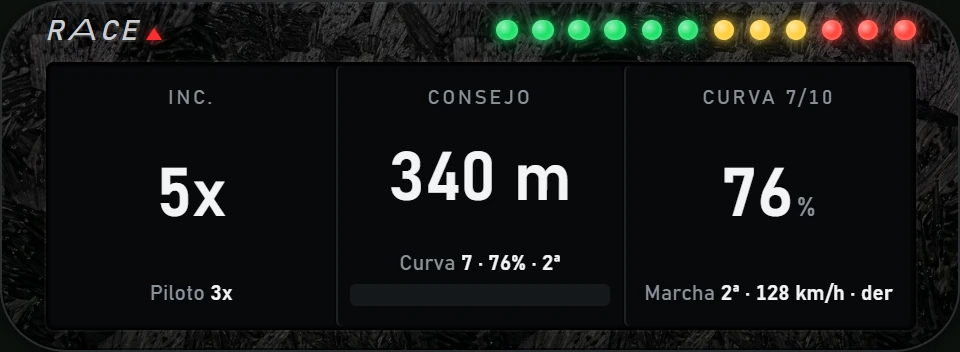
| Incidentes (Incidents) | INC. | Your incidents (for example 4x) | Piloto (Driver) | Orange from 8x, red from 12x |
| Tool | Label | Large value | Small value | Colours |
|---|---|---|---|---|
| Consejo de curva (Corner advice) | CONSEJO (ADVICE) | Metres to the corner, then PREPARA (PREPARE, below 150 m), FRENA (BRAKE) or LEVANTA (LIFT, below 50 m) and FRENANDO (BRAKING) | Curva (Corner): number · brake % · gear | Orange on approach, red while braking. Bar over the last 300 m |
| Freno y marcha de la próxima curva (Brake and gear for the next corner) | CURVA (CORNER) and its number | Brake % for the next corner, or LEVANTA (LIFT) if lifting is enough | Gear · minimum speed · turn | Orange below 100 m, red while braking |
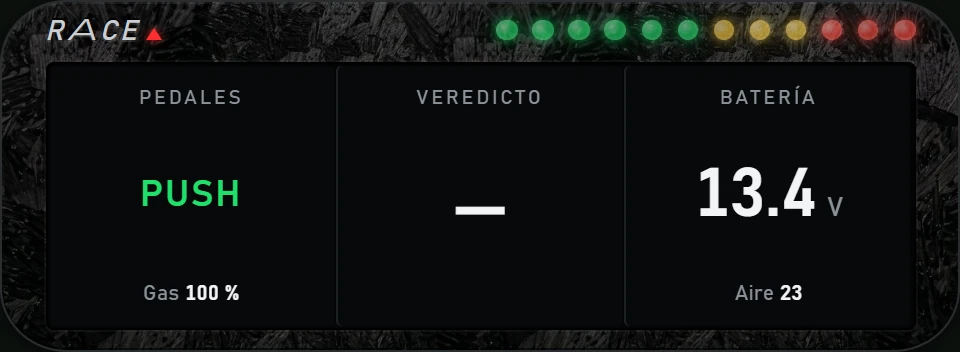
| PUSH o LIFT según pises (PUSH or LIFT according to pedal input) | PEDALES (PEDALS) | PUSH with full throttle (over 85 %), LIFT when braking or lifting off | Gas: throttle % | Green for PUSH, orange for LIFT |
| Veredicto de la última curva (Last corner verdict) | VEREDICTO (VERDICT) and the corner | How many metres late (+) or early (−) you braked at the last corner | Time gained or lost in that corner | Green if gaining time (or braking at the correct point), red if losing |
| Tool | Label | Large value | Small value | Colours |
|---|---|---|---|---|
| Batería (Battery) | BATERÍA (BATTERY) | Battery voltage | Aire (Air) | Red below 12 V |
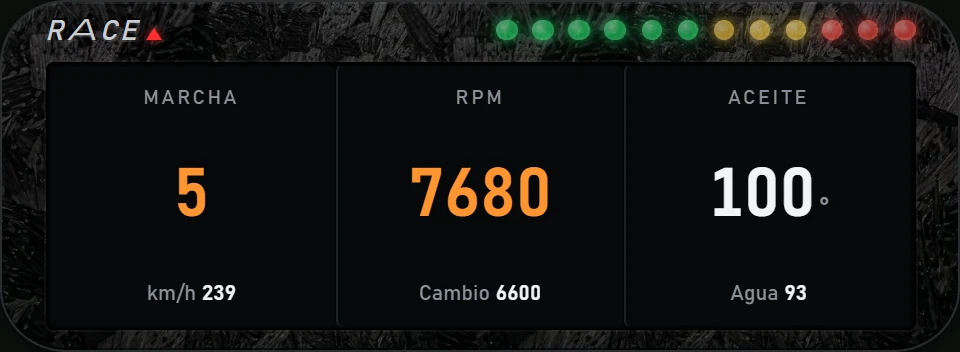
| Marcha (Gear) | MARCHA (GEAR) | Engaged gear (N for neutral, R for reverse) | km/h | Orange at the shift point |
| Régimen (RPM) | RPM | Engine RPM | Cambio (Shift): RPM at the shift point | Orange at the shift point |
| Temperatura del aceite (Oil temperature) | ACEITE (OIL) | Oil temperature in degrees | Agua (Water) | Orange above 120°, red above 130° |
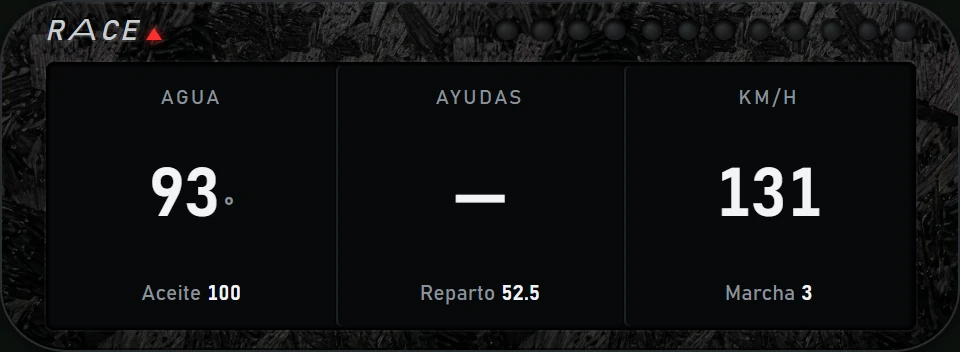
| Temperatura del agua (Water temperature) | AGUA (WATER) | Water temperature in degrees | Aceite (Oil) | Orange above 100°, red above 110° |
| Testigos ABS · TC (ABS · TC indicators) | AYUDAS (AIDS) | ABS and/or TC while intervening; a dash when neither is active | Reparto (Brake bias) | Orange while either system is active |
| Velocidad (Speed) | KM/H | Speed in km/h | Marcha (Gear) | — |
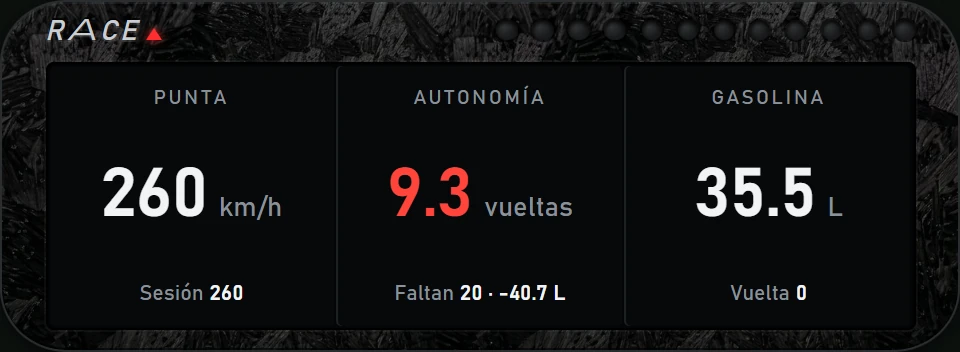
| Velocidad punta (Top speed) | PUNTA (TOP SPEED) | This lap's top speed in km/h | Sesión (Session): top speed for the whole session | — |
| Tool | Label | Large value | Small value | Colours |
|---|---|---|---|---|
| Autonomía de gasolina (Fuel range) | AUTONOMÍA (RANGE) | Laps possible with the fuel on board | Faltan (Remaining): laps left · surplus or missing litres | Green if you can finish, red if you cannot, orange while the calculation is not yet reliable |
| Combustible (Fuel) | GASOLINA (FUEL) | Litres in the tank | Vuelta (Lap) | — |
| Tool | Label | Large value | Small value | Colours |
|---|---|---|---|---|
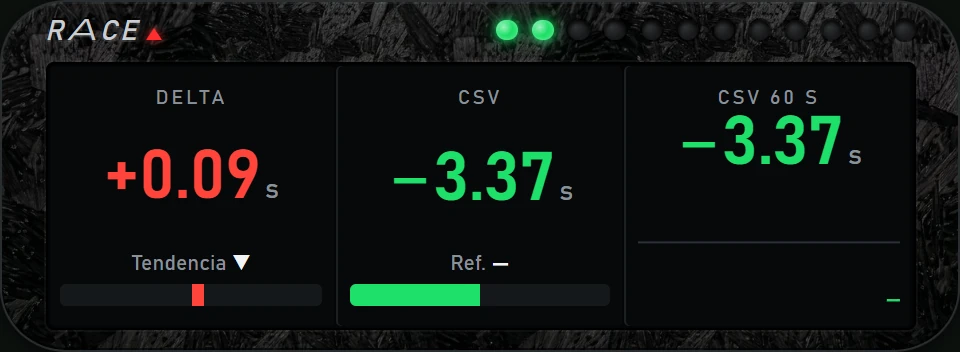
| Delta a mi mejor (Delta to my best) | DELTA | Seconds gained (−) or lost (+) against your best lap | Tendencia (Trend): ▼ improving, ▲ worsening, ▬ unchanged | Green when faster, red when slower. Bar from the centre: green to the left, red to the right |
| Delta al CSV (Delta to CSV) | CSV | Seconds gained or lost against the reference lap (CSV) | Ref.: reference lap time | Green or red, with a bar from the centre. Without a reference it says “Sin CSV” (No CSV) |
| Delta al CSV, en gráfica (CSV delta graph) | CSV 60 S | Delta against the reference, with a graph of the last 60 seconds | — | Green or red. Without a reference it says “Sin CSV” (No CSV) |
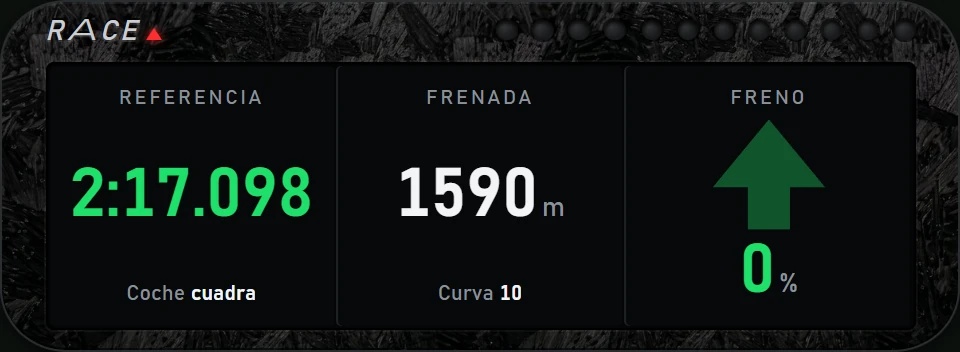
| Referencia CSV cargada (Loaded CSV reference) | REFERENCIA (REFERENCE) | Lap time of the loaded CSV reference | Reference car and whether it matches, or “otra pista” / “otro coche” (other track / other car) | Green if it matches, red if not. Without a reference it says “Sin CSV” (No CSV) |
| Tool | Label | Large value | Small value | Colours |
|---|---|---|---|---|
| Cuenta atrás 3 · 2 · 1 · FRENA (Countdown 3 · 2 · 1 · BRAKE) | FRENADA (BRAKING) | Metres to braking; in the last 3 seconds, a large 3 · 2 · 1, and FRENA (BRAKE) when braking | Curva (Corner), or Segundos (Seconds) during countdown | Orange during countdown, red in the last second and when braking |
| Flecha del freno (Brake arrow) | FRENO (BRAKE) | An arrow filled according to brake input, plus brake % | — | Green, orange above 25 %, red above 70 % |
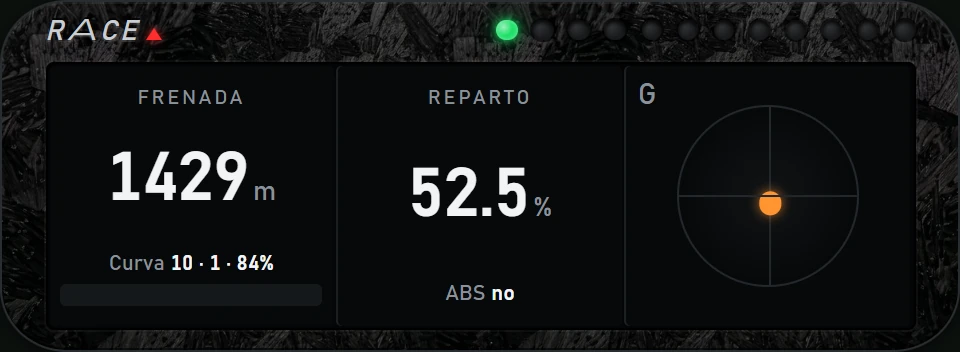
| Próxima frenada (Next braking point) | FRENADA (BRAKING) | Metres remaining to the next braking point | Curva (Corner): number · gear · brake % | Orange below 100 m, red while braking. Bar fills over the last 300 m |
| Reparto de frenada (Brake bias) | REPARTO (BIAS) | Brake bias, as a percentage | ABS: active or not | Orange while ABS intervenes |
| Tool | Label | Large value | Small value | Colours |
|---|---|---|---|---|
| Fuerza G (G-force) | G | With 3 slots, a cross and a dot that moves with G-force. With 1 or 2 slots, two bars with numeric values | Lateral and Frenada / gas (Braking / throttle) | — |
| Tool | Label | Large value | Small value | Colours |
|---|---|---|---|---|
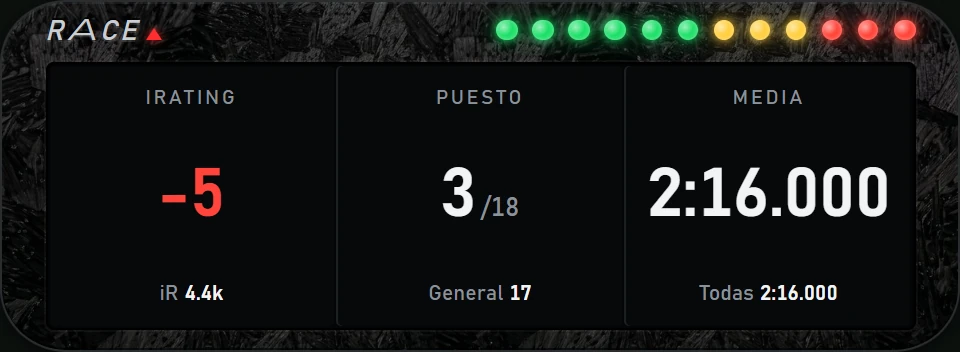
| iRating que gano o pierdo (iRating gained or lost) | IRATING | iRating gained (+) or lost (−) if the race ended now | iR: your iRating | Green if gaining, red if losing |
| Puesto (Position) | PUESTO (POSITION) | Your class position / cars in your class | General (Overall): your overall position | — |
| Tool | Label | Large value | Small value | Colours |
|---|---|---|---|---|
| Media de mis vueltas (Average of my laps) | MEDIA (AVERAGE) | Average of your clean laps | Todas (All): average of all your laps | — |
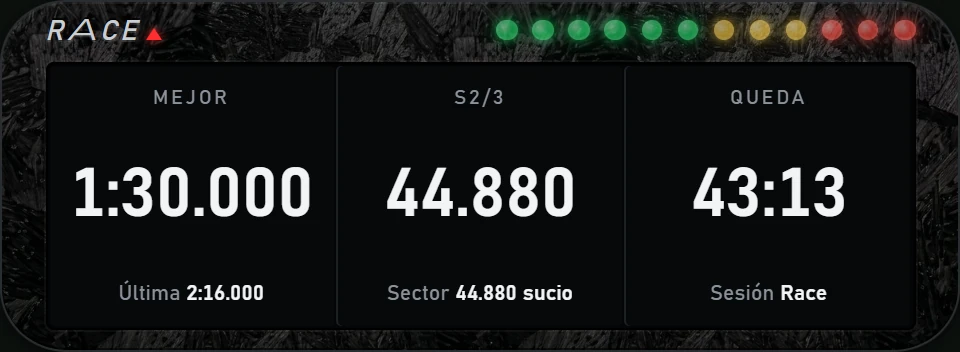
| Mejor vuelta (Best lap) | MEJOR (BEST) | Your best lap | Última (Last) | — |
| Sectores de la vuelta (Lap sectors) | S and the sector (for example S2/3) | Difference between the last sector and your best sector | Sector (Sector): time, with “sucio” (dirty) if invalid | Green if improving, red otherwise |
| Tiempo de sesión (Session time) | QUEDA (REMAINING) | Session time remaining (or laps remaining) | Sesión (Session): session type | — |
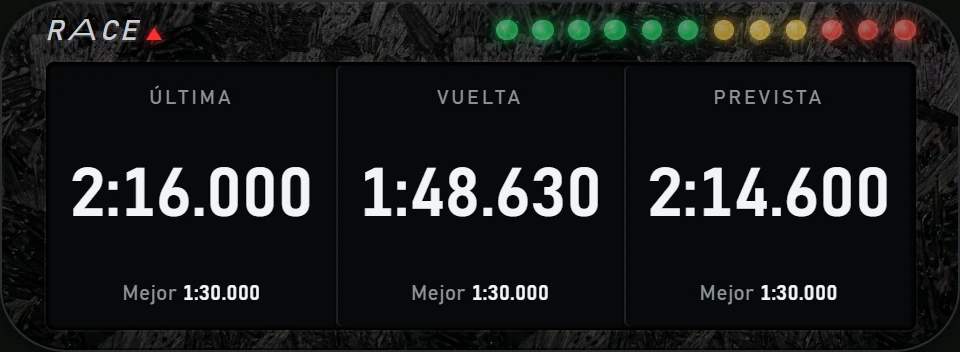
| Última vuelta (Last lap) | ÚLTIMA (LAST) | Your last lap | Mejor (Best) | — |
| Vuelta en curso (Current lap) | VUELTA (LAP) | Current lap time | Mejor (Best) | — |
| Vuelta prevista (Predicted lap) | PREVISTA (PREDICTED) | Predicted time for this lap | Mejor (Best) | — |
| Vueltas (Laps) | VUELTA (LAP) | Current lap and, in a lap-based race, the total | Hechas (Completed) | — |
Each screenshot shows three consecutive tools from the list, using demo data.